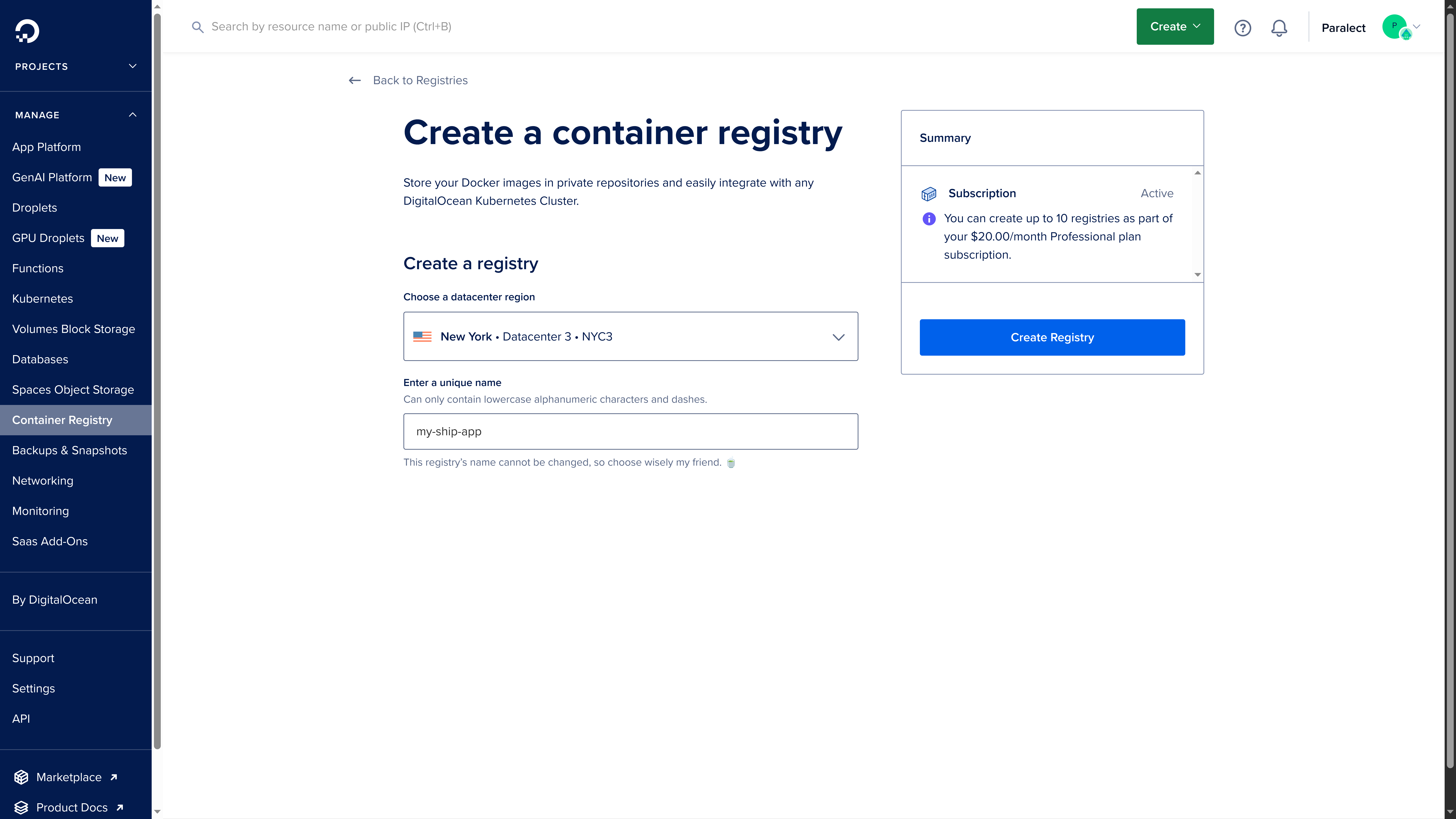
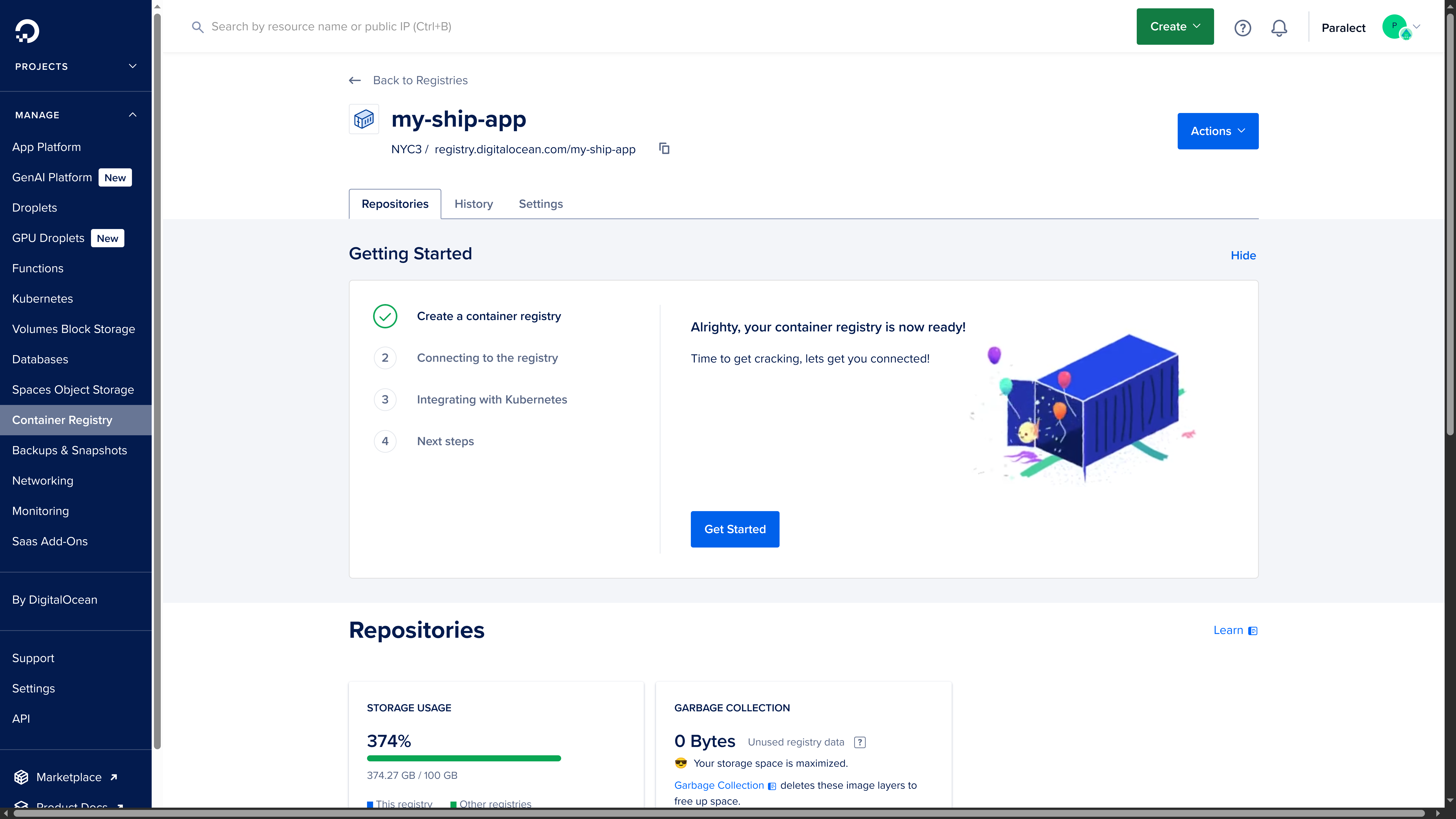
You need to create Container Registry for storing Docker images. The deployment script will upload images to Container Registry during the build step, and Kubernetes will automatically pull these images from Container Registry to run a new version of service during the deployment step.Name container registry as the name of organization, which usually is equals to the name of the project: my-ship-app.After some time, you will get registry endpoint.registry.digitalocean.com/my-ship-app is registry endpoint, where my-ship-app is registry name.Docker images for each service are stored in separate repository.
In Digital Ocean repositories are created automatically when something is uploaded by specific paths.
During deployment process script will automatically create paths to repositories in next format:
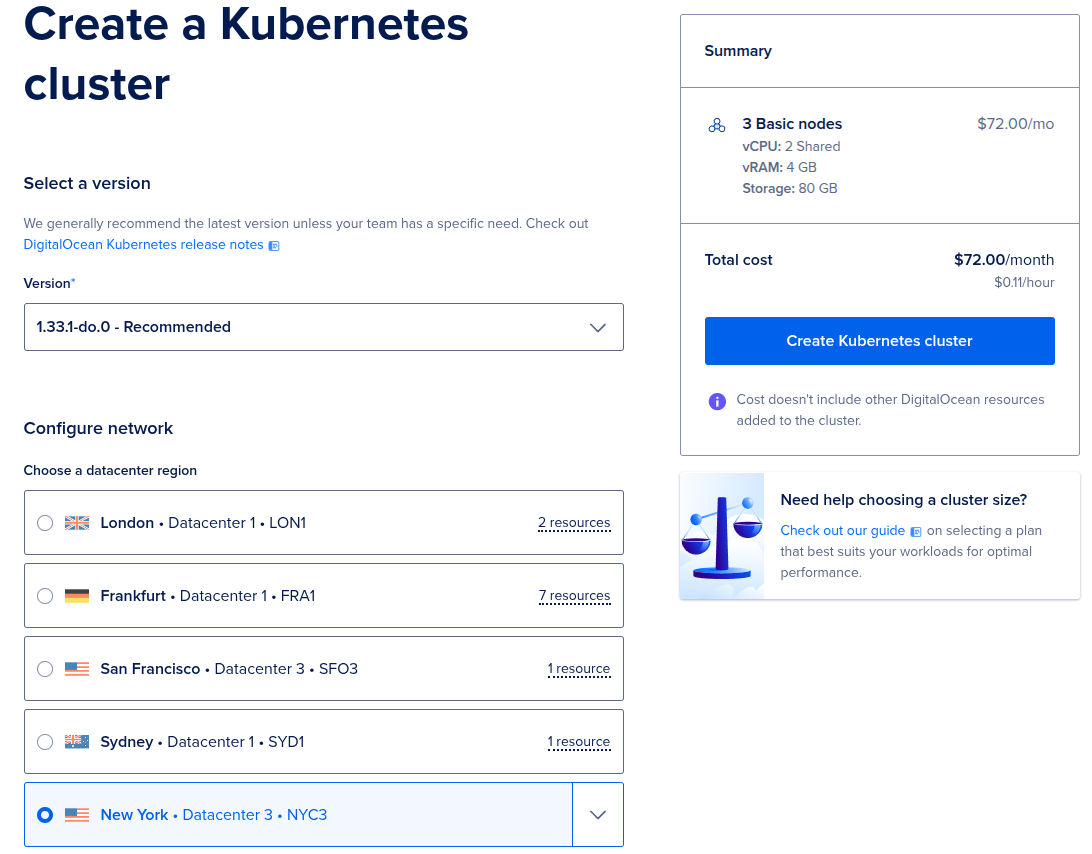
We recommend you to create a cluster in the region where your end-users are located, it will reduce response time to incoming requests to all services.
Also, if your cluster will be located in one region with a Container Registry deployment process will be faster. You can find more information about regions here.
2
Set Node pool name
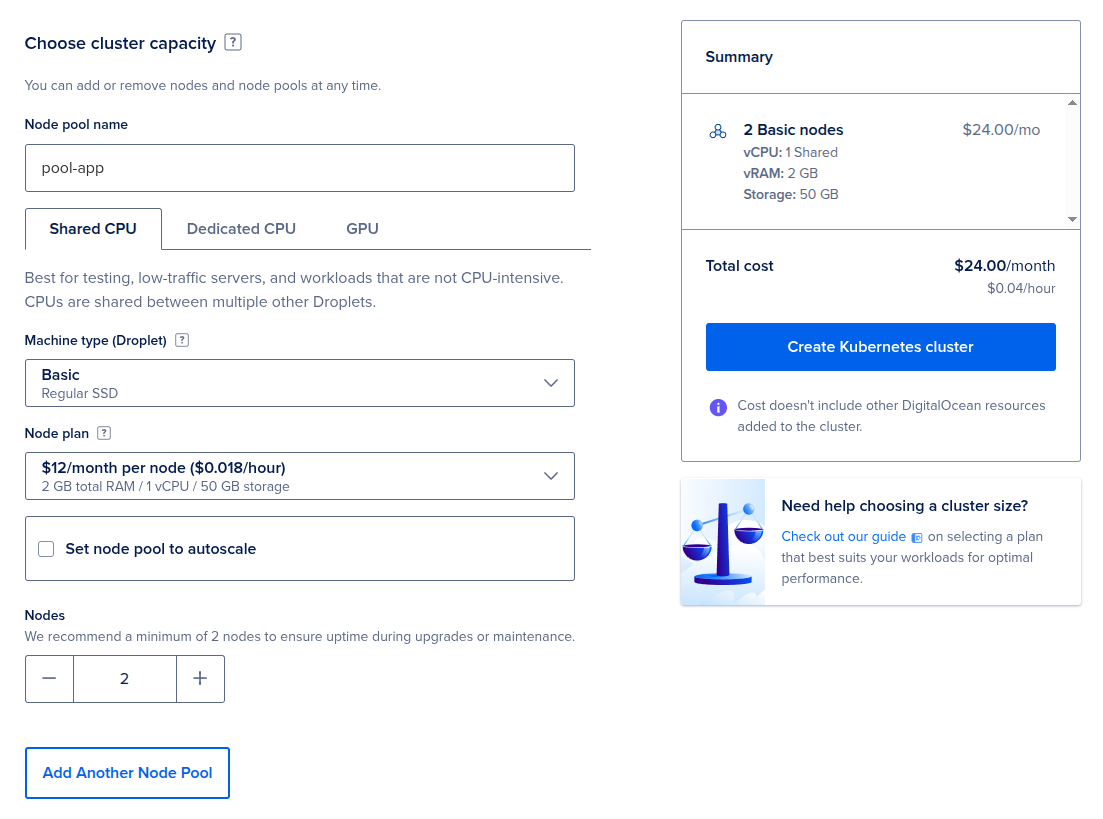
Set Node pool name (e.g. pool-app) and configure Nodes.
Digital Ocean recommends creating at least 2 nodes for the production environment. These settings will have an impact on the price of the cluster.
3
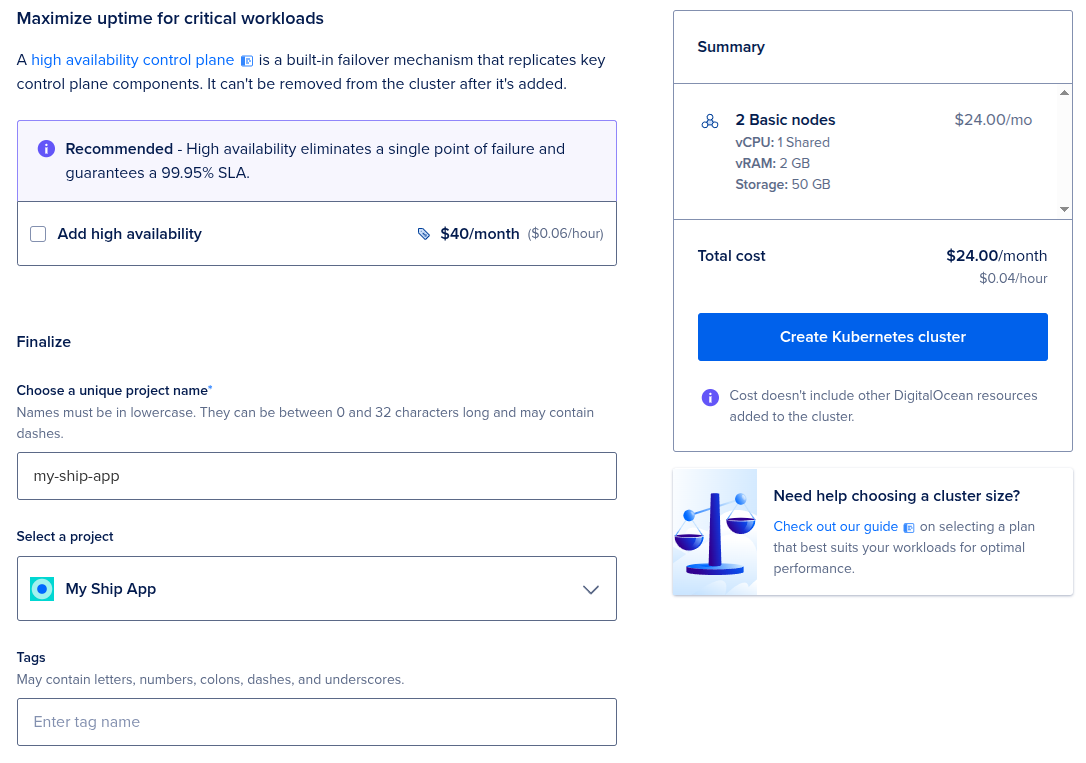
Set cluster name
Set cluster name (e.g. my-ship-app). A common practice is to use the project name for it.
4
Review and Create
Click on Create Kubernetes Cluster button to create a cluster and wait for cluster to be ready.
5
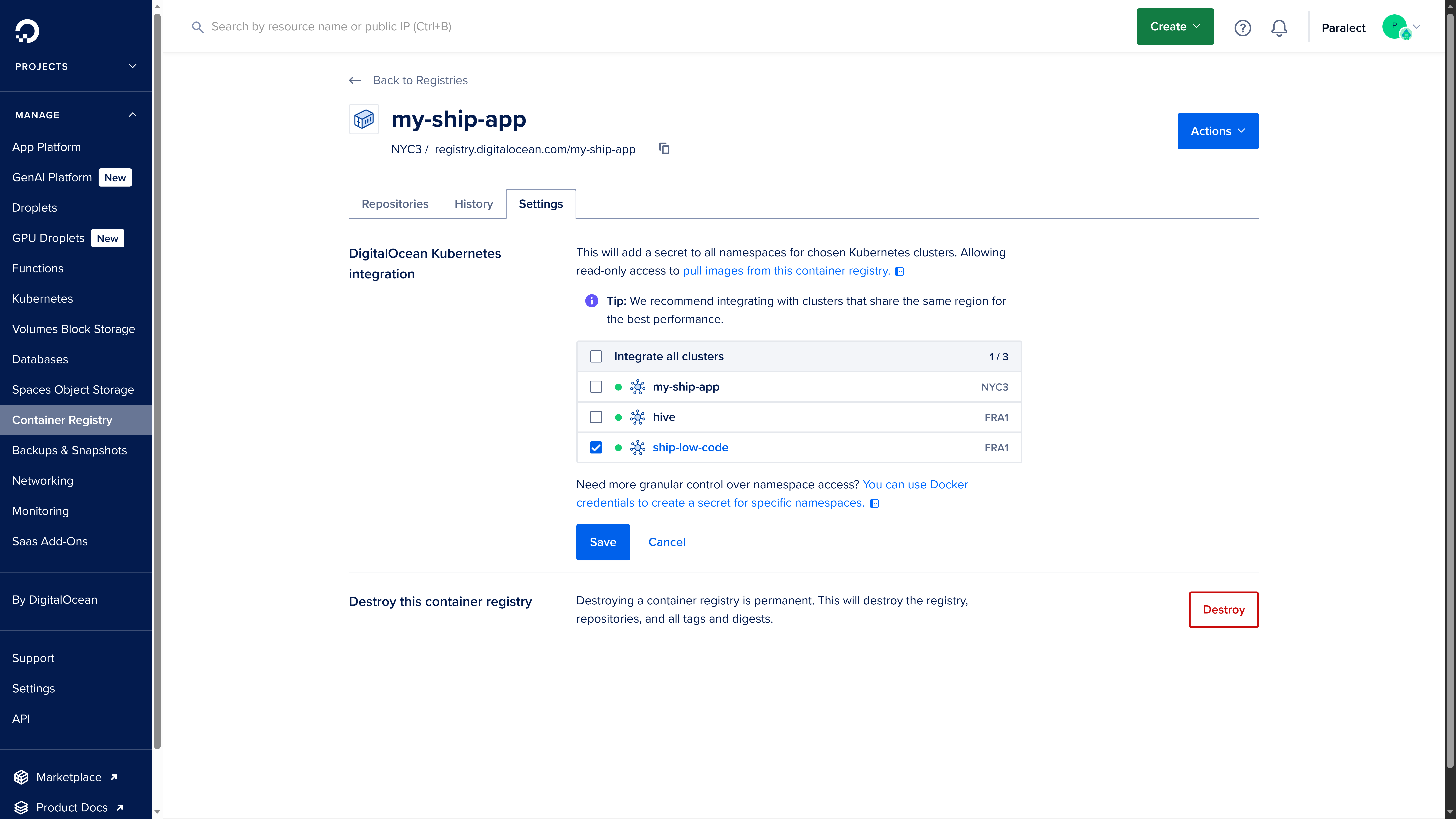
Integrate with created Container Registry
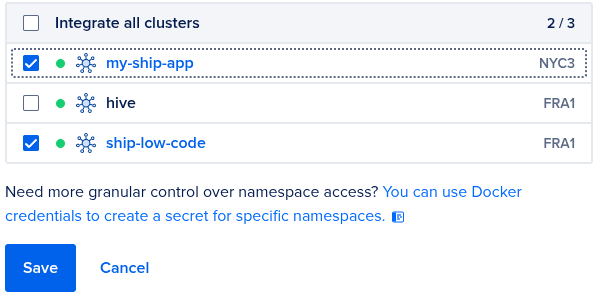
After cluster is created, go to the Container Registry’s settings and find DigitalOcean Kubernetes integration section.
You need to select your newly created my-ship-app cluster.
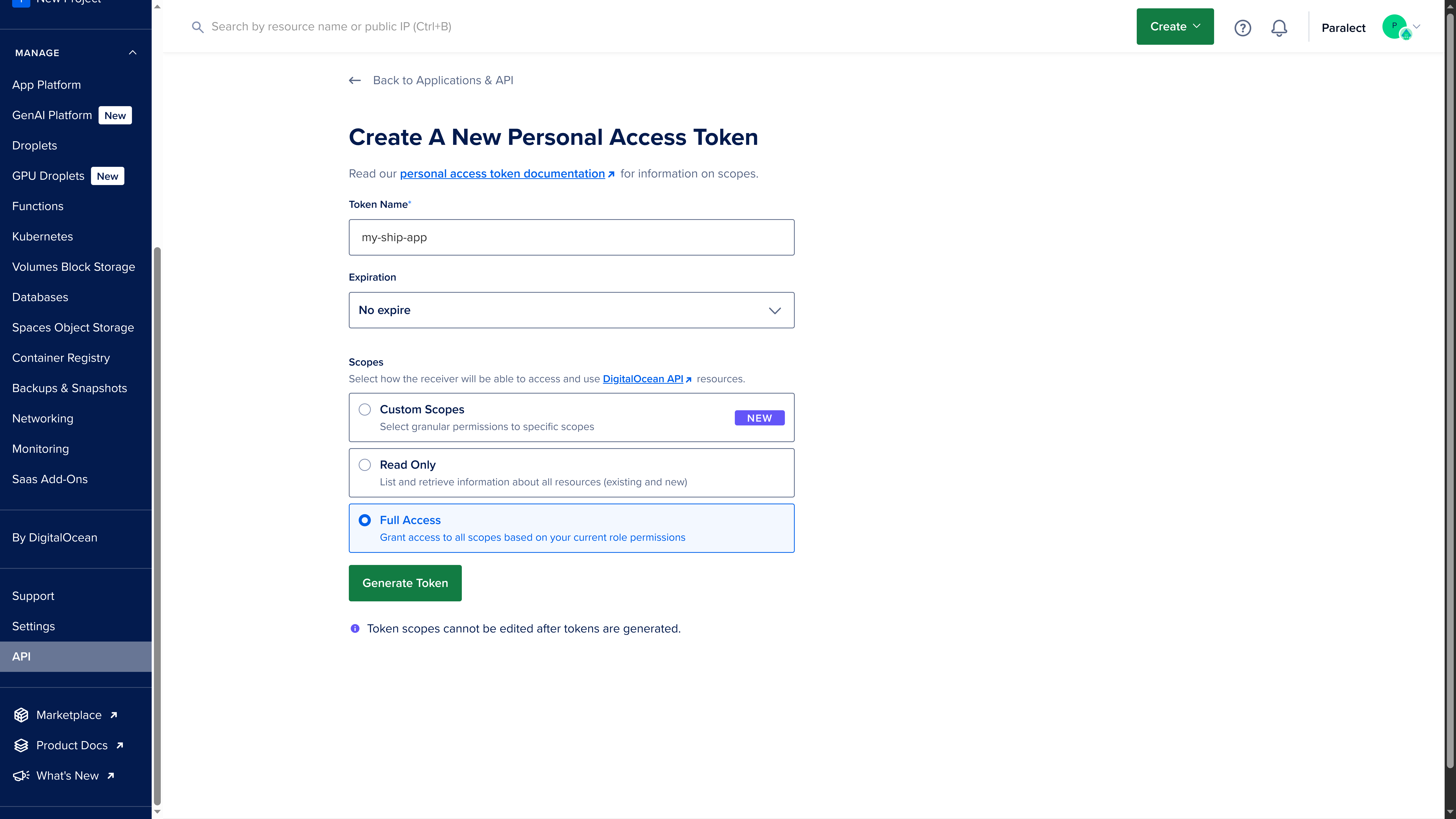
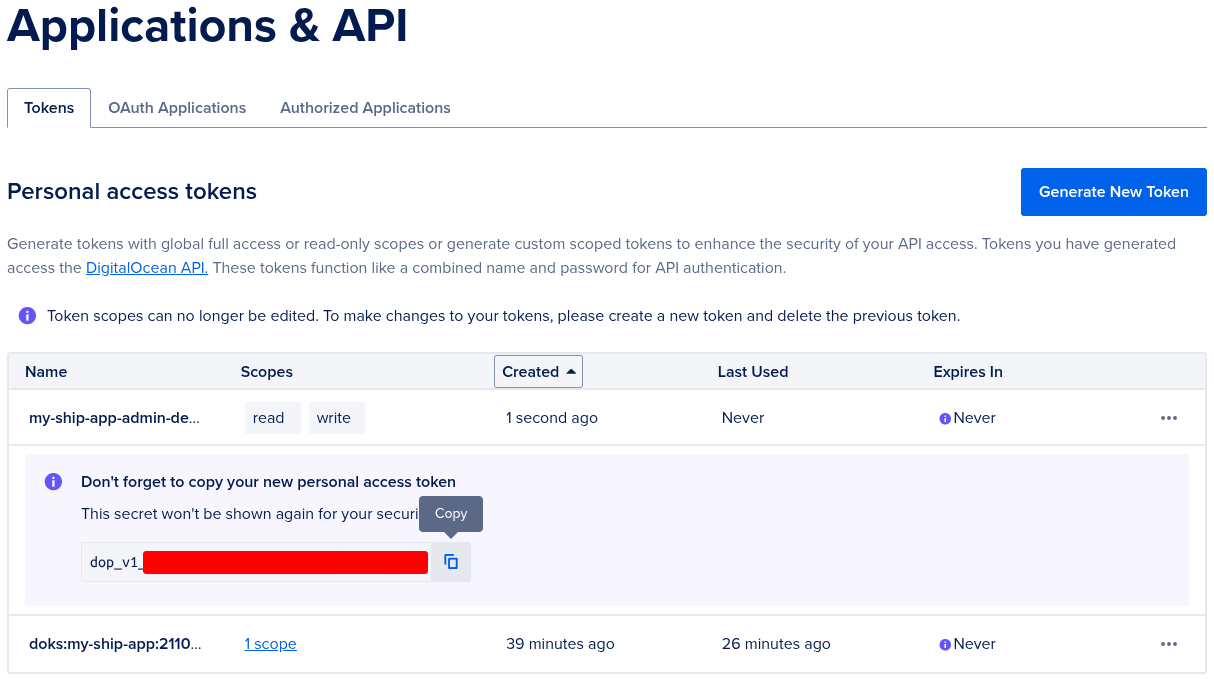
To upload docker images in Container Registry and pull them after from cluster we need Digital Ocean Personal Access Token.
When you created cluster - one with Read Only scope was automatically created.But we need to generate a new one with:
Name (e.g. my-ship-app-admin-deploy)
Full Access scope
No expiration
You cannot change scope of already generated token.
We will need this token soon, so don’t close this page yet.
Be very careful with Personal Access Token, if someone steals it he will get access
to all resources from your Digital Ocean account.
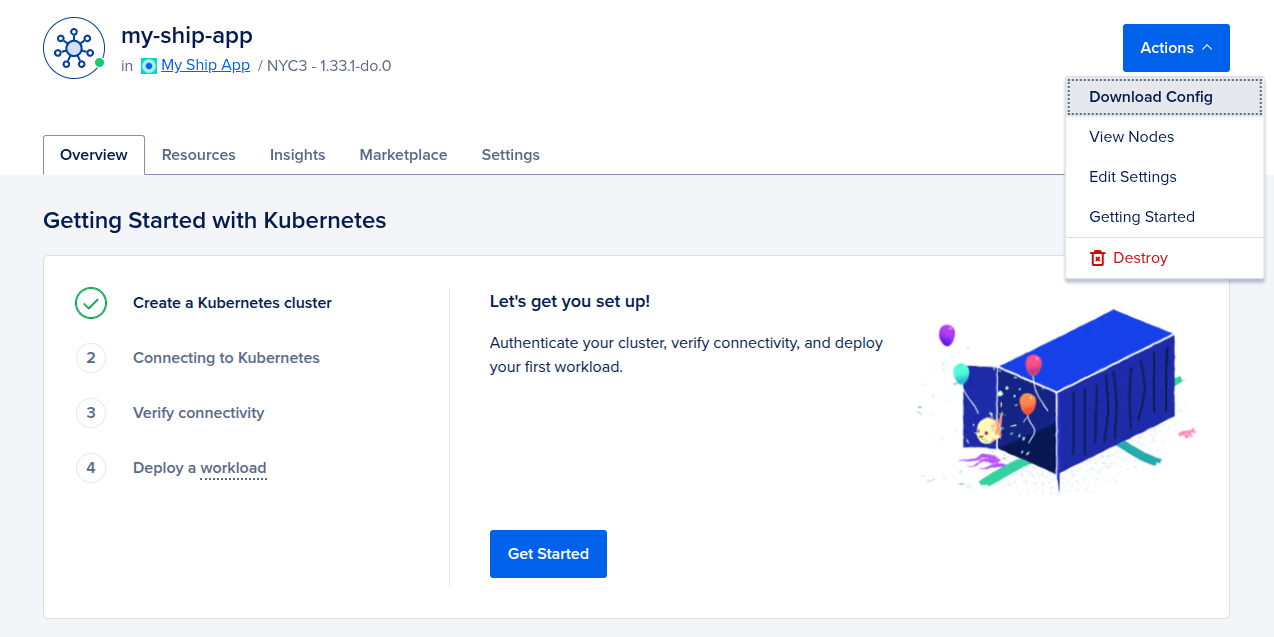
Kubeconfig files contain information about several clusters, you have your own on the local machine, it should have been created after kubectl installation.
You need to add information about the new cluster to your kubeconfig.
Find .kube/config file on your machine, and add cluster, context and user values from my-ship-app-kubeconfig.yaml.
~/.kube/config
apiVersion: v1clusters:- cluster: certificate-authority-data: ... server: https://... name: some-cluster# your new cluster from my-ship-app-kubeconfig.yaml goes here- cluster: certificate-authority-data: ... server: https://... name: do-nyc3-my-ship-appcontexts:- context: cluster: some-cluster user: some-user name: some-cluster# your new context from my-ship-app-kubeconfig.yaml goes here- context: cluster: do-nyc3-my-ship-app user: do-nyc3-my-ship-app-admin name: do-nyc3-my-ship-appcurrent-context: some-clusterkind: Configpreferences: {}users:- name: some-user user: token: dop_v1_...# your new user from my-ship-app-kubeconfig.yaml goes here- name: do-nyc3-my-ship-app-admin user: token: dop_v1_...
3
Switch to cluster context
Execute kubectx in your terminal and select your cluster from the list.
kubectx
You will see the list of available clusters.
some-clusterdo-nyc3-my-ship-app
Select your cluster from the list:
kubectx do-nyc3-my-ship-app
4
Verify cluster access
Check the installed pods by running:
kubectl get pods -A
You should see a list of system pods in your cluster:
Change to the deploy/dependencies directory in your terminal.
2
Configure Helm Values (Optional)
This step is required only if you specified a custom node pool name in your Digital Ocean Kubernetes cluster.If you did, update the doks.digitalocean.com/node-pool value in values.yaml.gotmpl:
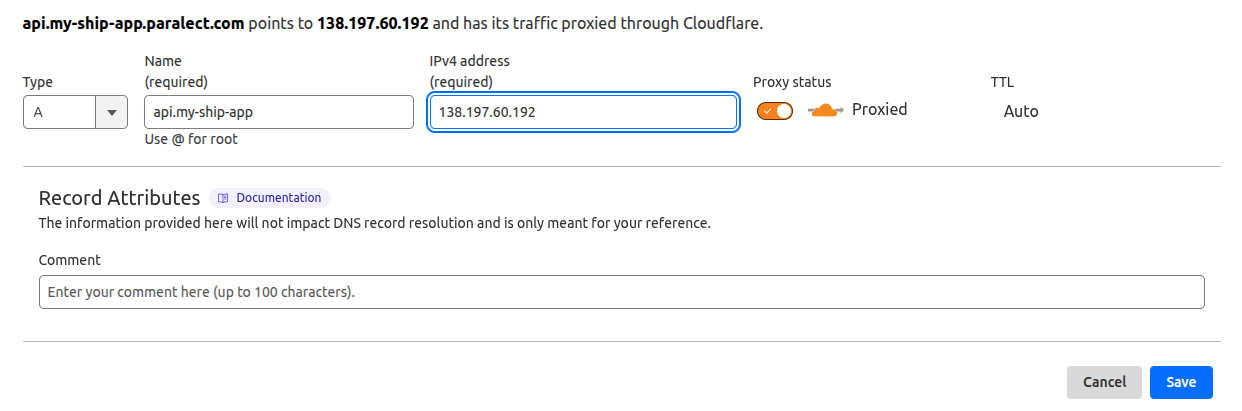
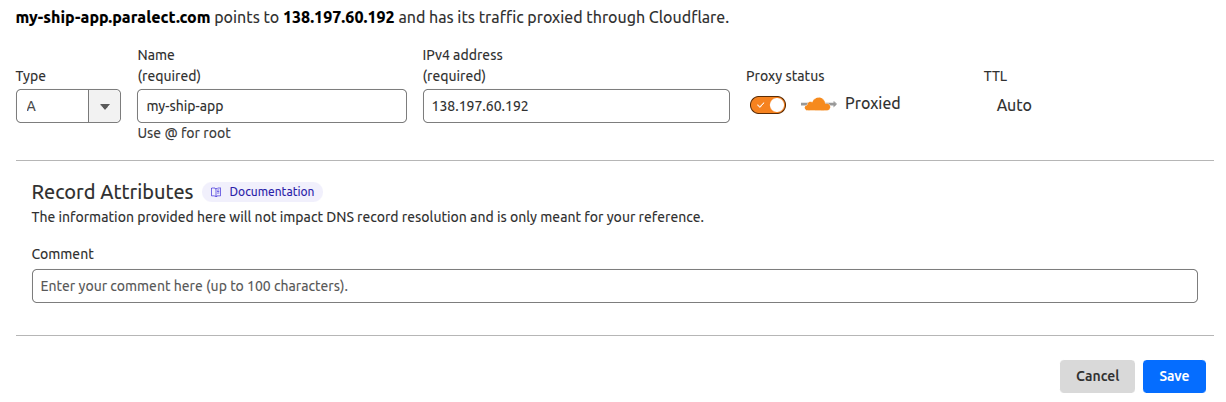
Both should point to your Load Balancer’s external hostname.Enable the Proxied option to:
Route traffic through Cloudflare
Generate SSL certificates automatically
Cloudflare’s free Universal SSL certificates only cover the apex domain and one subdomain level. For multiple subdomain levels, you’ll need an Advanced Certificate.
4
Update Configuration Files
Update your domain settings in the appropriate environment configuration files:For API service:
A managed PostgreSQL service provides automated backups, scaling, and security so you don’t have to operate a database yourself. The API connects through a single DATABASE_URL connection string, and the Migrator applies Drizzle migrations against it before the API and Scheduler roll out.
Use a currently supported PostgreSQL major version (16 or newer). Ship’s Drizzle migrations target standard PostgreSQL and have no version-specific requirements.
2
Name your databases
Use environment-specific database names so staging and production never share data, for example api-staging and api-production.
Create a dedicated user for the API with read and write access to its database. Use environment-specific names (e.g. api-production, api-staging) and generate a strong password.
Give each environment its own user and database. Never reuse production credentials in staging or in documentation.
From your database dashboard, copy the host, port, user, password, and database name, or the ready-made connection string if the provider gives you one.
2
Build the DATABASE_URL
The API reads a single DATABASE_URL connection string. Compose it in the standard PostgreSQL format:
Managed providers require TLS. Keep sslmode=require (or stricter) in the connection string for staging and production.
3
Save the connection string
Store DATABASE_URL securely — you’ll add it to the API secret during environment configuration. The Migrator and API both read it from the same secret.
Before deploying to production, confirm automated backups are enabled in your provider’s console so you can recover data if needed.
Kubernetes applications require proper environment variable configuration for both API and Web components. This section covers how to set up and manage environment variables securely using Kubernetes secrets and configuration files.
For the API deployment, you need to set up environment variables using Kubernetes secrets to securely manage sensitive configuration data.
Secrets in Kubernetes are used to store sensitive information, such as passwords, API tokens, and keys.
They are encoded in Base64 format to provide a level of security.
These can be mounted into containers as data volumes or used as environment variables.
Before deploying the app, make sure all necessary variables from the API config are exist. Here are the minimal set of required variables:
Specifies the application environment (development, staging, production). This controls logging levels, debugging features, error reporting, and other environment-specific behaviors. The API uses this to determine which configuration settings to load.
DATABASE_URL
PostgreSQL connection string including authentication credentials, host, port, and database name. This is the primary database connection for the API and the Migrator. Format: postgresql://username:password@host:5432/database?sslmode=require. Each environment should use a separate database or at minimum separate credentials. Managed providers require TLS, so keep sslmode=require in staging and production.
API_URL
The fully qualified domain name where the API will be accessible. This must be a valid HTTPS URL and should match your Kubernetes ingress configuration. Used for CORS settings and internal service communication.
WEB_URL
The fully qualified domain name where the web application will be accessible. Used for CORS configuration, redirect URLs, email templates, and social sharing metadata. Must be a valid HTTPS URL.
After updating environment variables, you must initiate a new deployment for changes to take effect.
Kubernetes pods cache variable values during startup, requiring a pod restart or rolling update to apply changes.
The web application is a TanStack Start app built with Vite. Its environment variables are embedded at build time and made available in the browser through import.meta.env. Only variables prefixed with VITE_ are exposed to the client. Unlike API secrets, these variables are stored directly in the GitHub repository.
Why Web Environment Variables Are Safe in Git: Web environment variables (prefixed with VITE_) contain only public configuration like URLs and API endpoints. They don’t include sensitive data like passwords or API keys, making them safe to store in version control. These values are already exposed to users in the browser, so repository storage doesn’t create additional security risks.
Security Notice: Never store sensitive information (passwords, API keys, secrets) in web environment files as they will be accessible on the client side. Only use public configuration values that are safe to expose to end users.
Best Practice: Keep web environment files in your repository and ensure all values are non-sensitive. If you need to reference sensitive data from the frontend, create a secure API endpoint that returns the necessary information after proper authentication.
Before starting, make sure you have created a GitHub repository for your project.
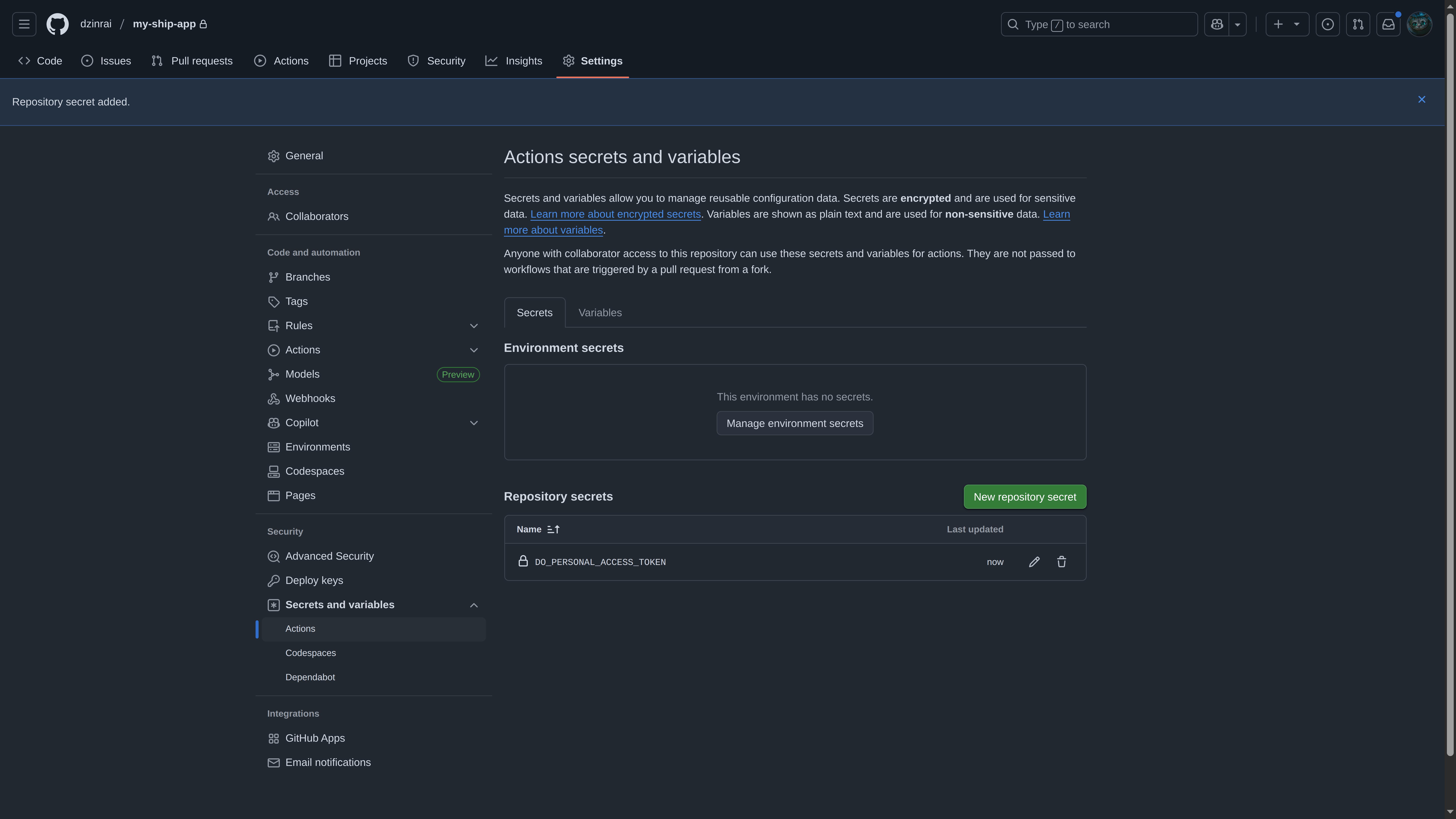
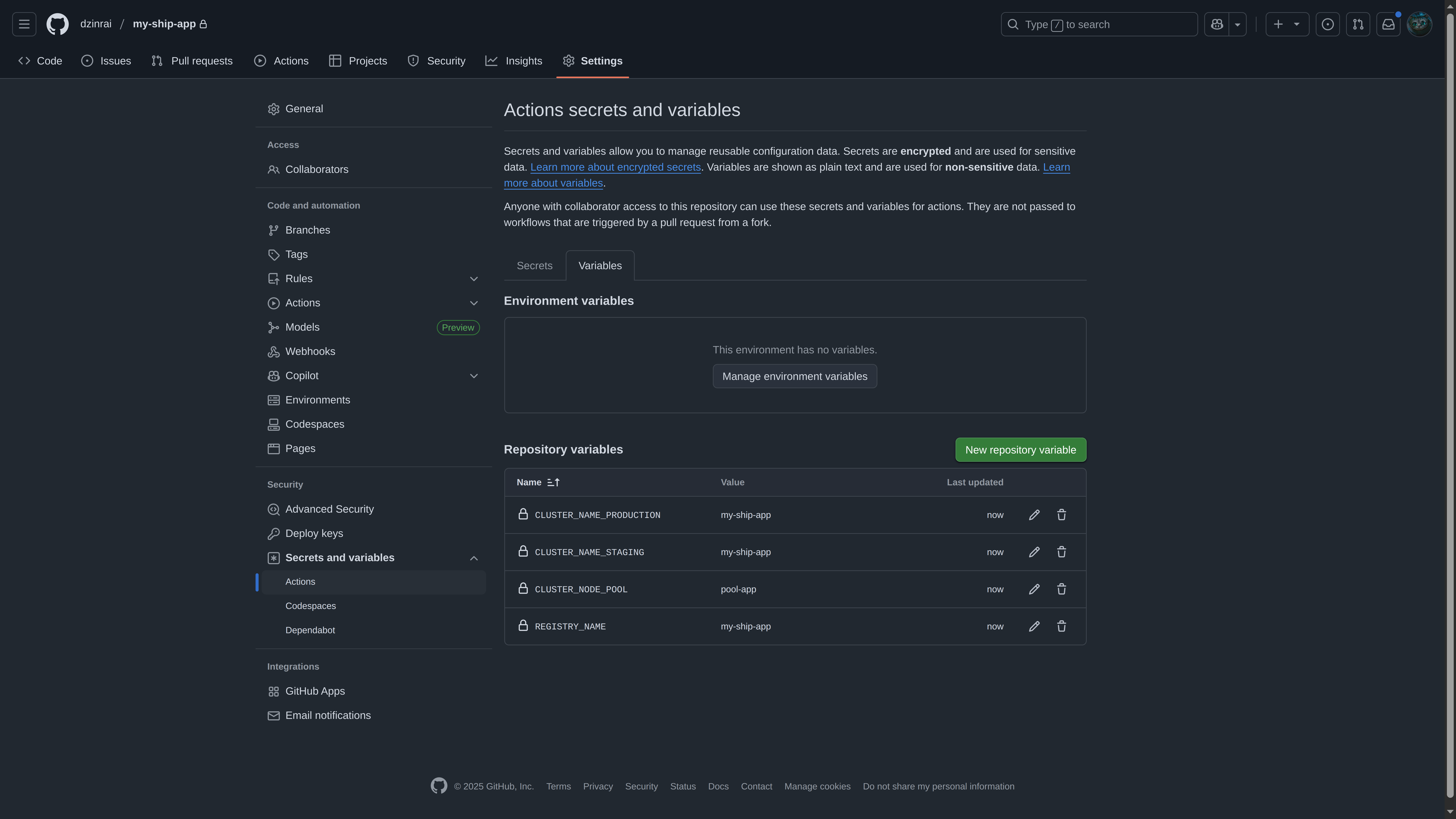
GitHub Secrets and variables allow you to manage reusable configuration data.Secrets are encrypted and are used for sensitive data. Learn more about encrypted secrets.Variables are shown as plain text and are used for non-sensitive data. Learn more about variables.
The deployment will be triggered on each commit:
Commits to main branch → deploy to staging environment
Commits to production branch → deploy to production environment
Configure the following secrets and variables in your GitHub repository:
Name
Type
Description
DO_PERSONAL_ACCESS_TOKEN
secret
The secret access user created for CI/CD. This allows GitHub Actions to authenticate with DO services
CLUSTER_NAME_STAGING
variable
Name of the staging cluster. (our case: my-ship-app)
CLUSTER_NAME_PRODUCTION
variable
Name of the production cluster. (our case: my-ship-app, same as staging cluster since we have only one cluster)
CLUSTER_NODE_POOL
variable
Name of the node pool. (our case: pool-app)
REGISTRY_NAME
variable
Name of the Digital Ocean Container Registry. (our case: my-ship-app)
Never commit sensitive credentials directly to your repository.
Always use GitHub Secrets for sensitive information like DO keys.
Variables (unlike secrets) are visible in logs and can be used for non-sensitive configuration values that may need to be referenced or modified.
We set up DO_PERSONAL_ACCESS_TOKEN to be universal for both production and staging environments with Full access scope.
Your KUBE_CONFIG_PRODUCTION and KUBE_CONFIG_STAGING will be the same if you have only one cluster for both environments.
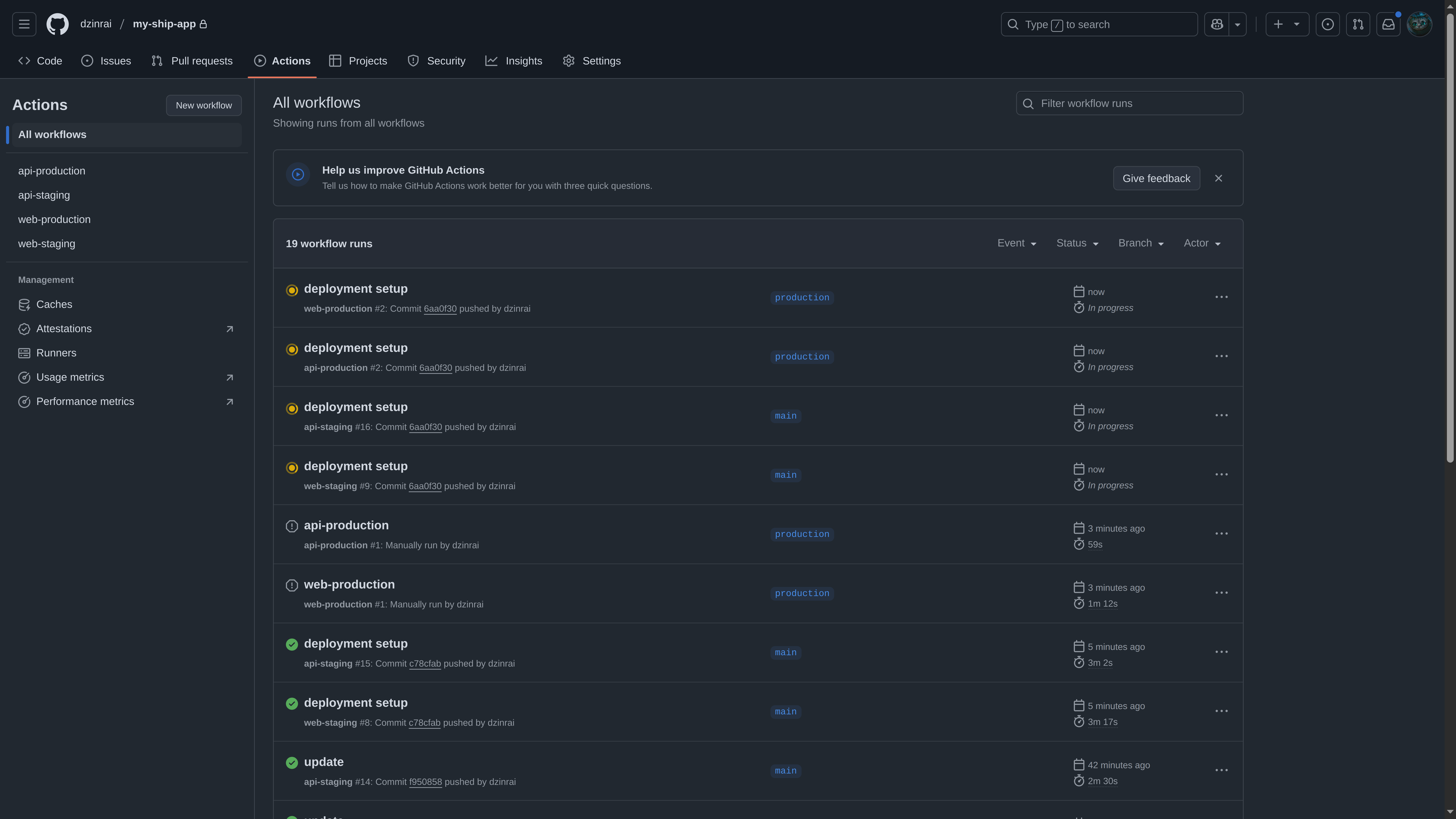
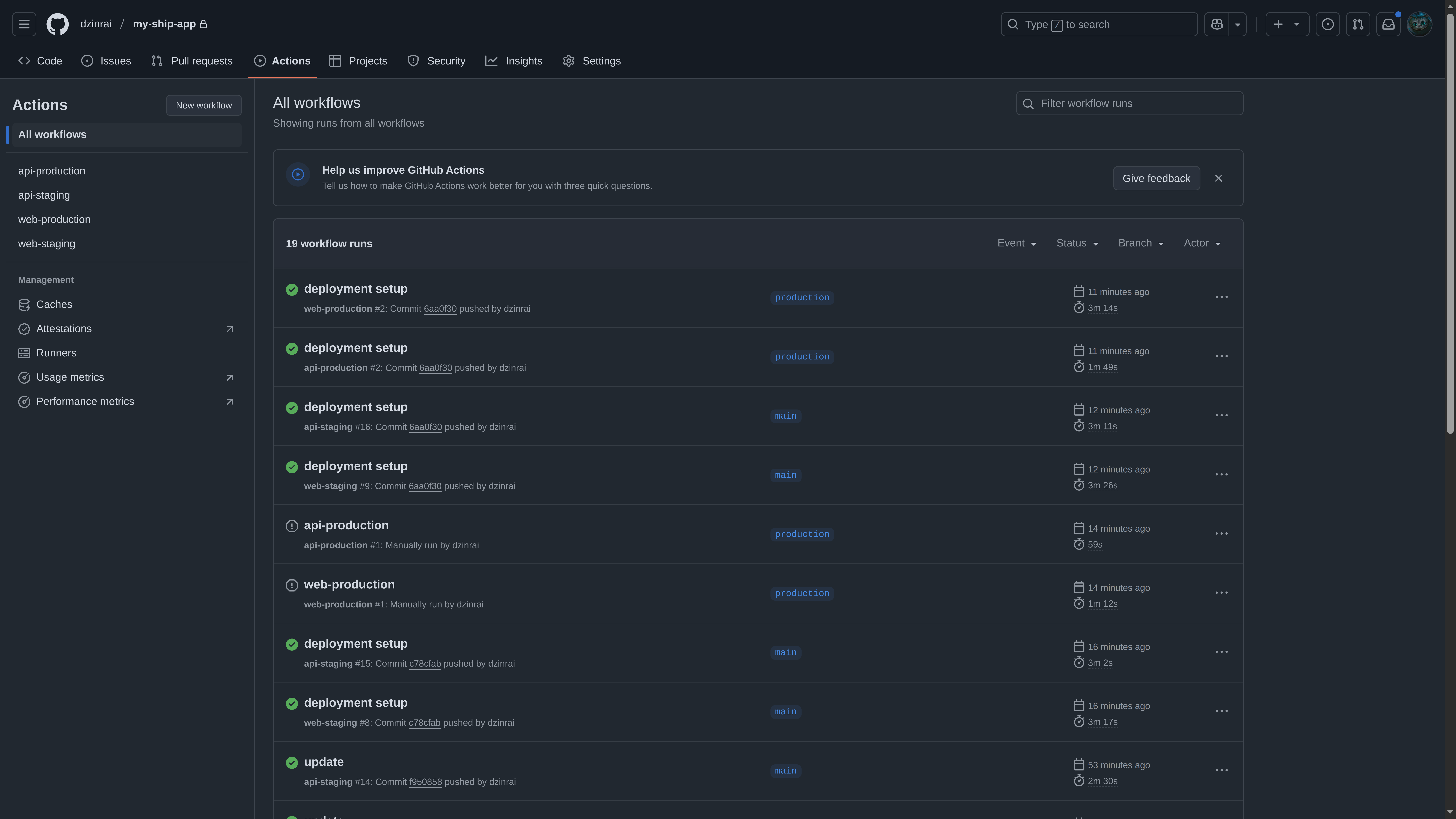
Now commit all changes to GitHub that will trigger deployment, or you can run a workflow manually
Done! Application deployed and can be accessed by the provided domain.
Upstash Redis is a highly available, infinitely scalable Redis-compatible database that provides enterprise-grade features without the operational complexity.
Redis as a Message Broker: When scaling to multiple server instances, Redis acts as a message broker between Socket.io servers, ensuring real-time messages reach all connected clients regardless of which server they’re connected to.
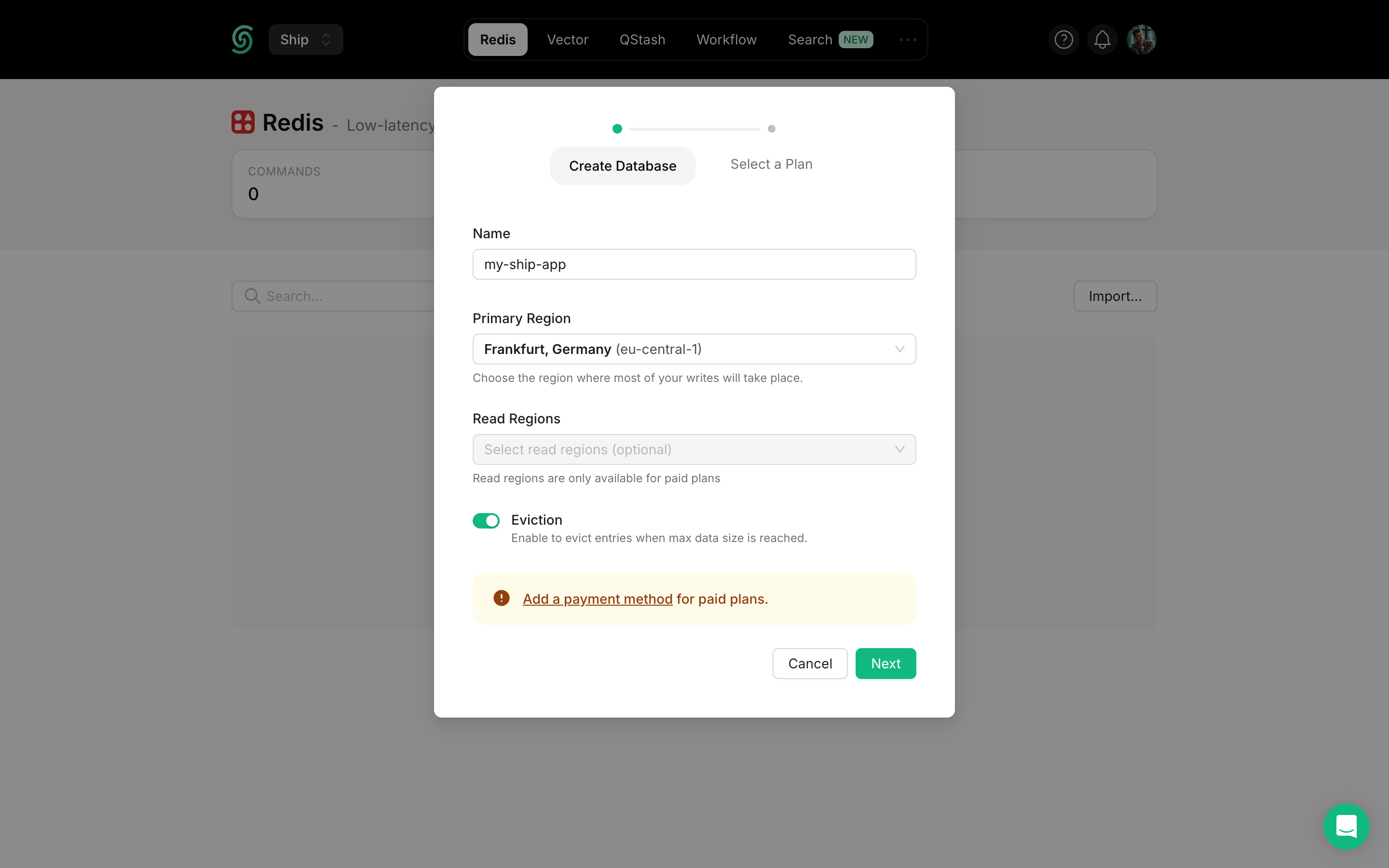
Log in to your Upstash account and navigate to the Redis section.
2
Create New Database
Click Create Database in the upper right corner to open the configuration dialog.
3
Configure Database Settings
Database Name: Choose a descriptive name for your database (e.g., my-ship-app-production)Primary Region: Select the region closest to your main application deployment for optimal write performance.Read Regions: Choose additional regions where you expect high read traffic for better global performance.
4
Select Plan & Deploy
Choose your pricing plan based on expected usage and click Create to deploy your database.
Once your database is created, you’ll need the connection string for your application:
1
Navigate to Connection Info
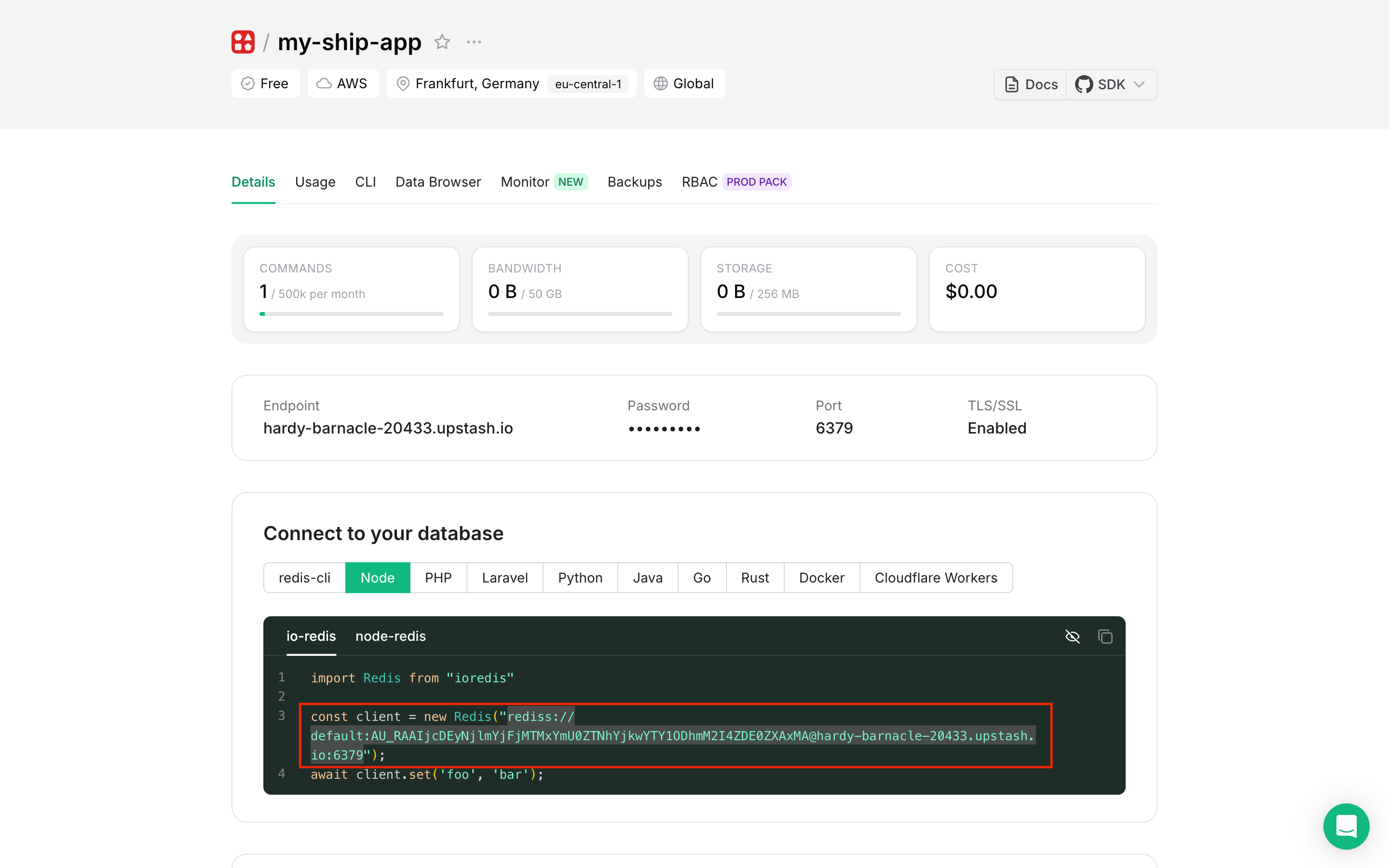
Go to your database dashboard and find the Connect to your database section.
2
Copy Connection String
Select the Node tab for the appropriate connection string format
Click Reveal to show the hidden password
Copy the complete Redis URI (format: rediss://username:password@host:port)
3
Add to Environment Variables through k8sec
Using k8sec, add the Redis connection string to your environment configuration:
k8sec set api-production-secret -n production REDIS_URI=$REDIS_URI
k8sec set api-staging-secret -n staging REDIS_URI=$REDIS_URI
After updating environment variables, restart your API pod using:
kubectl delete pod <pod-name> -n <namespace>
This will trigger Kubernetes to create a new pod with the updated environment variables.
Redis Insight is a powerful GUI tool for managing and debugging Redis databases.
1
Install Redis Insight
Download and install Redis Insight on your local machine.
2
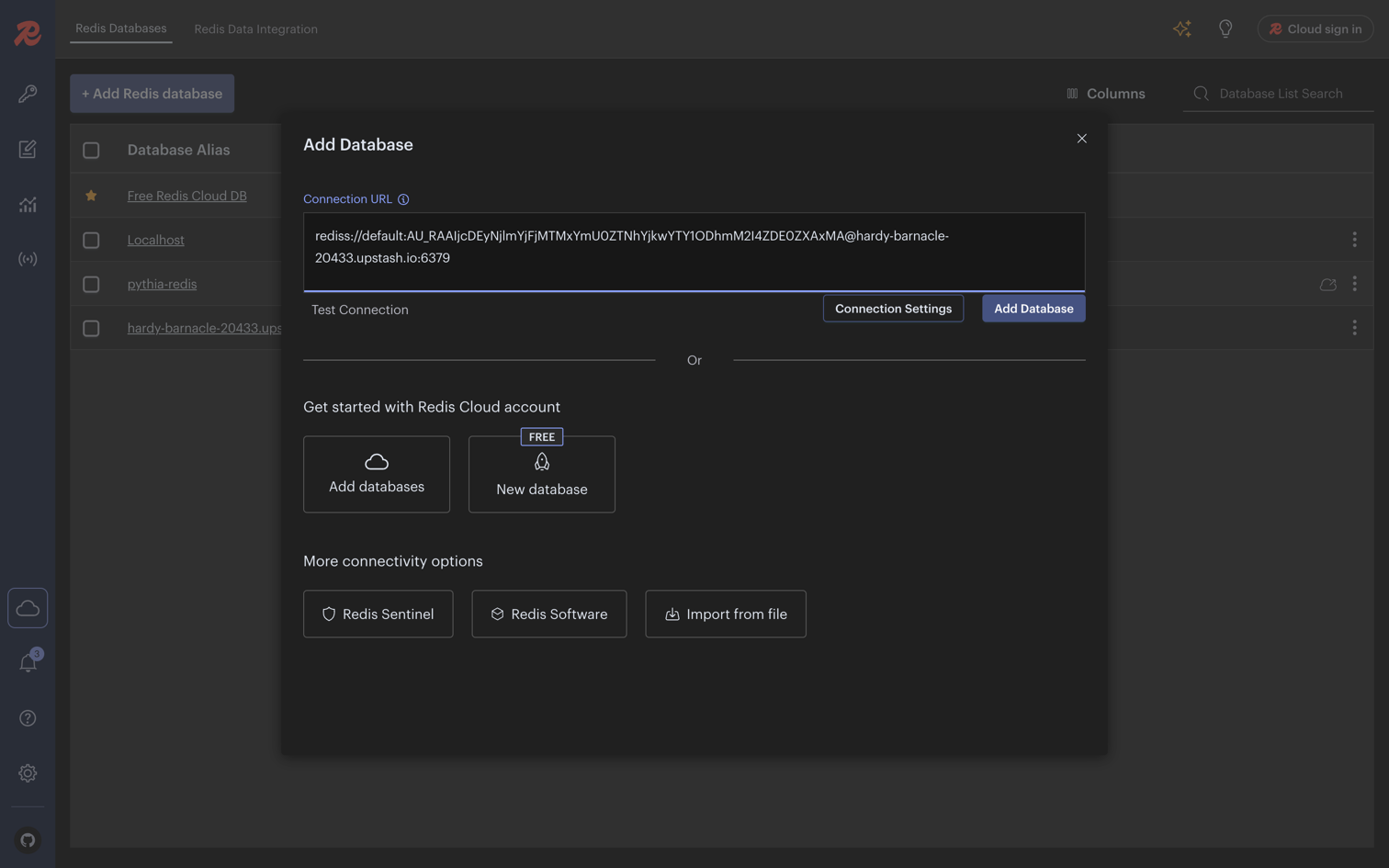
Add Database Connection
Open Redis Insight
Click Add Database
Paste your Upstash Redis connection string in the Connection URL field
Click Add Database
3
Explore Your Database
Once connected, you can use Upstash Redis Console to:
Browse keys and data structures
Execute Redis commands directly
Monitor real-time performance metrics
Debug application data storage
Real-time Monitoring: Upstash Redis updates database metrics automatically every 10 seconds, giving you near real-time visibility into your Redis performance and usage.