It’s a step-by-step Ship deployment guide. We will use Amazon Elastic Kubernetes Service (EKS), Amazon RDS for PostgreSQL, Amazon Elastic Container Registry (ECR), GitHub Actions for automated deployment, and CloudFlare for DNS and SSL configuration. You need to create GitHub, AWS and CloudFlare accounts and install the next tools on your machine before starting:
  • kubectl - CLI tool for accessing Kubernetes cluster;
  • kubectx - CLI tool for easier switching between Kubernetes contexts;
  • helm - CLI tool for managing Kubernetes deployments;
  • aws-cli - CLI tool for managing AWS resources;
  • eksctl - CLI tool for managing EKS clusters;
  • k8sec - CLI tool for managing Kubernetes Secrets easily;
Download k8sec tar.gz, then do:
chmod +x k8sec
sudo cp k8sec /usr/local/bin/
k8sec --help
Try the next commands to ensure that everything is installed correctly:
kubectl

kubectx

helm

aws sts get-caller-identity

eksctl

k8sec
Also, you need git and Node.js if you already haven’t.

Setup project

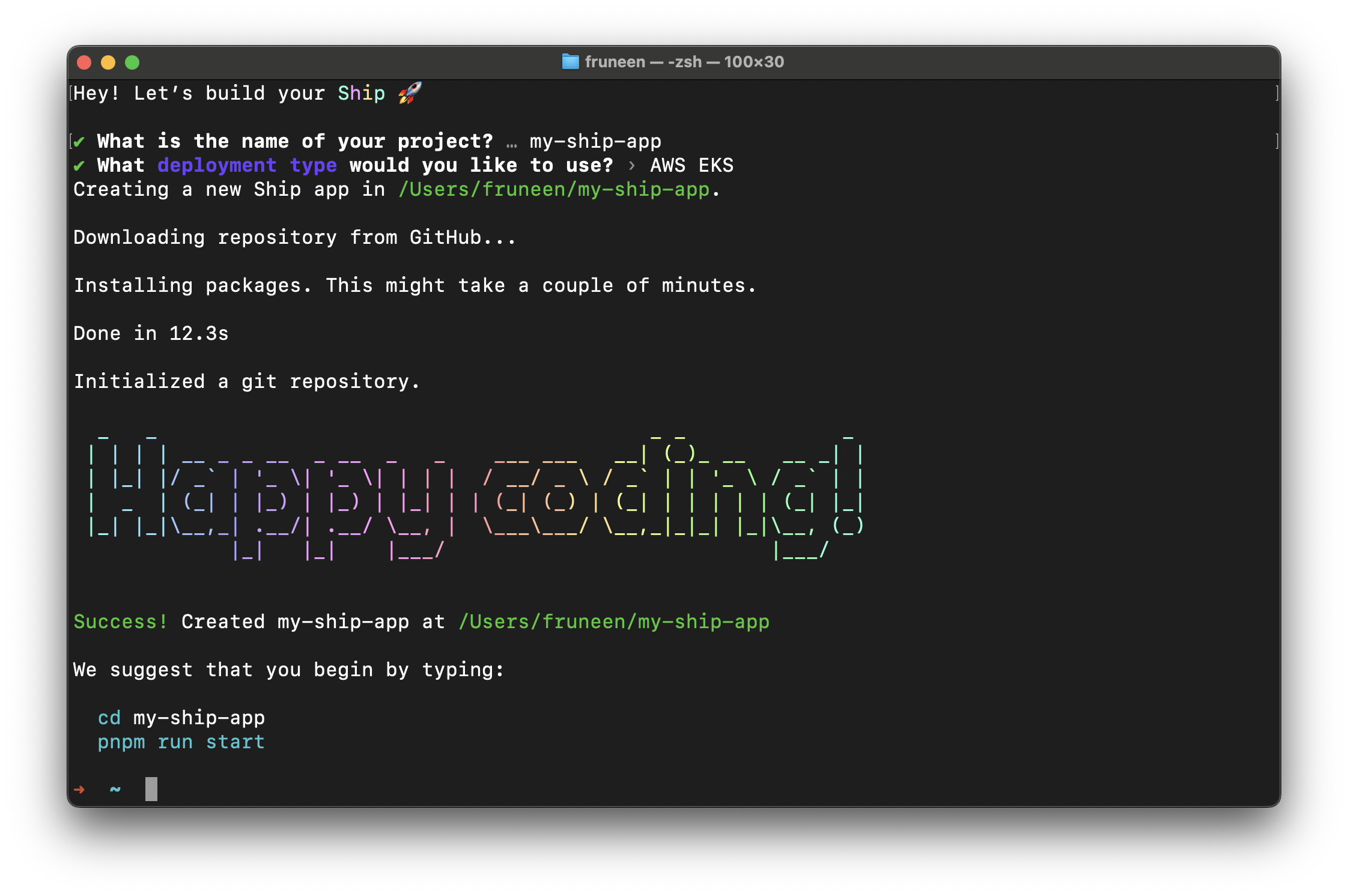
First, initialize your project. Type npx create-ship-app@latest in the terminal then choose AWS EKS deployment type. Init project You will have the next project structure.
/my-ship-app
  /.github
  /apps
    /api
    /web
  /deploy
  ...

AWS Regions

AWS Regions are physical locations of AWS cluster data centers. Each group of logical data centers calls Availability Zone (AZ). AZs allow the operation of production applications and databases that are more highly available, fault-tolerant and scalable. Now you need to select an AWS region for future use of the services. You can read more about region selection for your workloads here: What to Consider when Selecting a Region for your Workloads. For this deployment guide, we will use the us-east-1 region.
Usually, you have to create AWS resources in a single region. If you don’t see created resources, you may need to switch to the appropriate AWS region.

Container registry

You need to create private repositories for storing Docker images. The deployment script will upload images to Container Registry during the build step, and Kubernetes will automatically pull these images from Container Registry to run a new version of the service during the deployment step. Now we should create a repository for each service. For Ship, we need to create repositories for the next services: Container Registry creation
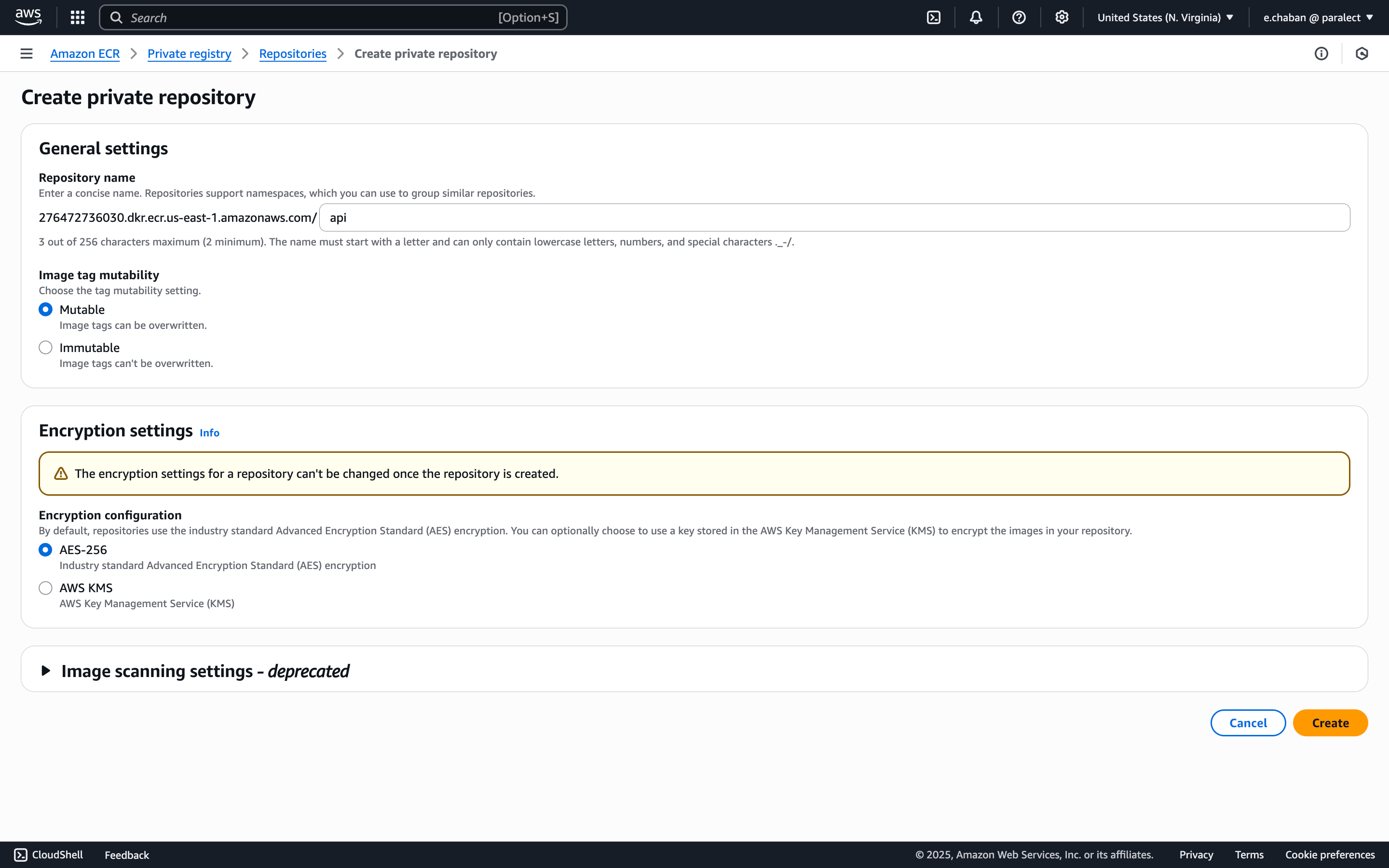
You should create a private repository for each service manually.
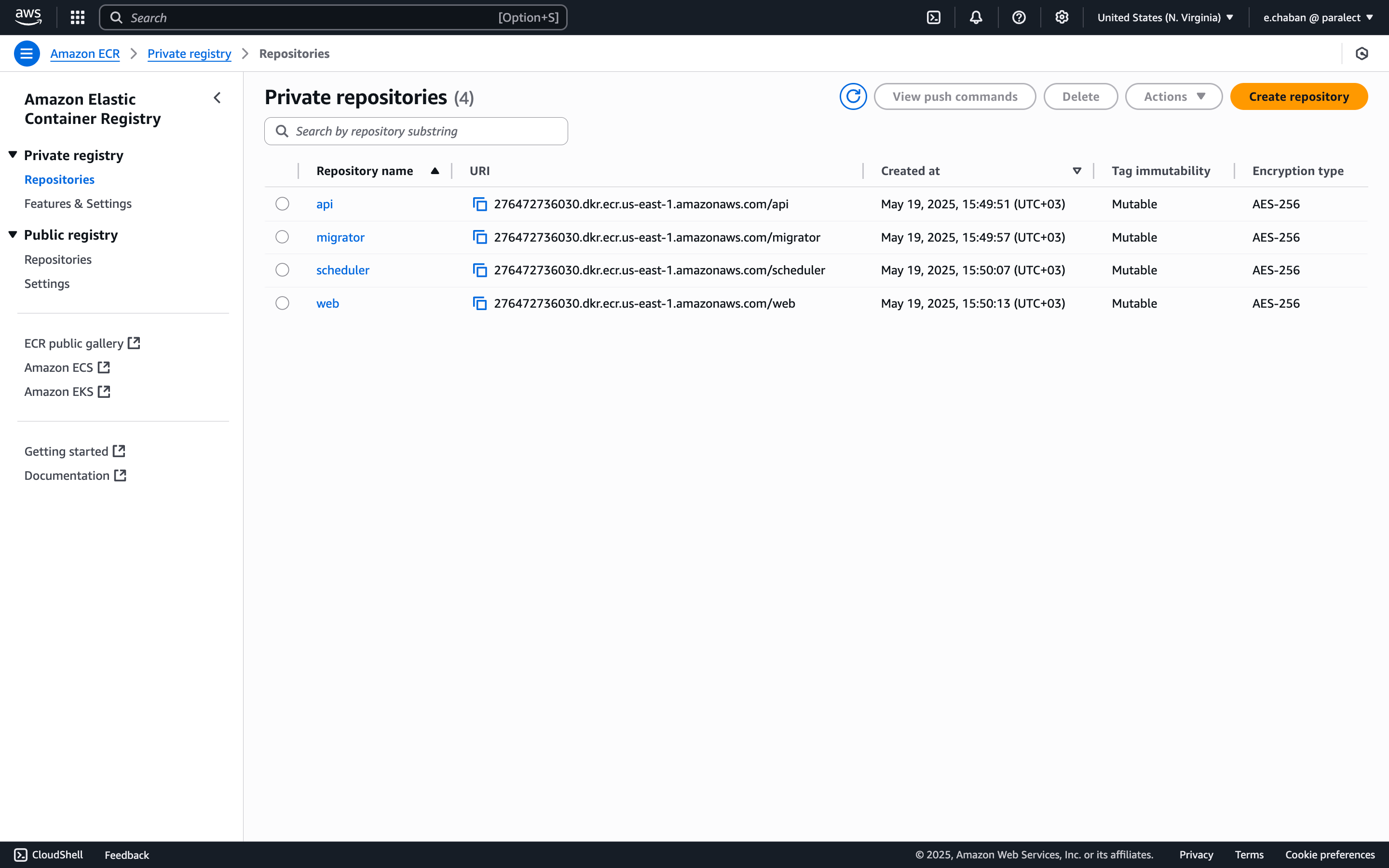
After creation, you should have the following 4 services in ECR Container Registry creation Docker images for each service are stored in a separate repository. During the deployment process script will automatically create paths to repositories in the next format:
  • API - 276472736030.dkr.ecr.us-east-1.amazonaws.com/api;
  • Migrator - 276472736030.dkr.ecr.us-east-1.amazonaws.com/migrator;
  • Scheduler - 276472736030.dkr.ecr.us-east-1.amazonaws.com/scheduler;
  • Web - 276472736030.dkr.ecr.us-east-1.amazonaws.com/web;
Repository name276472736030.dkr.ecr.us-east-1.amazonaws.com/api consists of 5 values:
  • 276472736030 - AWS account ID;
  • us-east-1 - AWS region.
  • dkr.ecr - AWS service.
  • amazonaws.com - AWS domain.
  • api - service name.
Images for all environments will be uploaded to the same repository for each service.

Kubernetes Cluster

Now let’s create EKS cluster.
1

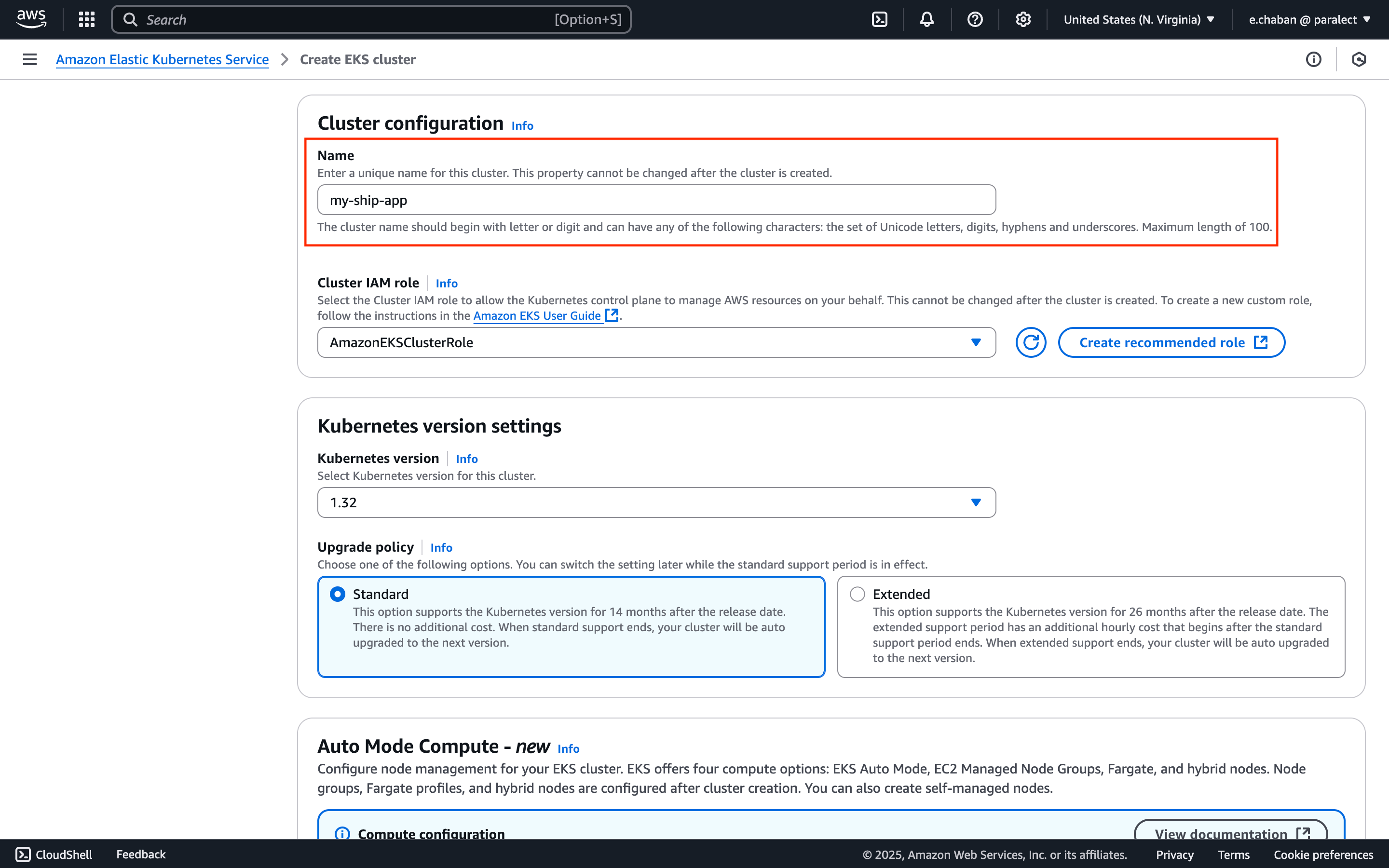
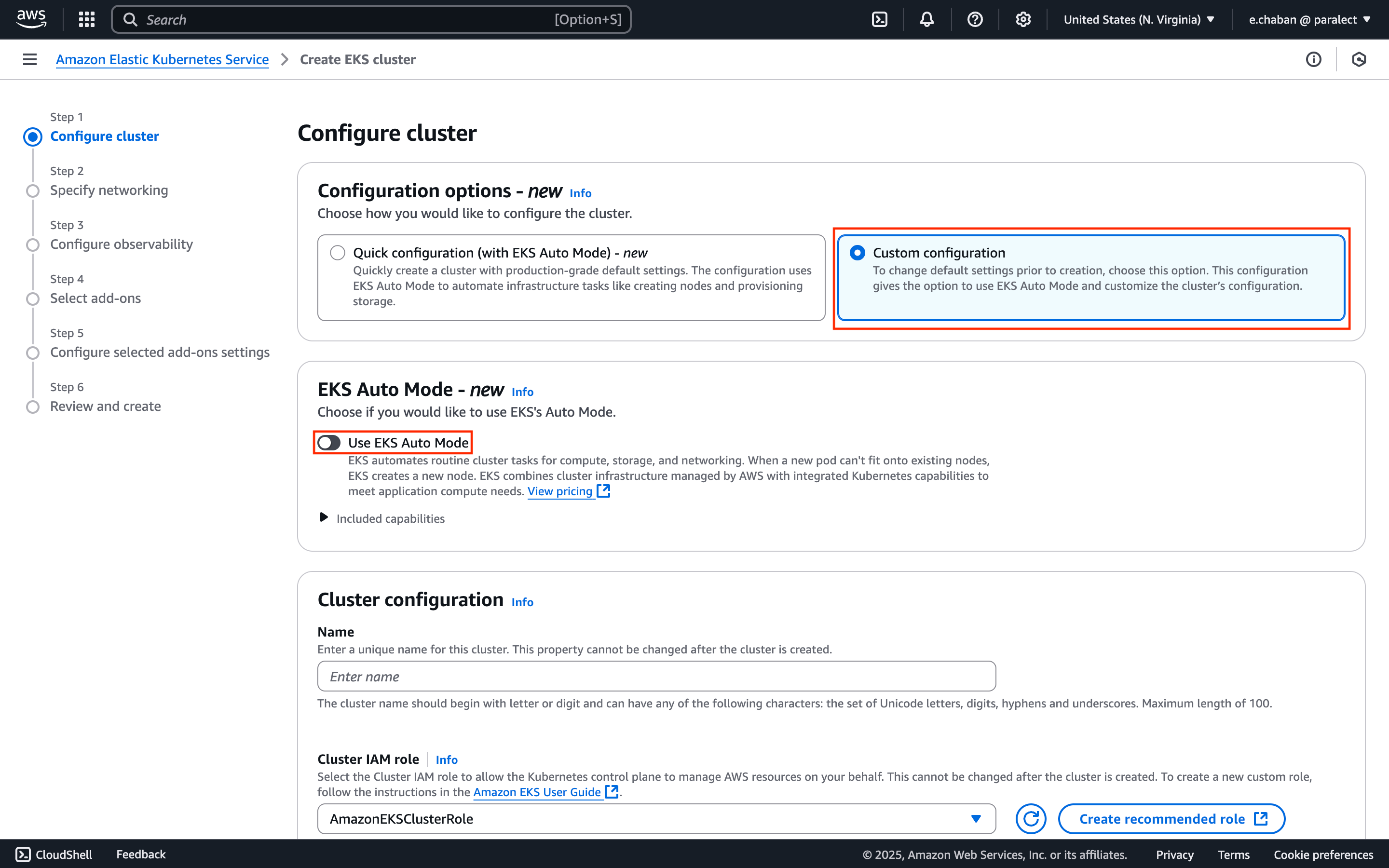
Select Custom Configuration

Navigate to the cluster creation page and choose Custom configuration
Make sure to disable EKS Auto Mode
Cluster configuration
2

Name Your Cluster

Enter a name for your cluster. It’s recommended to use your project name.
Cluster naming
For multi-environment setups, append the environment name to your cluster:
  • my-ship-app-staging
  • my-ship-app-production
3

Configure Cluster IAM Role

For the Cluster IAM role:
  1. Click the Create recommended role button
  2. AWS will automatically create IAM roles with necessary EKS cluster permissions
  3. Return to cluster creation page and select the created policy
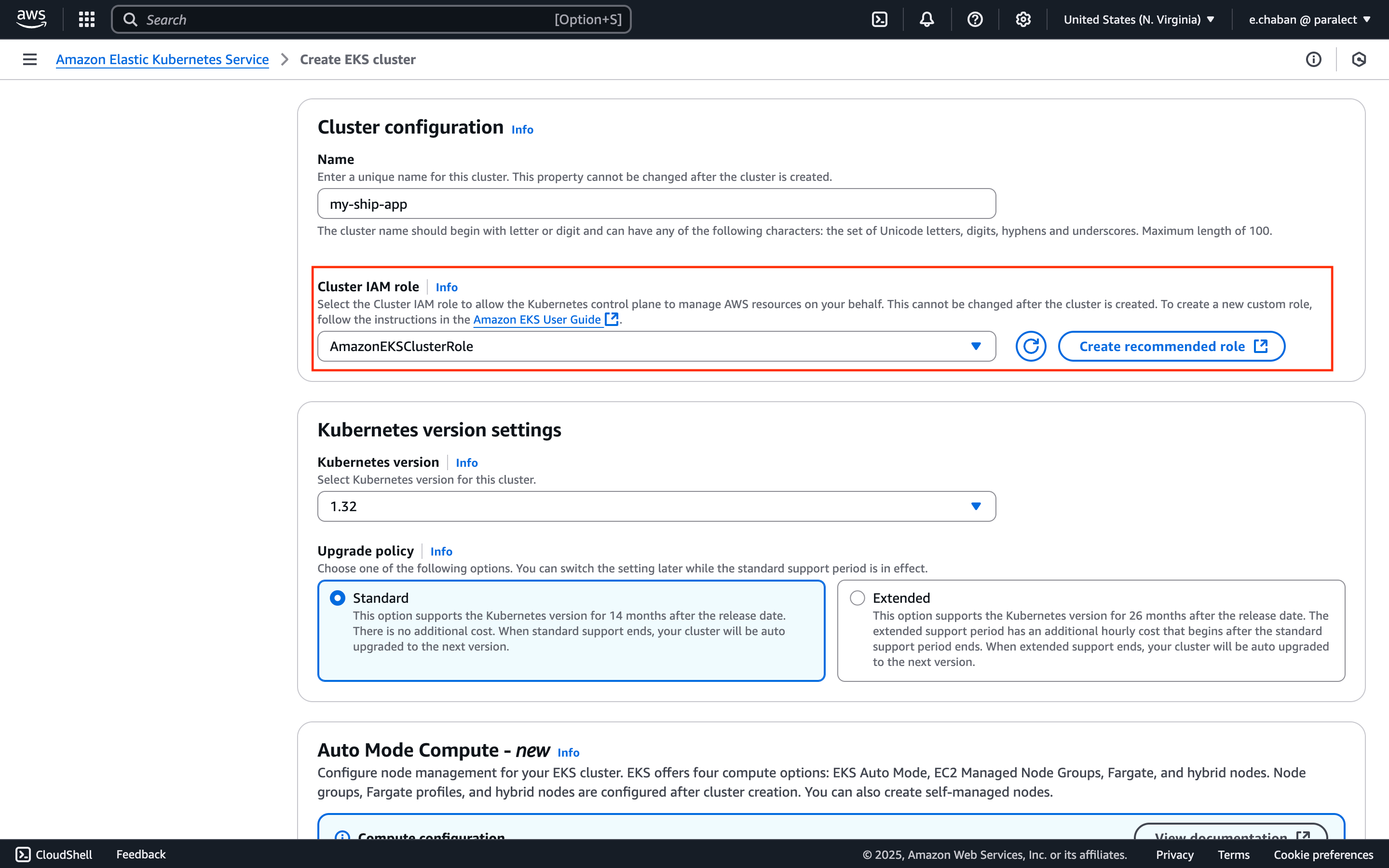
Cluster IAM role
4

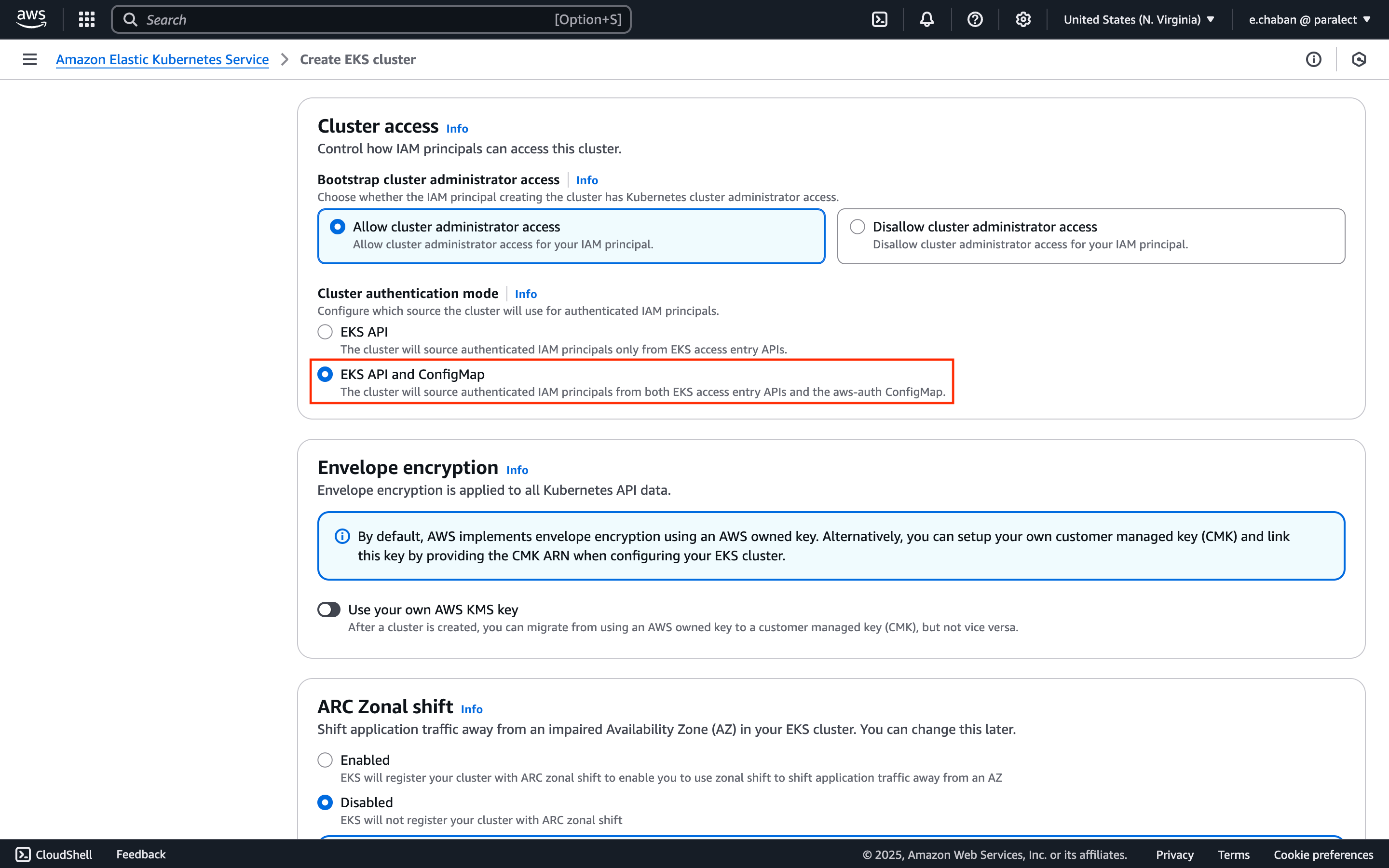
Set Authentication Mode

In the Cluster access section:
  • Set Cluster authentication mode to EKS API and ConfigMap
Cluster access
5

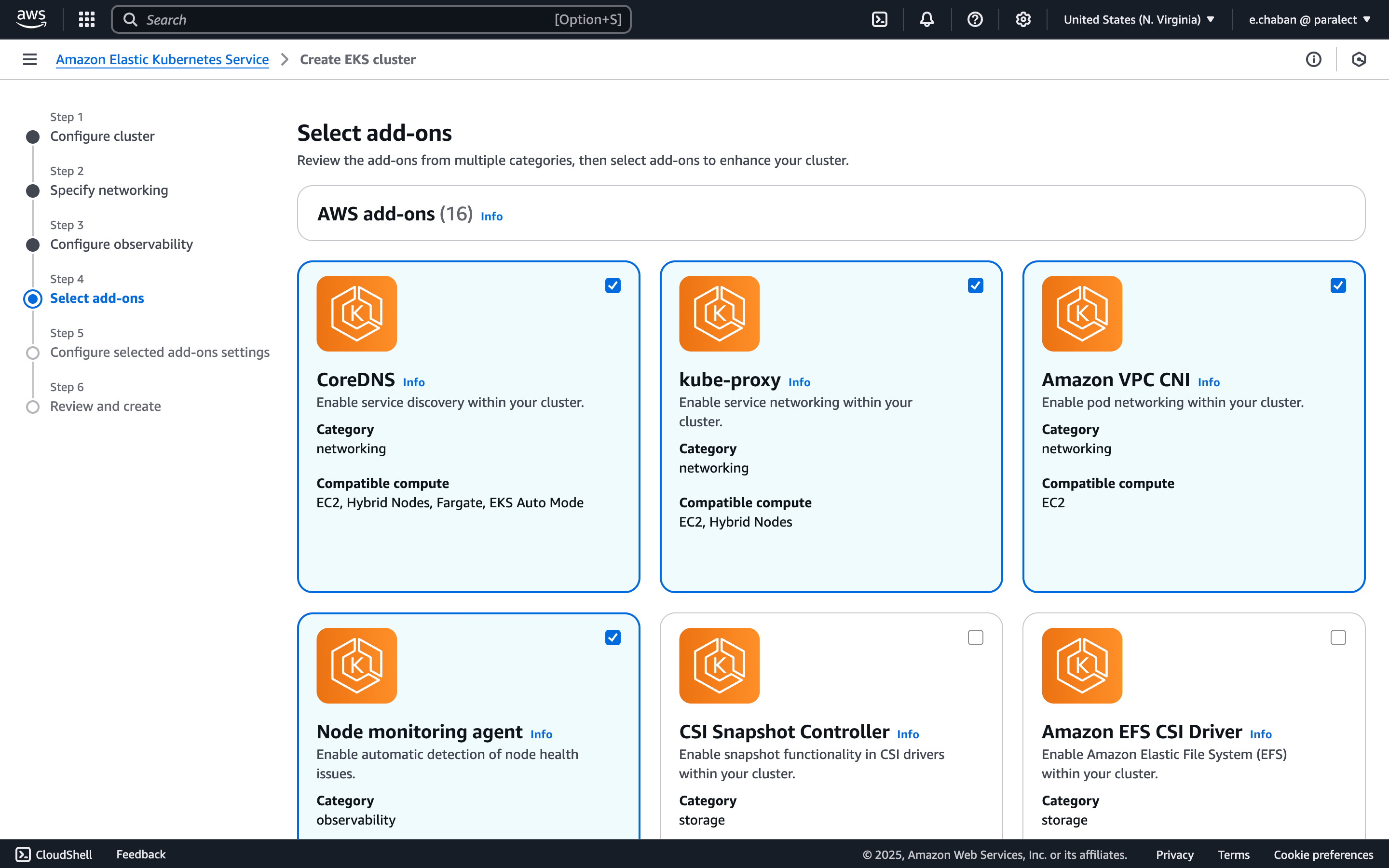
Configure Add-ons

Navigate to ‘Select add-ons’ and verify these required add-ons are selected:
  • CoreDNS
  • kube-proxy
  • Amazon VPC CNI
  • Node monitoring agent
Cluster addons
6

Review and Create

Move to the review section and verify all configuration parameters are correct before creating the cluster.
Default values for other configuration parameters are suitable unless you have specific requirements.
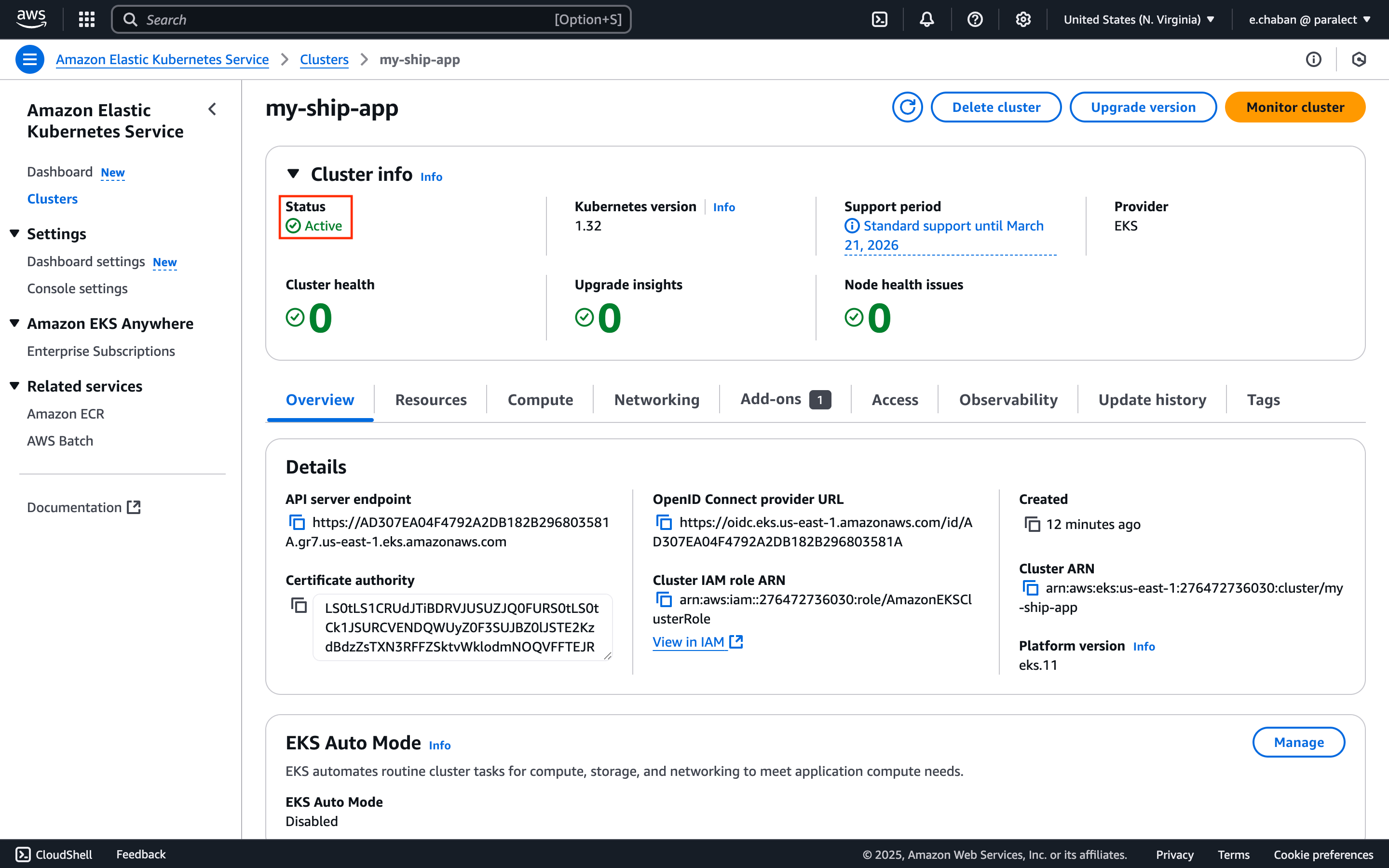
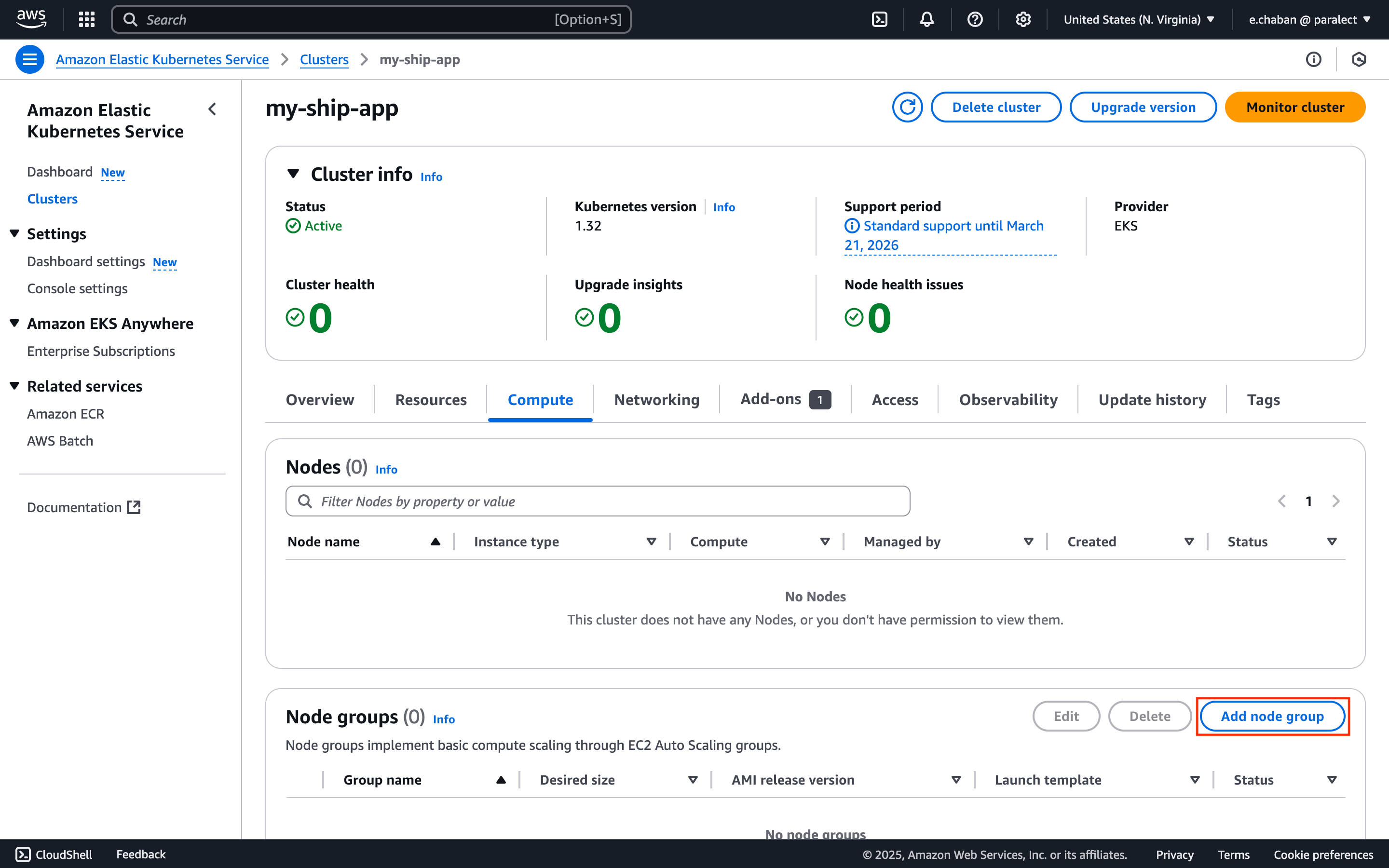
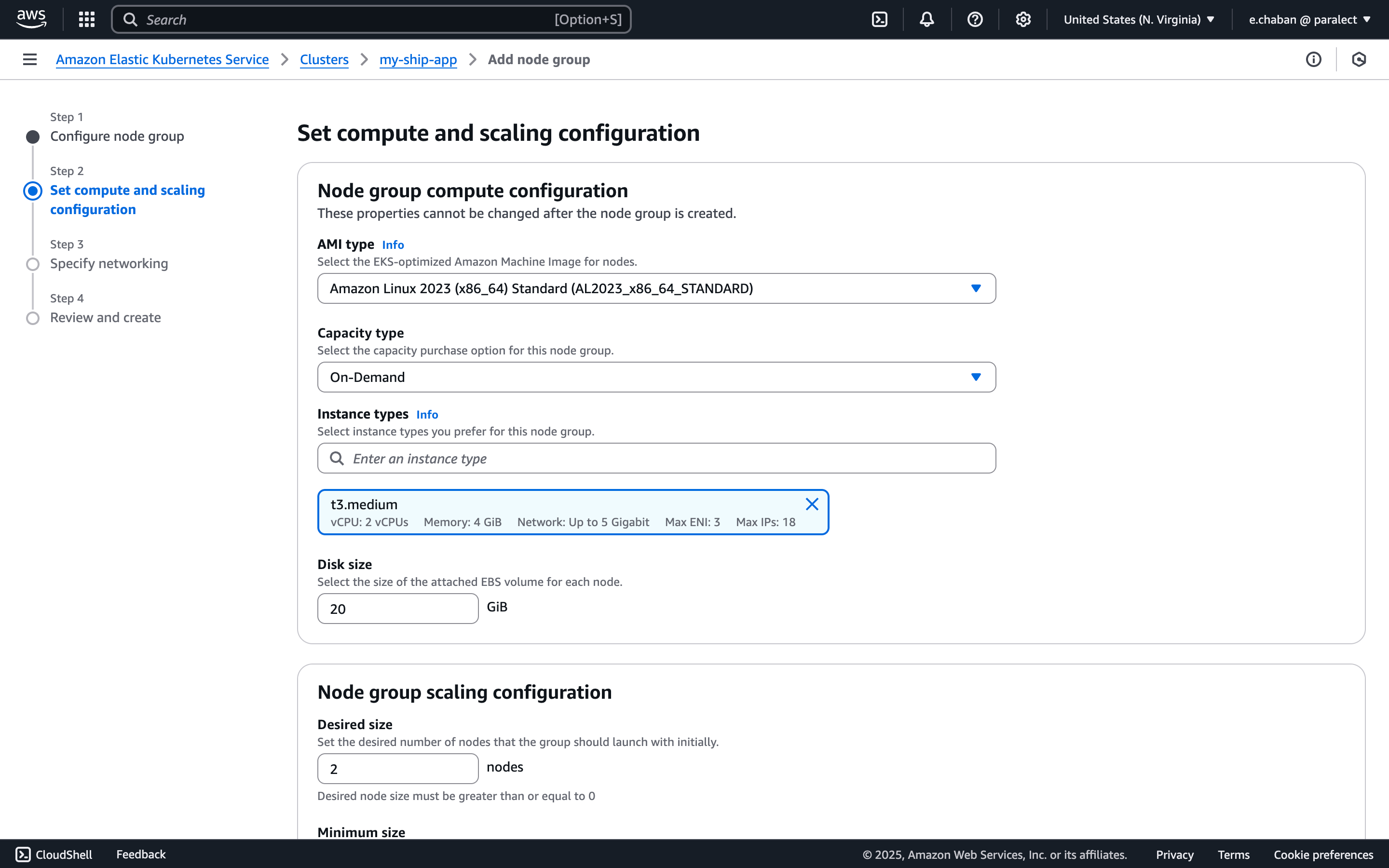
After creation, you need to wait a few minutes until the cluster status becomes Active. Cluster Created After cluster creation, you should attach EC2 instances to the cluster. You can do it by clicking on the Add Node Group button on the Compute tab. Add Node Group Set the node group name as pool-app and select the relevant Node IAM role from the list. If you don’t have any IAM roles here, click the Create recommended role button. You will be prompted to create properly configured IAM roles with all necessary permissions. Node Group Configuration AWS recommends creating at least 2 nodes t3.medium instance type for the production environment. Node Group Instance Configuration
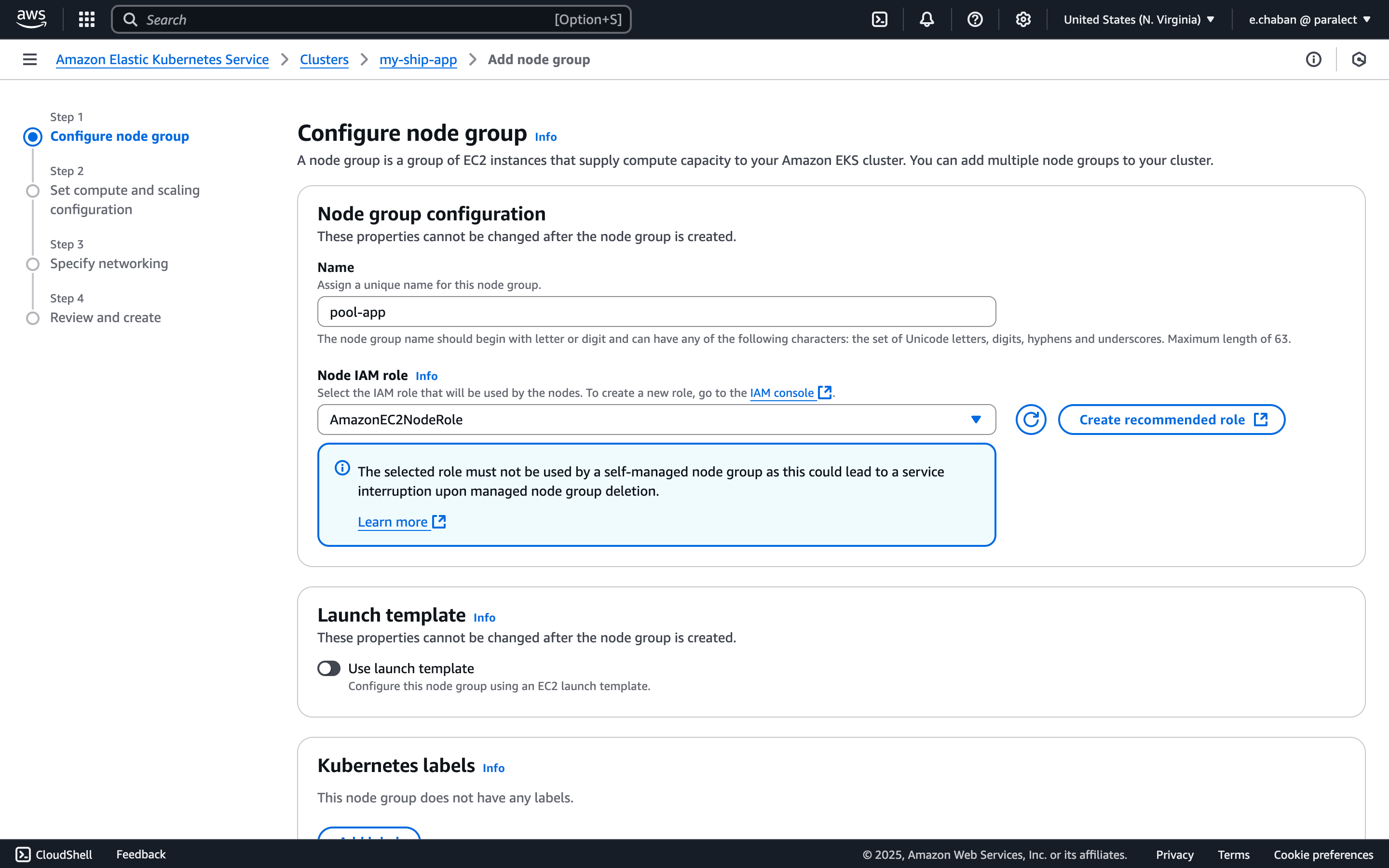
Default values for other configuration parameters are suitable unless you have specific requirements.

Accessing a cluster from a local machine

Before proceeding, ensure you have configured the AWS CLI.
1

Update kubeconfig

Run the following command to configure cluster access:
aws eks update-kubeconfig \
  --region us-east-1 \
  --name my-ship-app \
  --alias my-ship-app
Replace us-east-1 with your cluster’s region and my-ship-app with your cluster name.
2

Switch to cluster context

Execute kubectx in your terminal and select your cluster from the list.
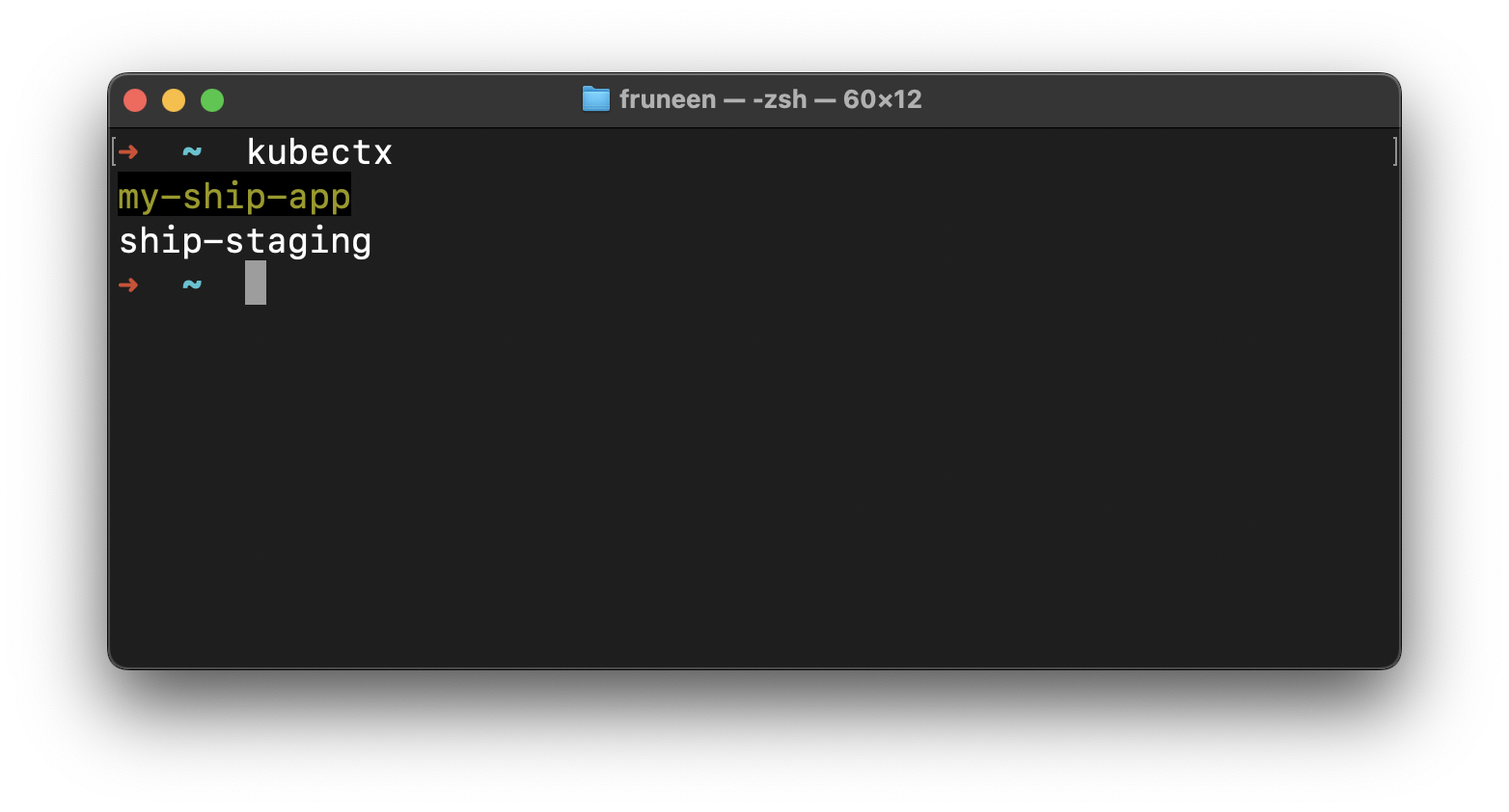
kubectx
Kubectx selection
3

Verify cluster access

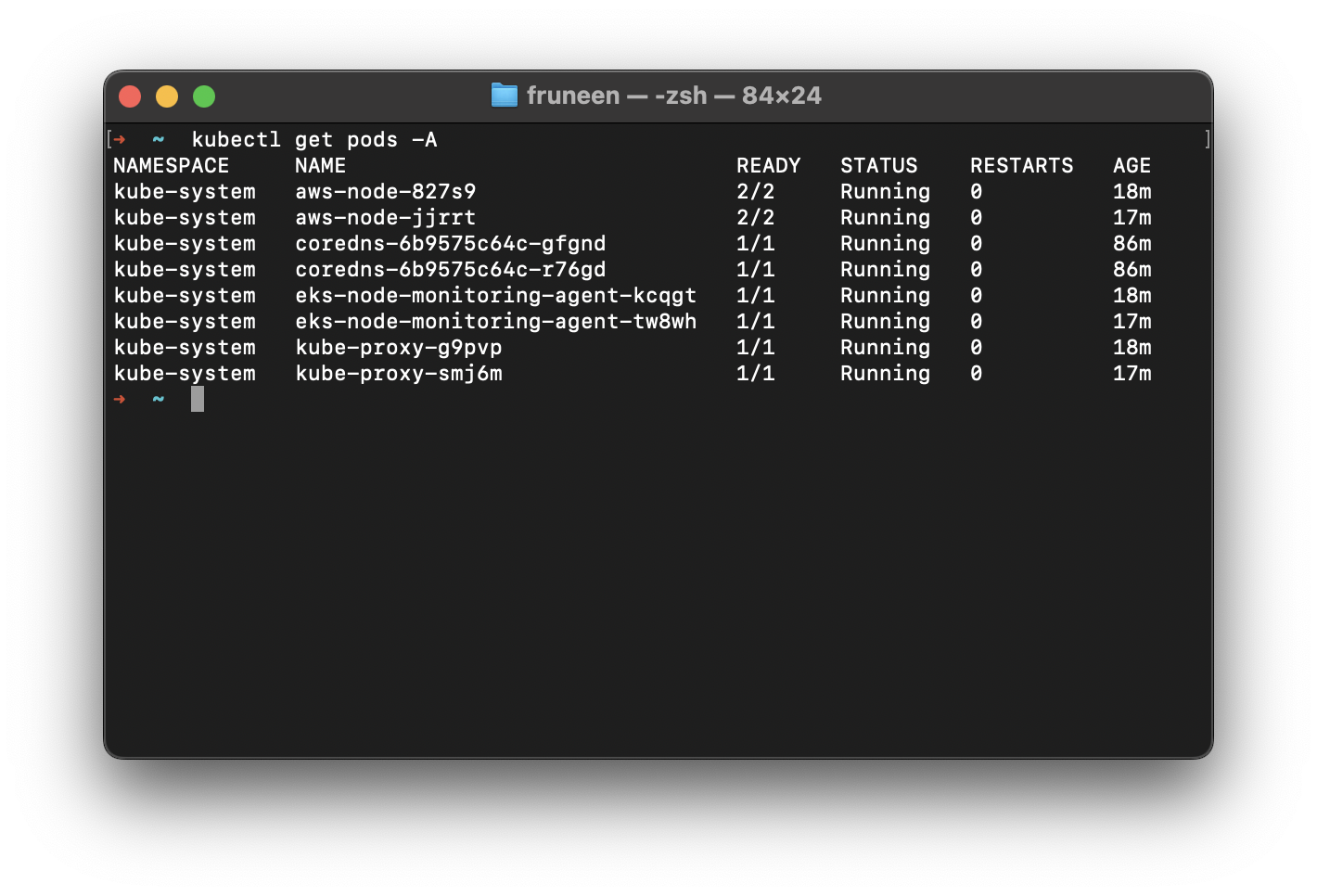
Check the installed pods by running:
kubectl get pods -A
You should see a list of system pods in your cluster:
List of pods

Ingress NGINX Controller

ingress-nginx is an Ingress controller for Kubernetes using NGINX as a reverse proxy and load balancer.
Learn more about ingress-nginx functionality in the official documentation.
1

Navigate to dependencies directory

Change to the deploy/dependencies directory in your terminal.
2

Configure Helm Values (Optional)

This step is required only if you specified a custom node group name in your EKS cluster.If you did, update the eks.amazonaws.com/nodegroup value in values.yaml.gotmpl:
deploy/dependencies/ingress-nginx/values.yaml.gotmpl
controller:
  publishService:
    enabled: true
  nodeSelector:
    eks.amazonaws.com/nodegroup: pool-app

rbac:
  create: true

defaultBackend:
  enabled: false
3

Install dependencies

Install helm dependencies using helmfile:
helmfile deps
4

Review and apply changes

Preview the changes first:
helmfile diff
If the preview looks correct, apply the configuration:
helmfile apply

DNS and SSL

1

Get Load Balancer Address

After deploying ingress-nginx, retrieve the Load Balancer’s external hostname:
kubectl get svc ingress-nginx-controller -n ingress-nginx -o json | jq -r '.status.loadBalancer.ingress[0].hostname'
If you have trouble running the above command, you can alternatively use:
kubectl get svc ingress-nginx-controller -n ingress-nginx
And copy the value from the EXTERNAL-IP column.
2

Domain Naming Convention

You can follow this recommended naming pattern for different environments:
EnvironmentAPI DomainWeb Domain
Productionapi.ship.comapp.ship.com
Stagingapi.staging.ship.comapp.staging.ship.com
3

Configure DNS in Cloudflare

  1. First, ensure you have a domain in Cloudflare. You can either:
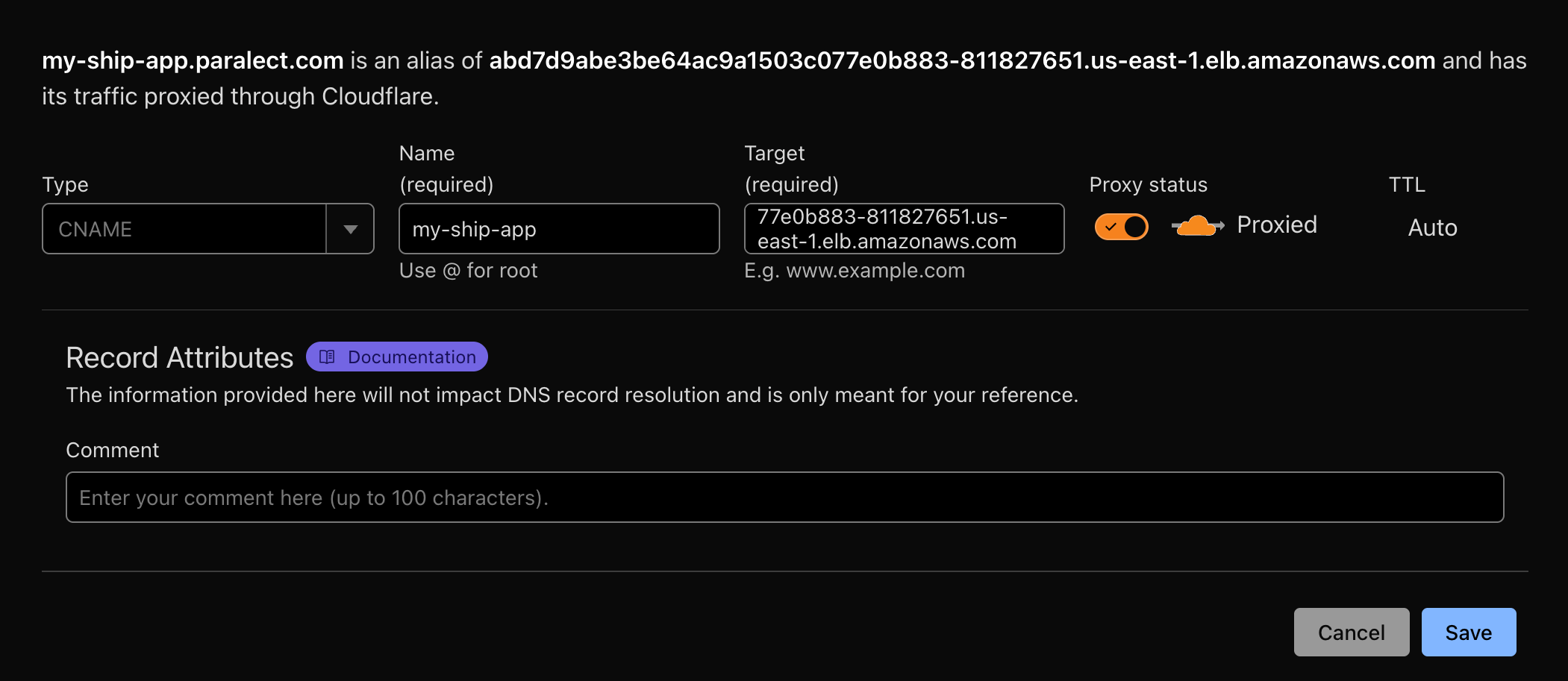
  1. In the Cloudflare DNS tab, create 2 CNAME records:
  • One for Web interface
  • One for API endpoint
Both should point to your Load Balancer’s external hostname.Enable the Proxied option to:
  • Route traffic through Cloudflare
  • Generate SSL certificates automatically
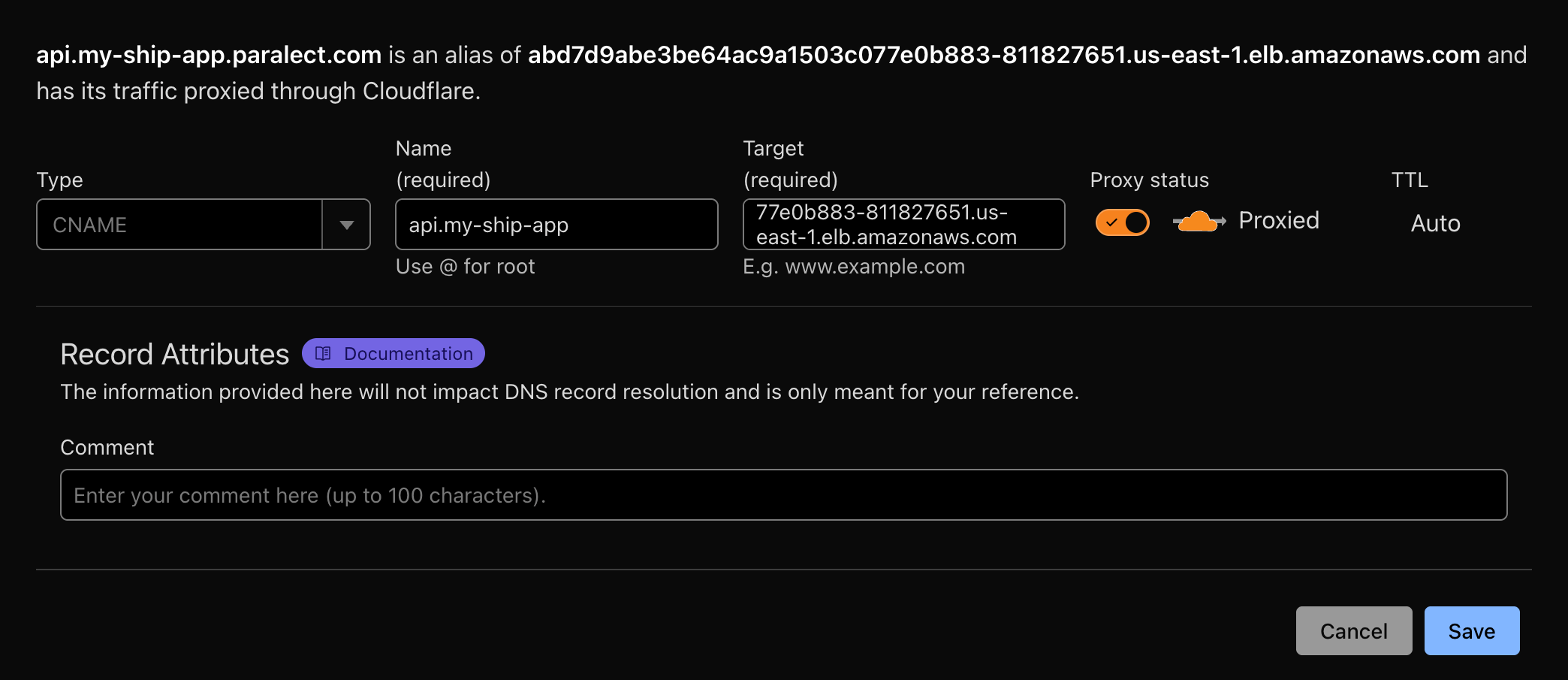
CloudFlare API DNS Configuration

CloudFlare Web DNS Configuration
Cloudflare’s free Universal SSL certificates only cover the apex domain and one subdomain level. For multiple subdomain levels, you’ll need an Advanced Certificate.
4

Update Configuration Files

Update your domain settings in the appropriate environment configuration files:For API service:
service: api
port: 3001
domain: api.my-ship-app.paralect.com
For Web service:
service: web
port: 3002
domain: my-ship-app.paralect.com

Managed PostgreSQL

A managed PostgreSQL service provides automated backups, scaling, and security so you don’t have to operate a database yourself. The API connects through a single DATABASE_URL connection string, and the Migrator applies Drizzle migrations against it before the API and Scheduler roll out.

Create the Database

1

Choose a major version

Use a currently supported PostgreSQL major version (16 or newer). Ship’s Drizzle migrations target standard PostgreSQL and have no version-specific requirements.
2

Name your databases

Use environment-specific database names so staging and production never share data, for example api-staging and api-production.

Configure Access

1

Create a database user

Create a dedicated user for the API with read and write access to its database. Use environment-specific names (e.g. api-production, api-staging) and generate a strong password.
Give each environment its own user and database. Never reuse production credentials in staging or in documentation.

Get the Connection String

1

Copy connection details

From your database dashboard, copy the host, port, user, password, and database name, or the ready-made connection string if the provider gives you one.
2

Build the DATABASE_URL

The API reads a single DATABASE_URL connection string. Compose it in the standard PostgreSQL format:
postgresql://api-production:your-password@db-host.example.com:5432/api-production?sslmode=require
Managed providers require TLS. Keep sslmode=require (or stricter) in the connection string for staging and production.
3

Save the connection string

Store DATABASE_URL securely — you’ll add it to the API secret during environment configuration. The Migrator and API both read it from the same secret.
Before deploying to production, confirm automated backups are enabled in your provider’s console so you can recover data if needed.

Environment variables

Kubernetes applications require proper environment variable configuration for both API and Web components. This section covers how to set up and manage environment variables securely using Kubernetes secrets and configuration files.

API Environment Variables

For the API deployment, you need to set up environment variables using Kubernetes secrets to securely manage sensitive configuration data.
Secrets in Kubernetes are used to store sensitive information, such as passwords, API tokens, and keys. They are encoded in Base64 format to provide a level of security. These can be mounted into containers as data volumes or used as environment variables.
Before deploying the app, make sure all necessary variables from the API config are exist. Here are the minimal set of required variables:
NameDescriptionExample value
APP_ENVApplication environmentproduction
DATABASE_URLPostgreSQL connection stringpostgresql://<username>:<password>@db-host:5432/api-production?sslmode=require
API_URLAPI domain URLhttps://api.my-ship-app.paralect.com
WEB_URLWeb app domain URLhttps://my-ship-app.paralect.com

Environment Variable Details

Specifies the application environment (development, staging, production). This controls logging levels, debugging features, error reporting, and other environment-specific behaviors. The API uses this to determine which configuration settings to load.
PostgreSQL connection string including authentication credentials, host, port, and database name. This is the primary database connection for the API and the Migrator. Format: postgresql://username:password@host:5432/database?sslmode=require. Each environment should use a separate database or at minimum separate credentials. Managed providers require TLS, so keep sslmode=require in staging and production.
The fully qualified domain name where the API will be accessible. This must be a valid HTTPS URL and should match your Kubernetes ingress configuration. Used for CORS settings and internal service communication.
The fully qualified domain name where the web application will be accessible. Used for CORS configuration, redirect URLs, email templates, and social sharing metadata. Must be a valid HTTPS URL.

Setting up Kubernetes Secrets

1

Create namespaces and secret objects

Create Kubernetes namespaces and secret objects for staging and production environments:
kubectl create namespace staging
kubectl create secret generic api-staging-secret -n staging
kubectl create namespace production
kubectl create secret generic api-production-secret -n production
2

Initialize secret storage

First, create an APP_ENV variable to initialize secret storage for k8sec:
k8sec set api-production-secret APP_ENV=production -n production
3

Verify secret creation

Run the following command to check the created secret:
k8sec list api-production-secret -n production
4

Prepare environment file

Create a .env.production file with all required variables:
APP_ENV=production
DATABASE_URL=postgresql://username:password@db-host:5432/api-production?sslmode=require
API_URL=https://api.my-ship-app.paralect.com
WEB_URL=https://my-ship-app.paralect.com
Replace all example values with your actual configuration. Never use production secrets in documentation or version control.
5

Import secrets to Kubernetes

Import secrets from the .env file to Kubernetes secret using k8sec:
k8sec load -f .env.production api-production-secret -n production
After updating environment variables, you must initiate a new deployment for changes to take effect. Kubernetes pods cache variable values during startup, requiring a pod restart or rolling update to apply changes.

Web Environment Variables

The web application is a TanStack Start app built with Vite. Its environment variables are embedded at build time and made available in the browser through import.meta.env. Only variables prefixed with VITE_ are exposed to the client. Unlike API secrets, these variables are stored directly in the GitHub repository.
Why Web Environment Variables Are Safe in Git: Web environment variables (prefixed with VITE_) contain only public configuration like URLs and API endpoints. They don’t include sensitive data like passwords or API keys, making them safe to store in version control. These values are already exposed to users in the browser, so repository storage doesn’t create additional security risks.
Security Notice: Never store sensitive information (passwords, API keys, secrets) in web environment files as they will be accessible on the client side. Only use public configuration values that are safe to expose to end users.

Configuration Files

Web environment variables are stored in separate files for each deployment environment:
VITE_APP_ENV=production
VITE_API_URL=https://api.my-ship-app.paralect.com
VITE_WS_URL=https://api.my-ship-app.paralect.com
VITE_WEB_URL=https://my-ship-app.paralect.com

Environment Variables Reference

VariableDescriptionExample
VITE_APP_ENVWeb application environmentproduction
VITE_API_URLBase URL for API requestshttps://api.my-ship-app.paralect.com
VITE_WS_URLWebSocket server URL for real-timehttps://api.my-ship-app.paralect.com
VITE_WEB_URLApp’s own URL for redirects/metadatahttps://my-ship-app.paralect.com
Best Practice: Keep web environment files in your repository and ensure all values are non-sensitive. If you need to reference sensitive data from the frontend, create a secure API endpoint that returns the necessary information after proper authentication.

Setting up GitHub Actions CI/CD

Creating IAM user in AWS

To set up CI/CD with GitHub Actions securely, we need to create a dedicated IAM user in AWS with specific permissions. This separate user will be used exclusively for CI/CD operations, following the principle of least privilege and keeping deployment credentials isolated from other system users.
1

Create IAM Policy

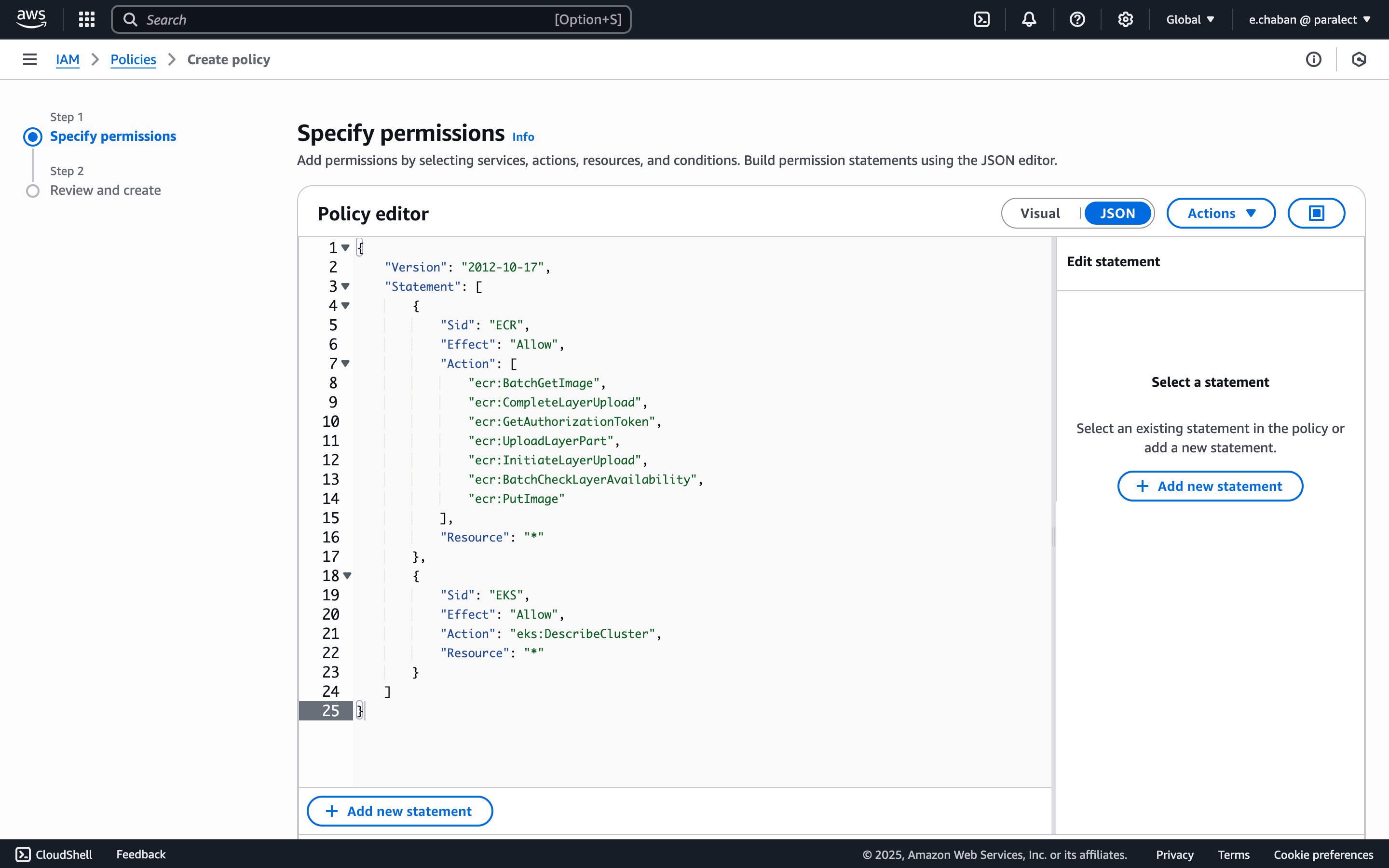
  1. Go to AWS IAM Policies
  2. Click Create policy
  3. Select JSON tab and add the policy:
{
    "Version": "2012-10-17",
    "Statement": [
        {
            "Sid": "ECR",
            "Effect": "Allow",
            "Action": [
            "ecr:BatchGetImage",
            "ecr:CompleteLayerUpload",
            "ecr:GetAuthorizationToken",
            "ecr:UploadLayerPart",
            "ecr:InitiateLayerUpload",
            "ecr:BatchCheckLayerAvailability",
            "ecr:PutImage"
          ],
           "Resource": "*"
        },
        {
            "Sid": "EKS",
            "Effect": "Allow",
            "Action": "eks:DescribeCluster",
            "Resource": "*"
        }
    ]
}
Policy Configuration
  1. (Optional) Add tags
  2. Give the policy a name (e.g. GitHubActionsDeployPolicy) and create it
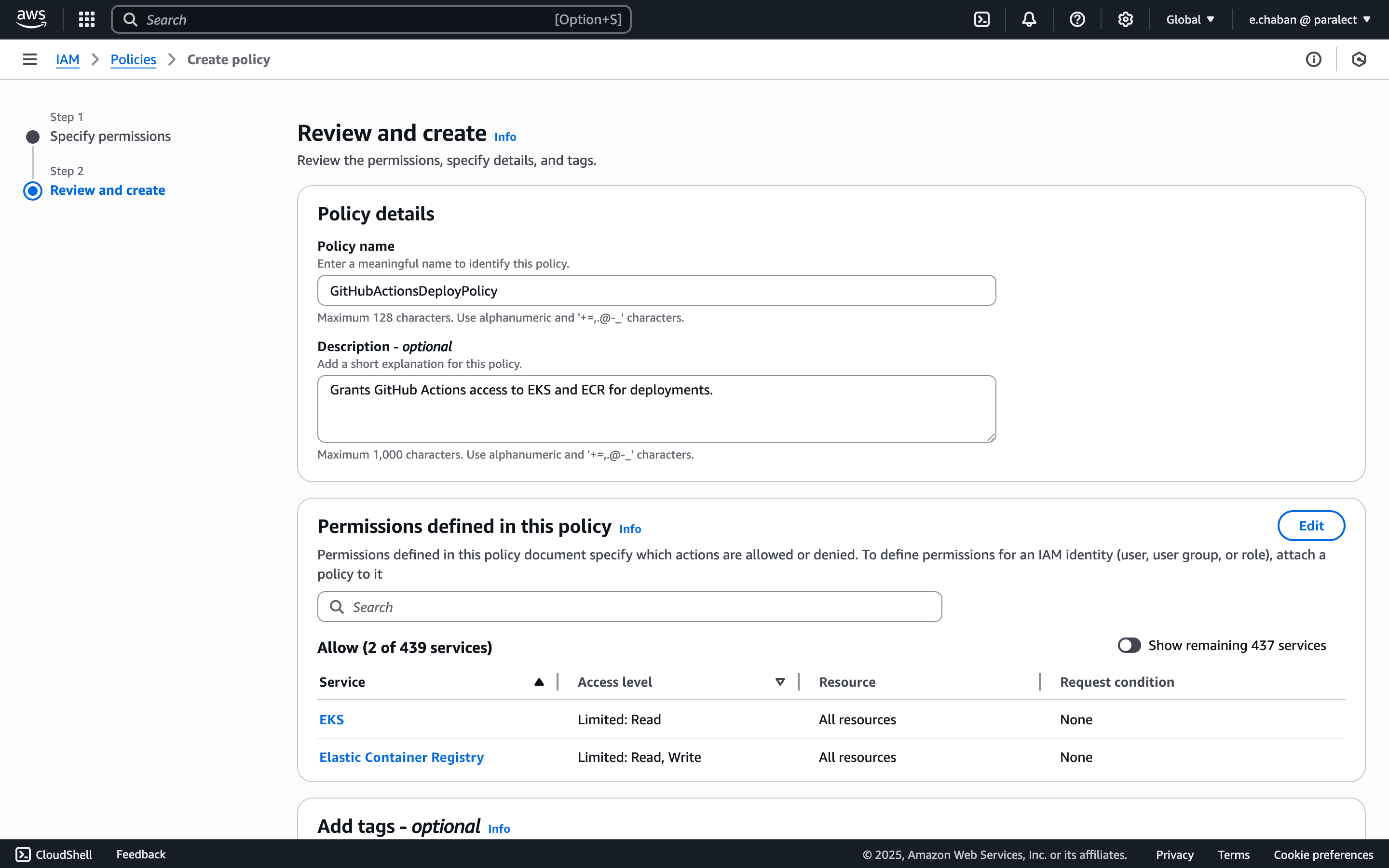
Policy review create
2

Create IAM User

  1. Navigate to Users in IAM console
  2. Click Create user
  3. Give the user a name (e.g. github-actions)
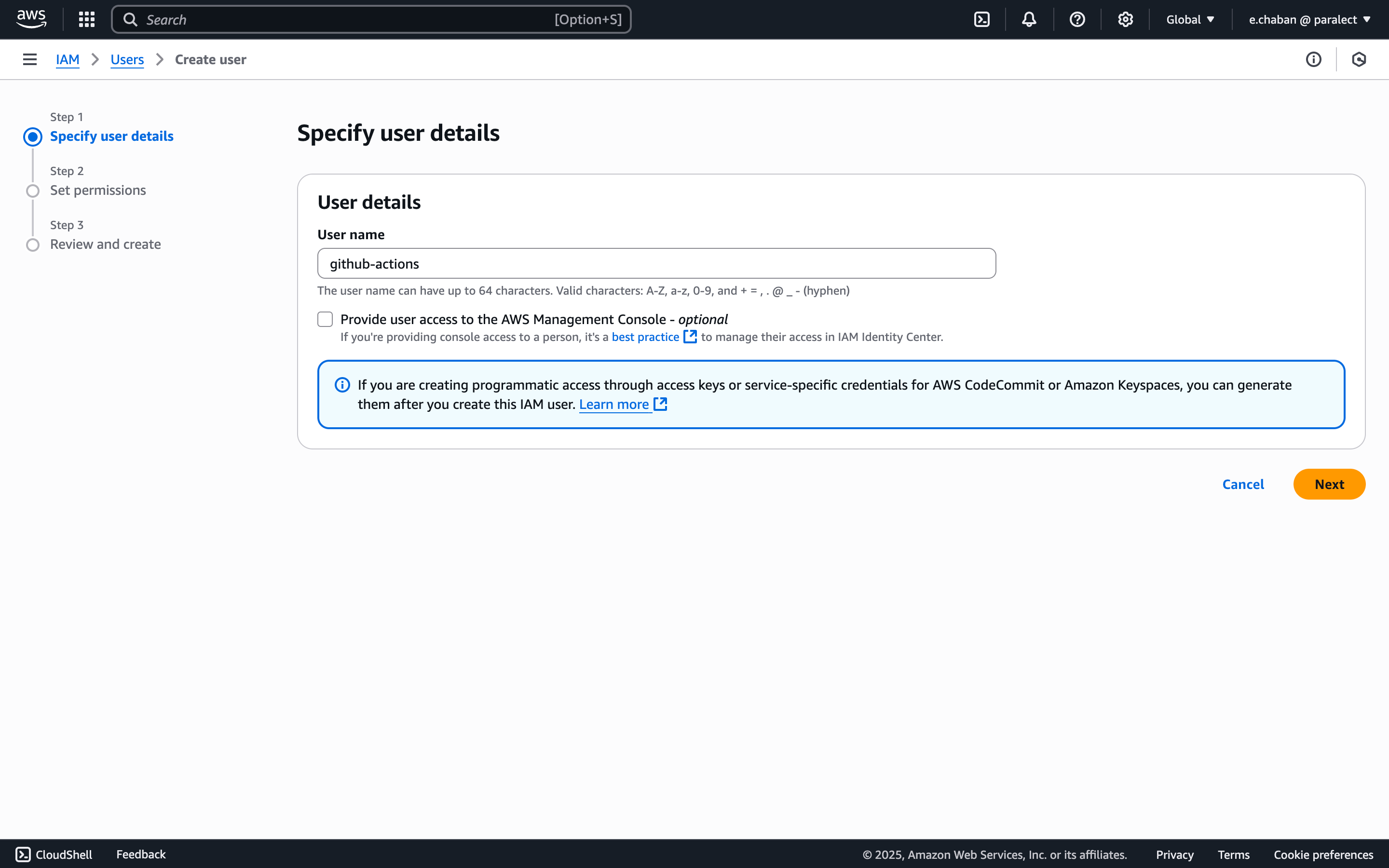
User creating
  1. Attach the policy you created by selecting:
  • Attach existing policies directly
  • Choose the CI/CD policy created in previous step
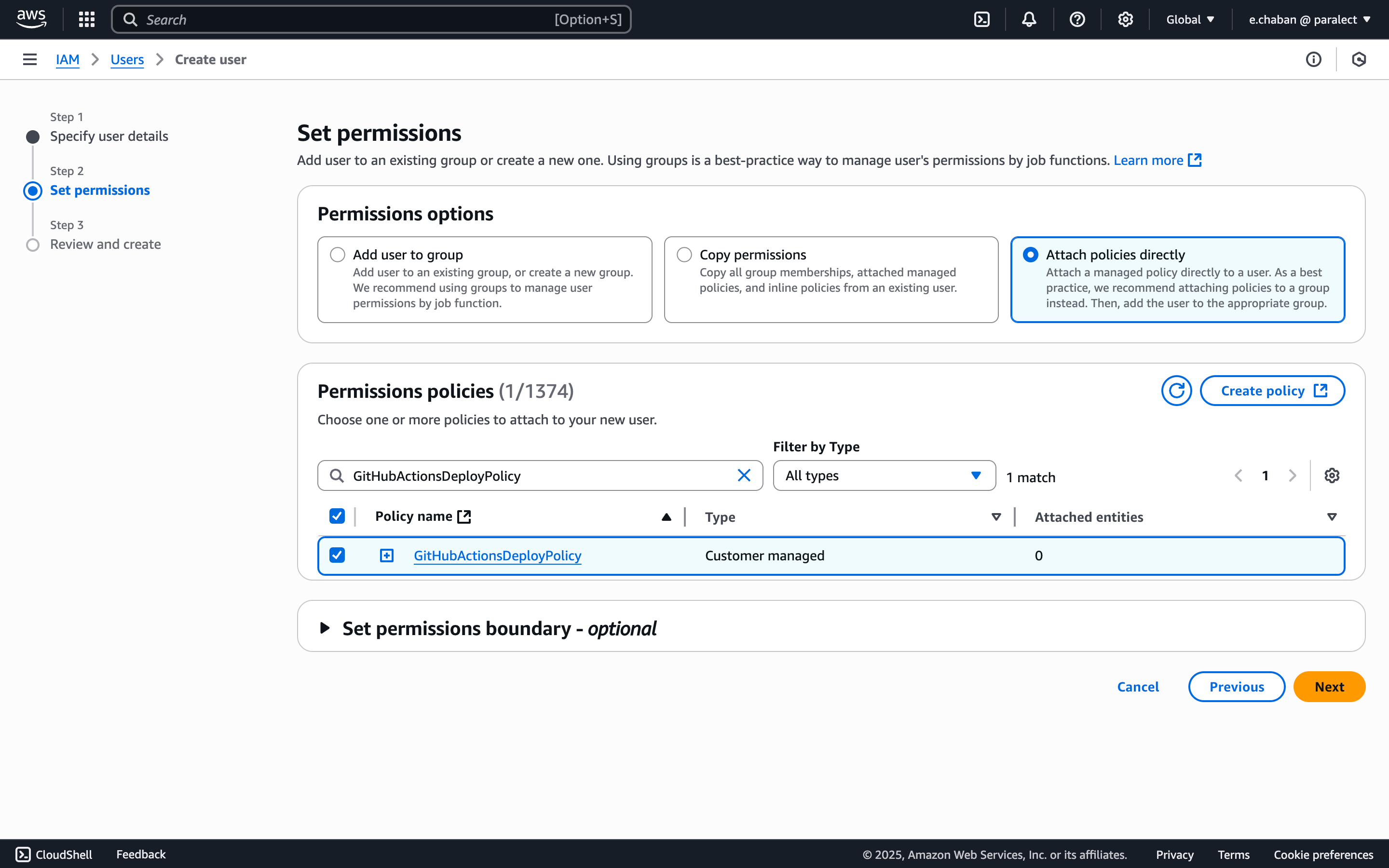
User policy
  1. (Optional) Add user tags
  2. Review and create user
3

Generate Access Keys

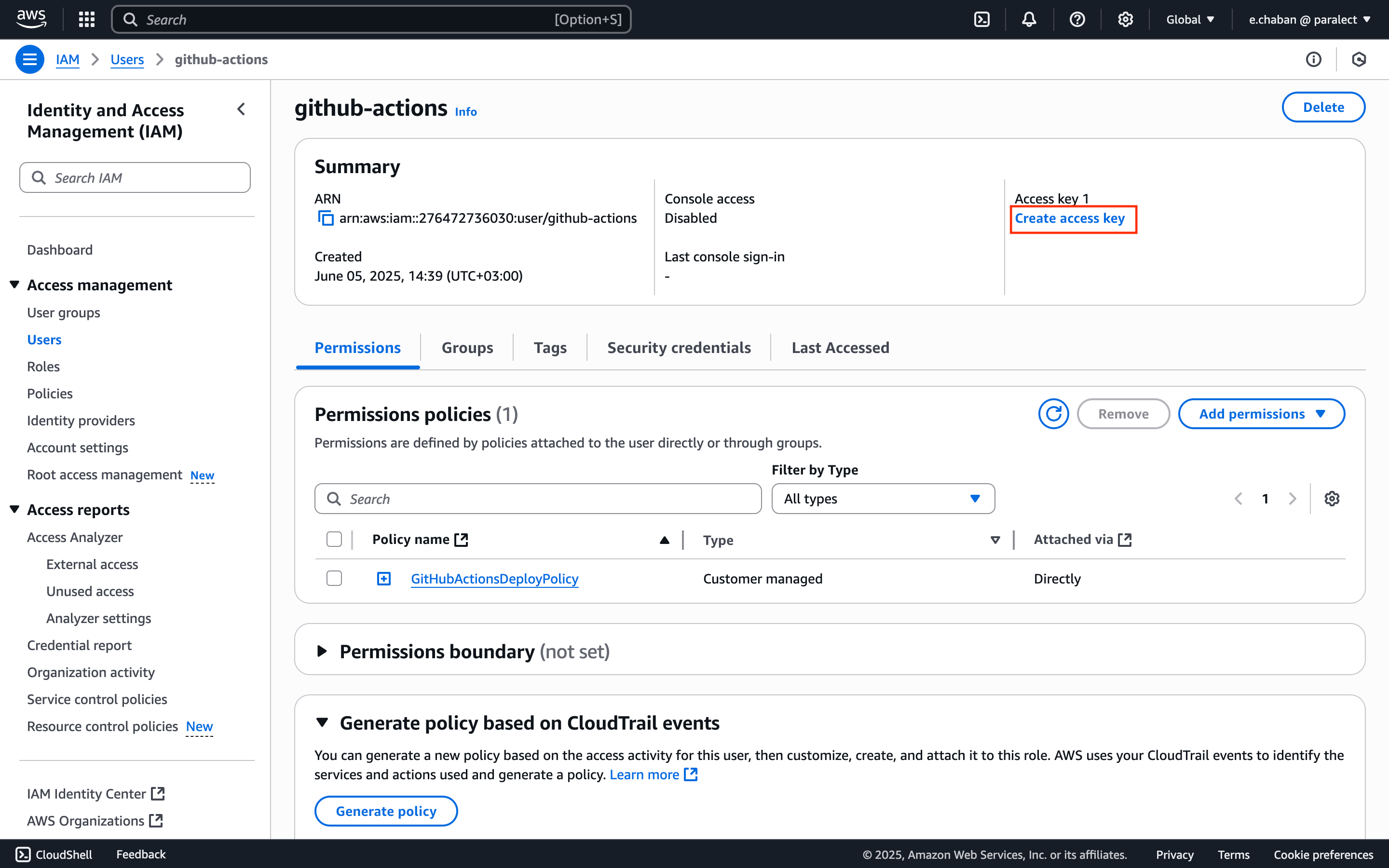
  1. Find your new user in the users list and open user’s page
  2. Click Create access key
User create access key
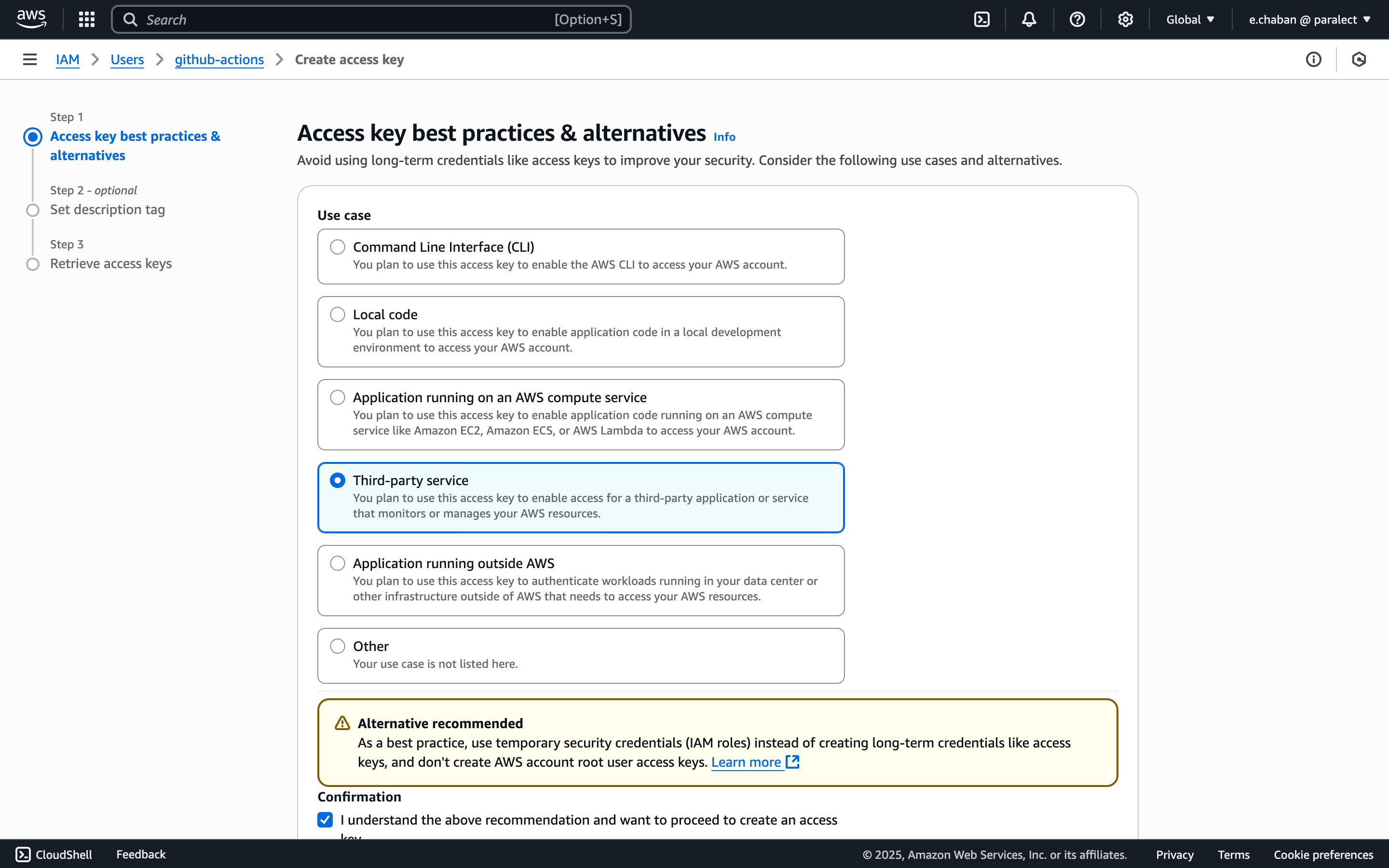
  1. Select use case: Third-party service
User access key use cases
  1. Save the Access Key ID and Secret Access Key securely
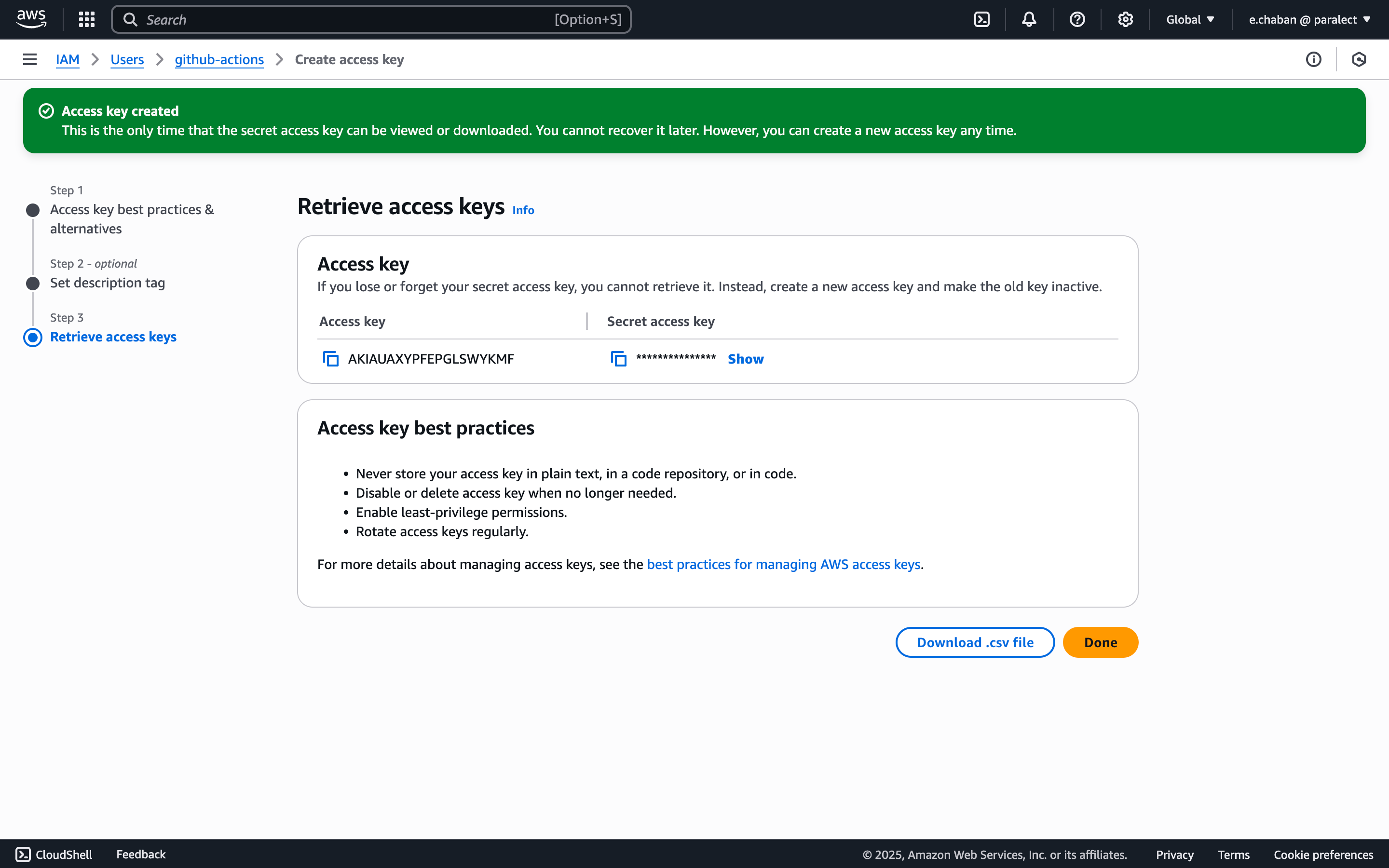
User credentials
The Secret Access Key will only be shown once - make sure to save it immediately!
4

Configure EKS Access

  1. Copy your user’s ARN from the IAM dashboard
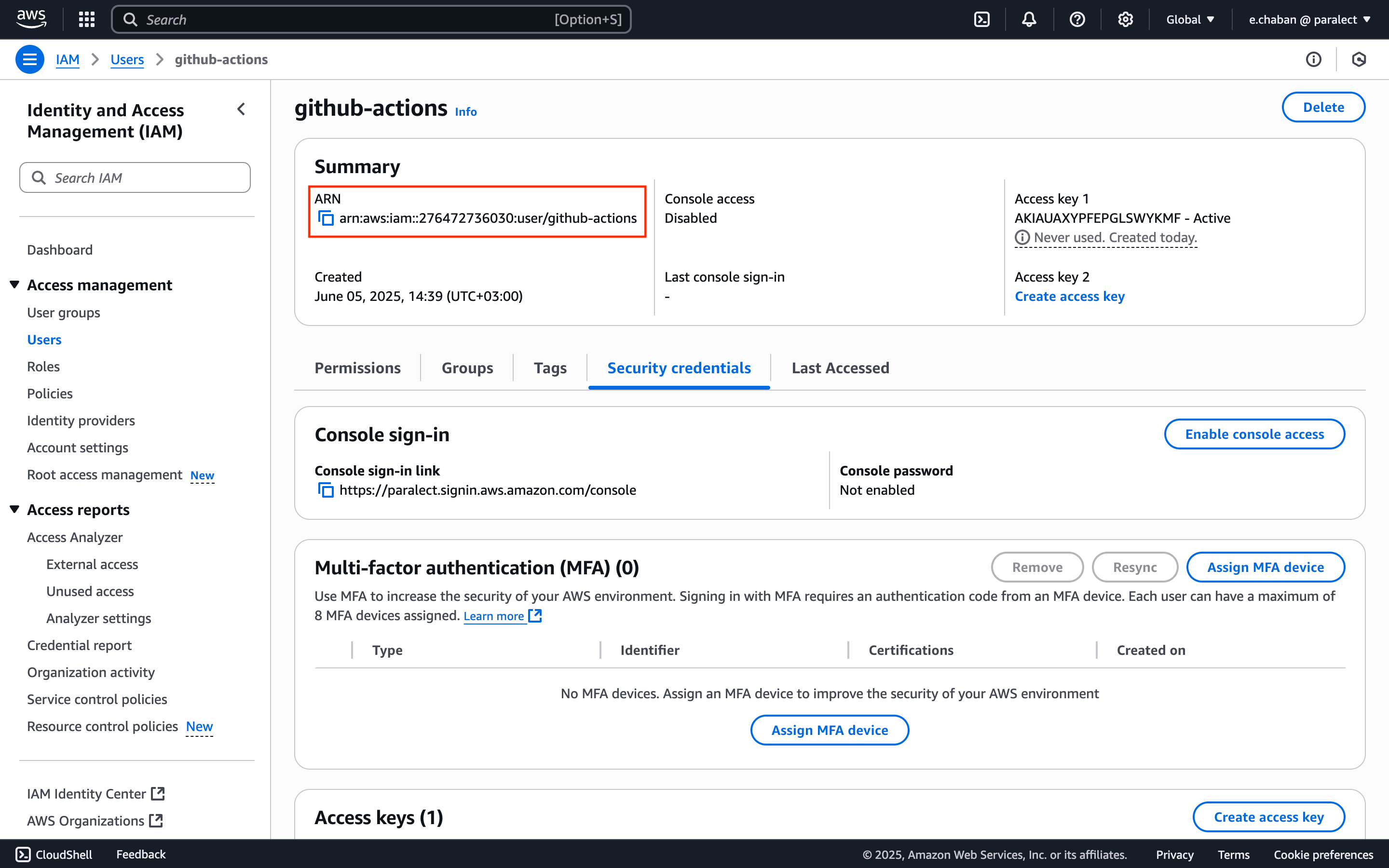
User ARN
  1. Run the following command to grant Kubernetes access:
eksctl create iamidentitymapping \
--cluster my-ship-app \
--group system:masters \
--username github-actions \
--arn YOUR_USER_ARN
Replace YOUR_USER_ARN with the actual ARN copied earlier.
These permissions enable CI/CD workflows while following security best practices:
  • Minimal required permissions for ECR operations
  • Limited EKS access for cluster management
  • Dedicated CI/CD user separate from other IAM users

Configuring GitHub Actions secrets and variables
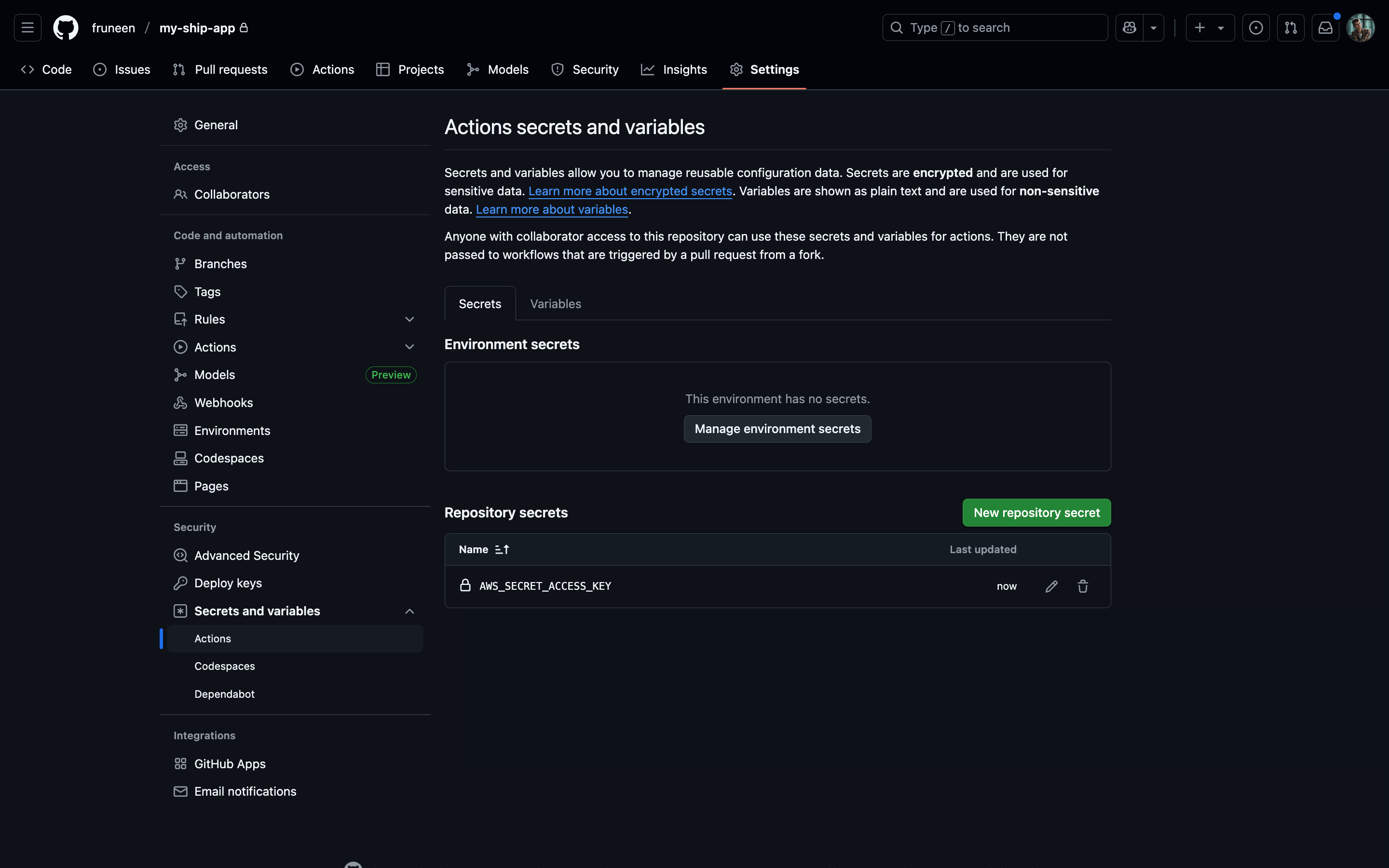
Before starting, make sure you have created a GitHub repository for your project.
GitHub Secrets and variables allow you to manage reusable configuration data. Secrets are encrypted and are used for sensitive data. Learn more about encrypted secrets. Variables are shown as plain text and are used for non-sensitive data. Learn more about variables.
The deployment will be triggered on each commit:
  • Commits to main branch → deploy to staging environment
  • Commits to production branch → deploy to production environment
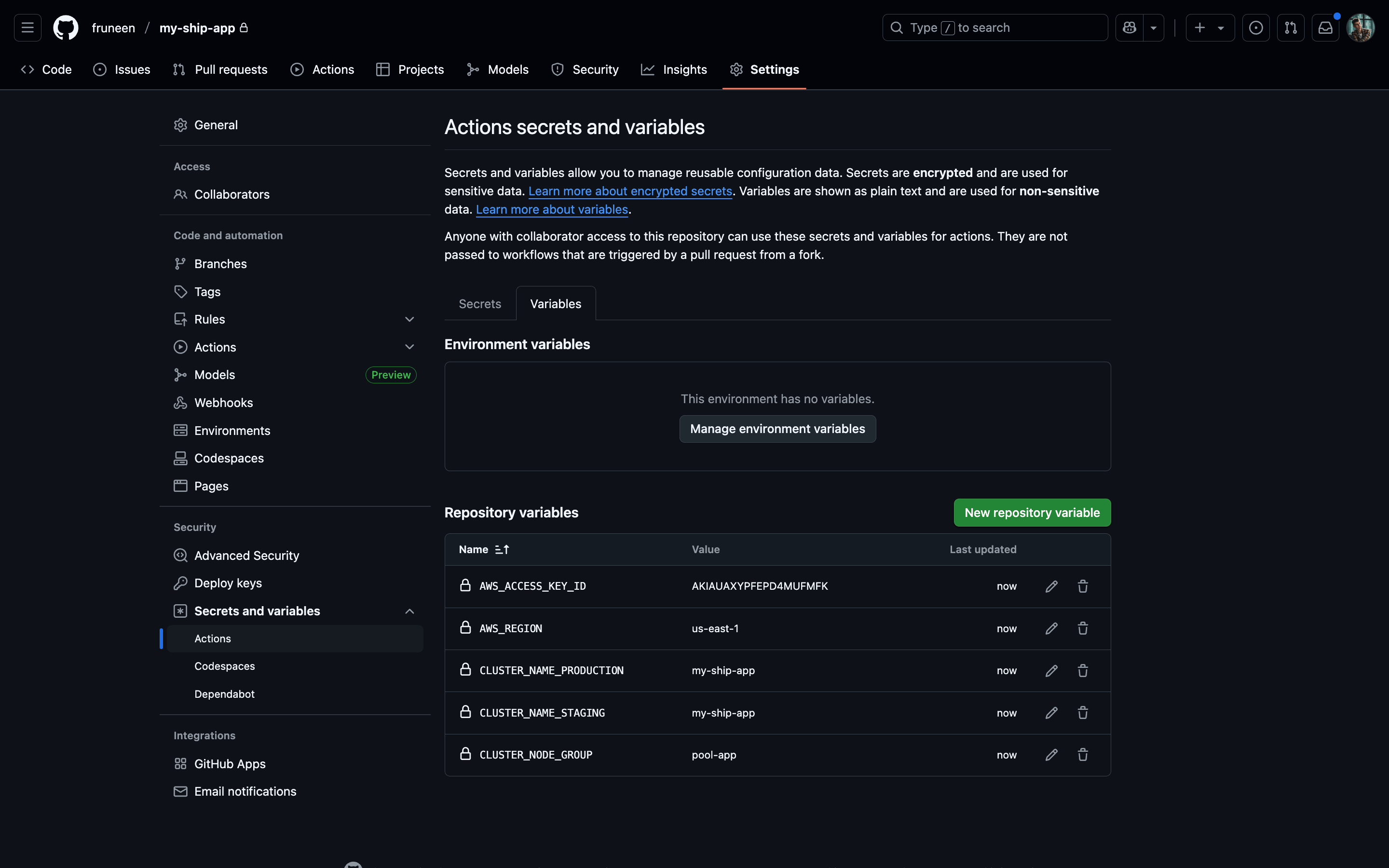
Configure the following secrets and variables in your GitHub repository:
NameTypeDescription
AWS_SECRET_ACCESS_KEYsecretThe secret access key from the AWS IAM user created for CI/CD. This allows GitHub Actions to authenticate with AWS services
AWS_ACCESS_KEY_IDvariableThe access key ID from the AWS IAM user. Used in conjunction with the secret key for AWS authentication
AWS_REGIONvariableThe AWS region where your EKS cluster and ECR registry are located (e.g. us-east-1)
CLUSTER_NODE_GROUPvariableThe name of the EKS node group where your application pods will be scheduled (e.g. pool-app)
CLUSTER_NAME_PRODUCTIONvariableThe name of your production EKS cluster. Required when deploying to the production environment
CLUSTER_NAME_STAGINGvariableThe name of your staging EKS cluster. Required when deploying to the staging environment
Never commit sensitive credentials directly to your repository.
Always use GitHub Secrets for sensitive information like AWS keys.
Variables (unlike secrets) are visible in logs and can be used for non-sensitive configuration values that may need to be referenced or modified.
GitHub Secrets
GitHub Variables
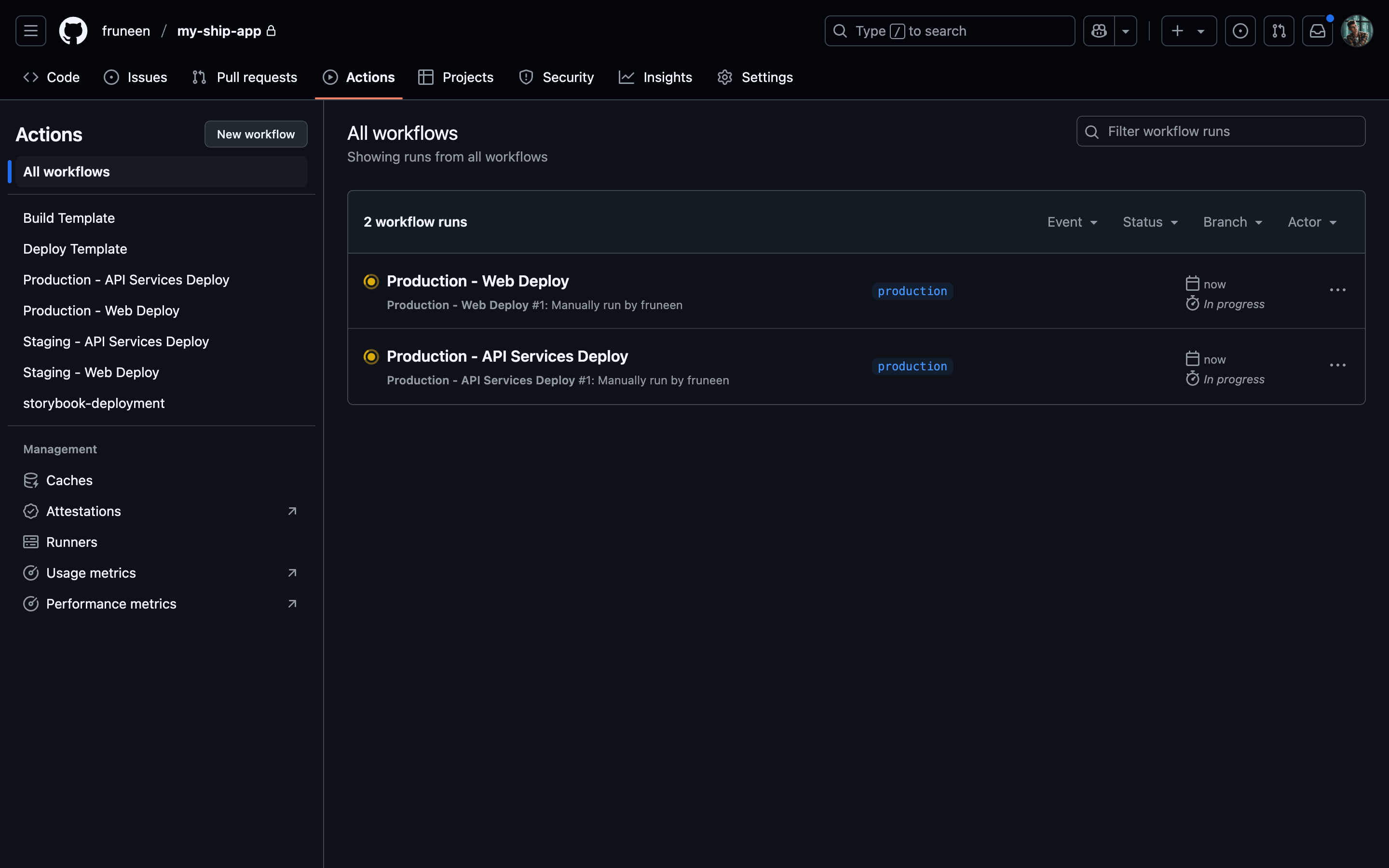
Now commit all changes to GitHub that will trigger deployment, or you can run a workflow manually
CI start
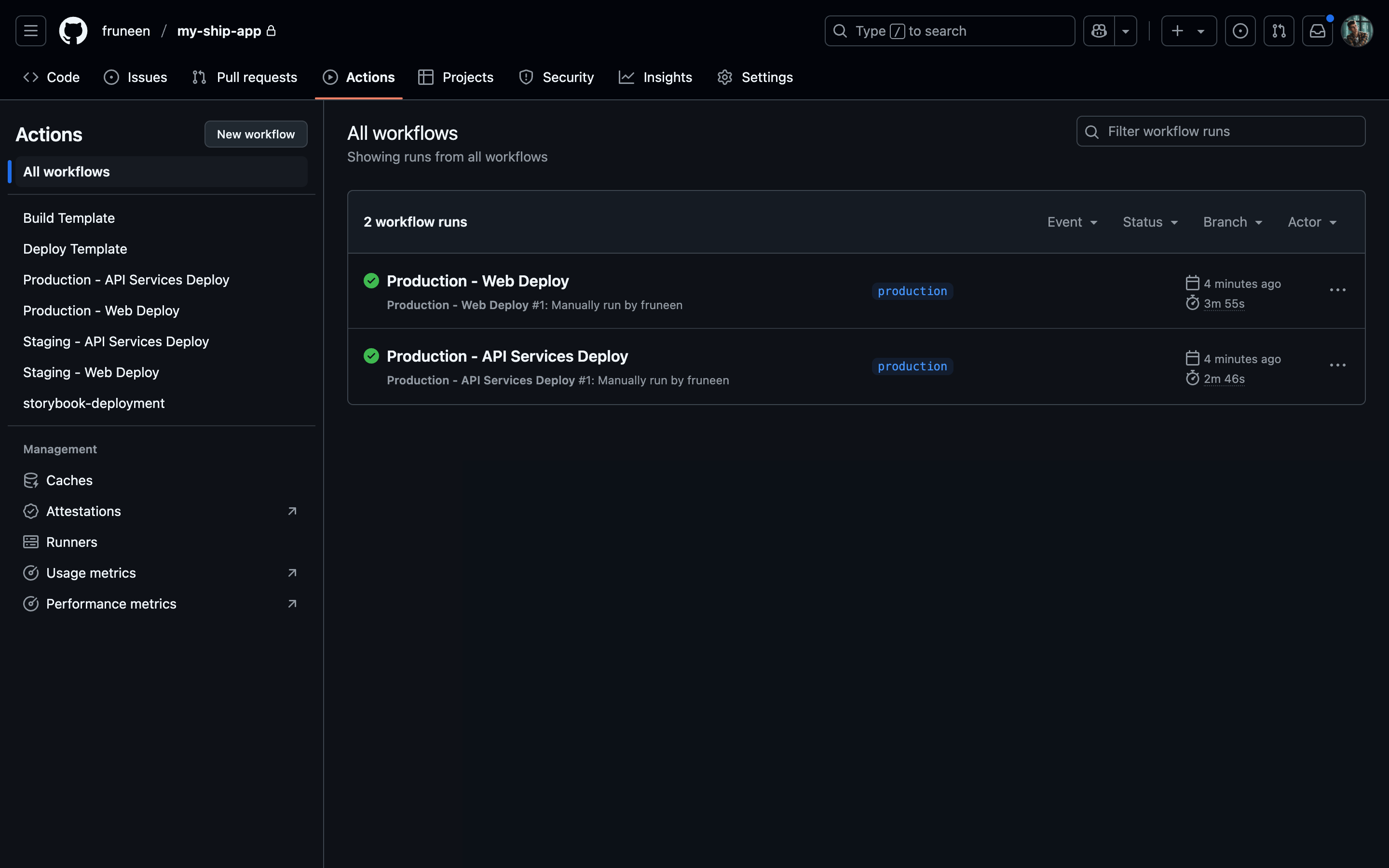
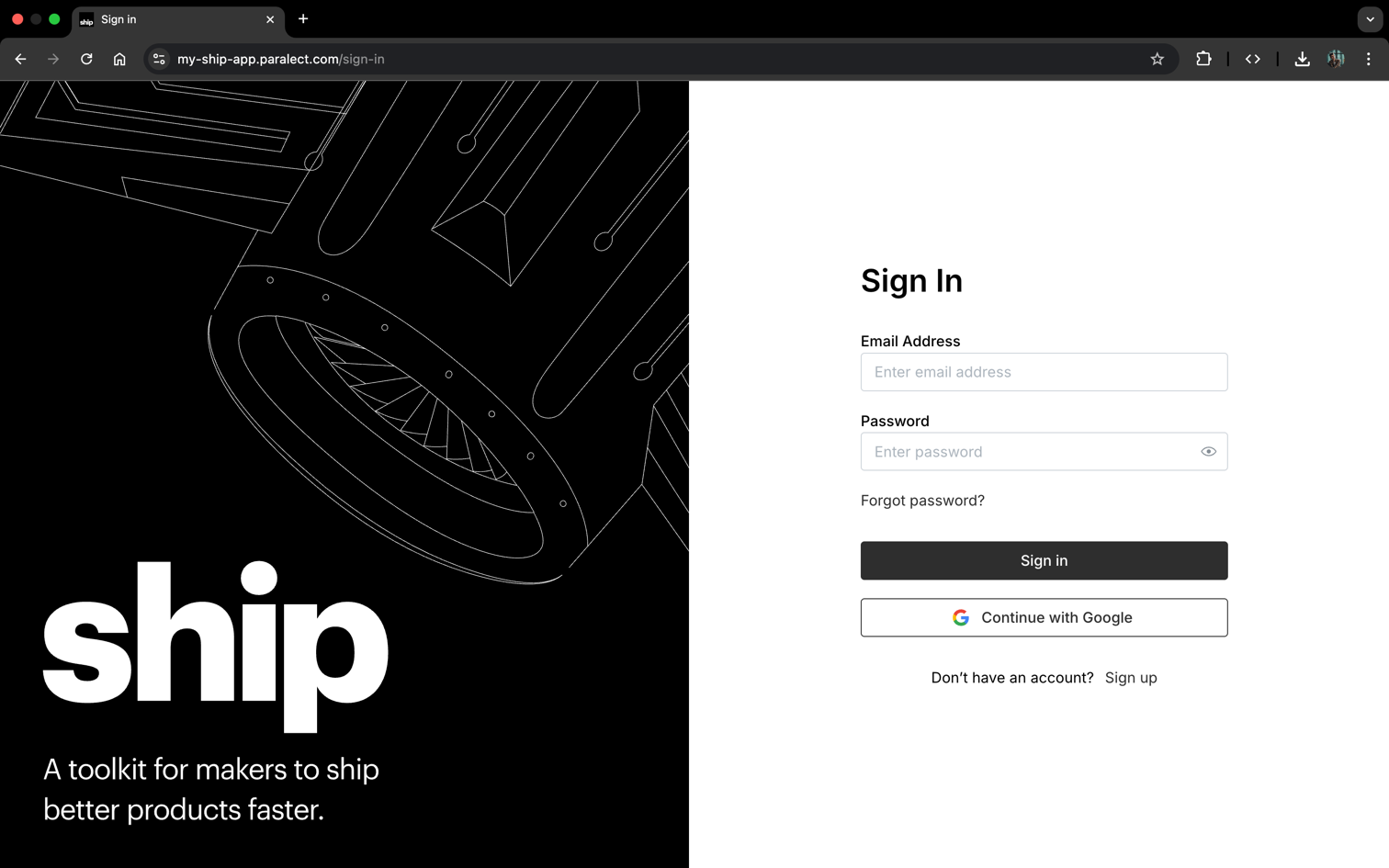
Done! Application deployed and can be accessed by the provided domain.
CI finish
Deployment finish
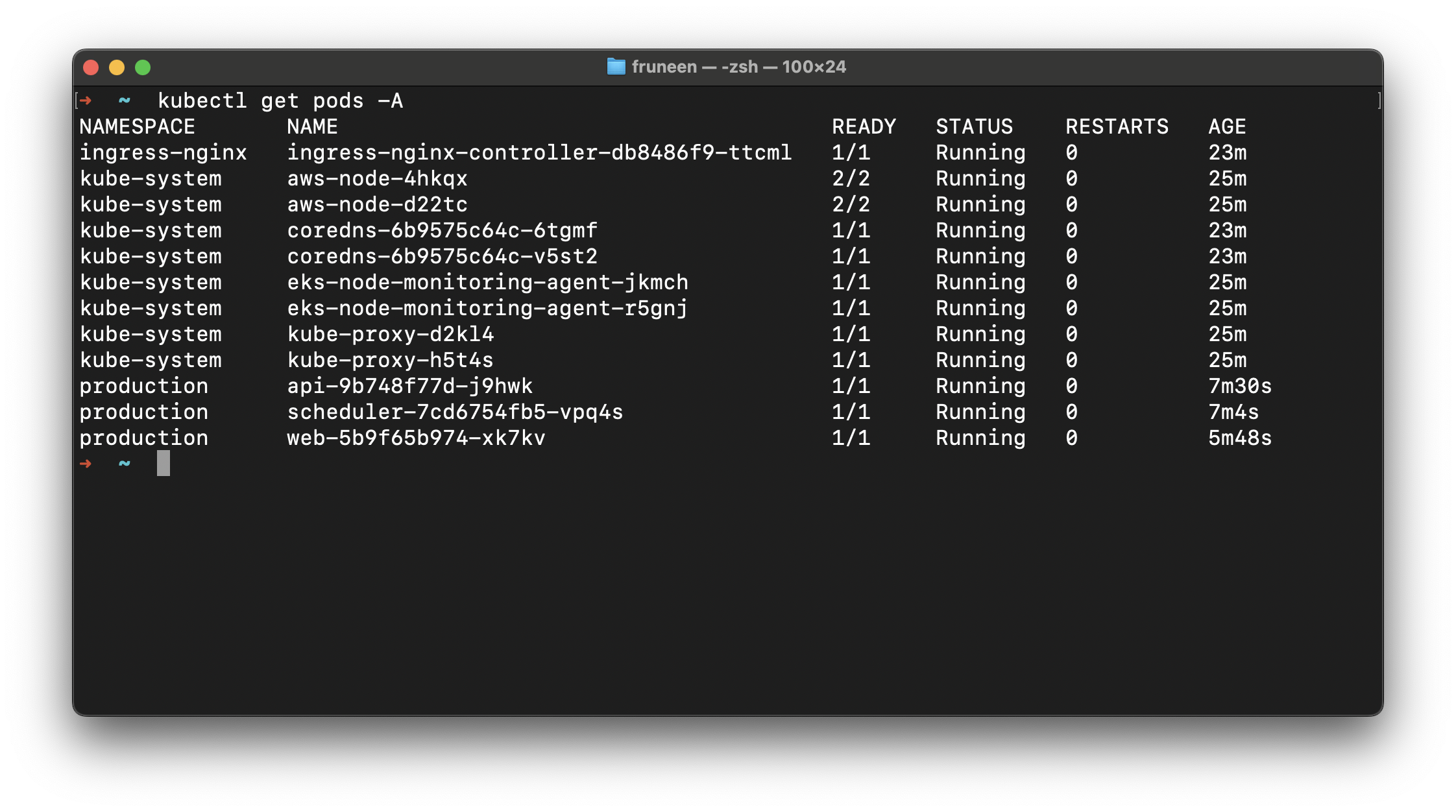
Deployed pods
If something went wrong you can check the workflows logs on GitHub and use kubectl logs, kubectl describe commands.

Upstash Redis Integration

Upstash Redis is a highly available, infinitely scalable Redis-compatible database that provides enterprise-grade features without the operational complexity.

How Ship Uses Redis

Ship leverages Redis for several critical functionalities:
Use CaseDescriptionImplementation
Real-time CommunicationPub/Sub mechanism for WebSocket functionalitySocket.io Redis Adapter
Rate LimitingAPI request throttling and abuse preventionRedis counters with TTL
CachingApplication data caching for improved performanceKey-value storage with expiration
Redis as a Message Broker: When scaling to multiple server instances, Redis acts as a message broker between Socket.io servers, ensuring real-time messages reach all connected clients regardless of which server they’re connected to.

Setting Up Upstash Redis

Create Your Database

1

Access Upstash Console

Log in to your Upstash account and navigate to the Redis section.
2

Create New Database

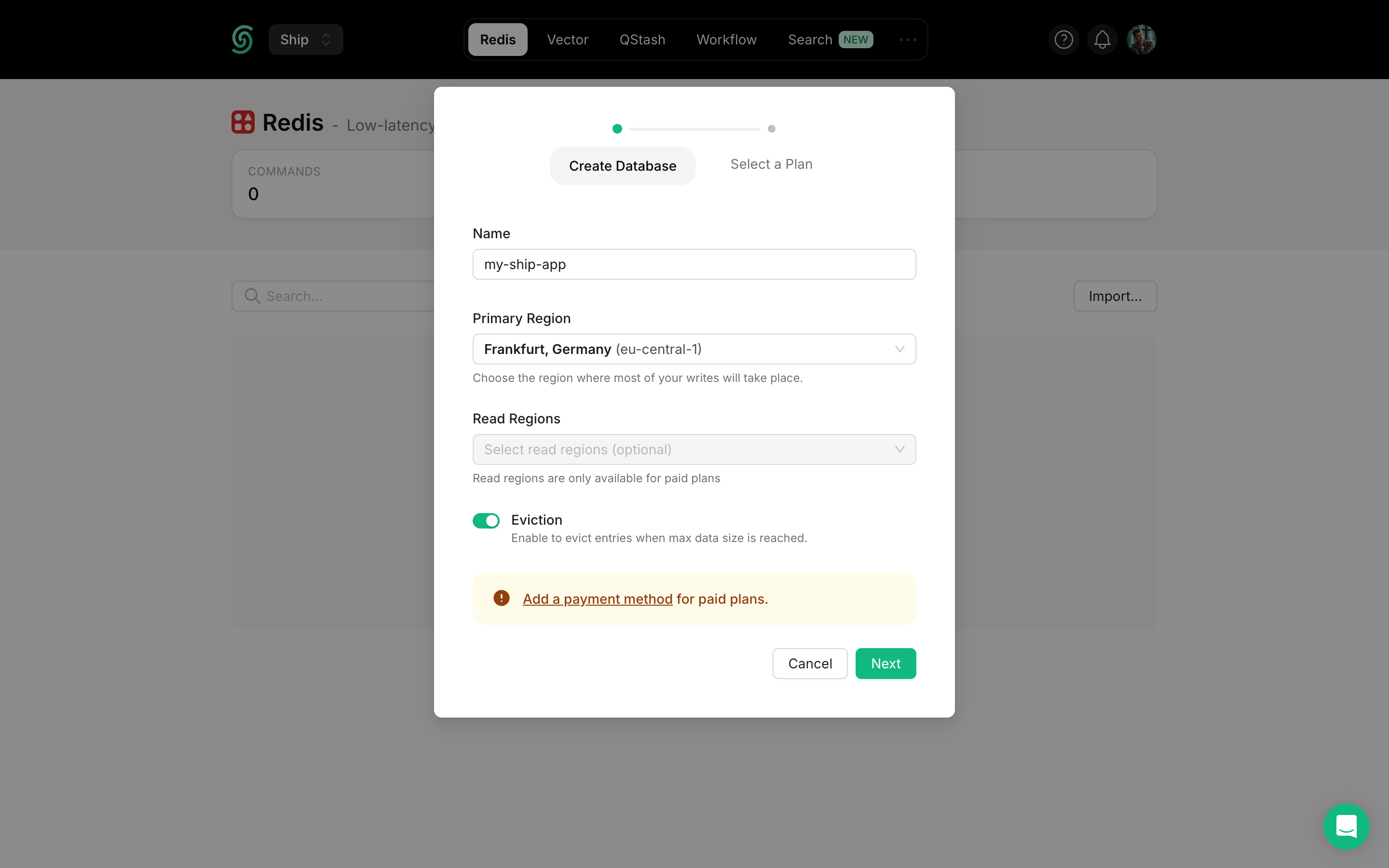
Click Create Database in the upper right corner to open the configuration dialog.
Create Upstash Redis Database
3

Configure Database Settings

Database Name: Choose a descriptive name for your database (e.g., my-ship-app-production)Primary Region: Select the region closest to your main application deployment for optimal write performance.Read Regions: Choose additional regions where you expect high read traffic for better global performance.
4

Select Plan & Deploy

Choose your pricing plan based on expected usage and click Create to deploy your database.
Once your database is created, you’ll need the connection string for your application:
1

Navigate to Connection Info

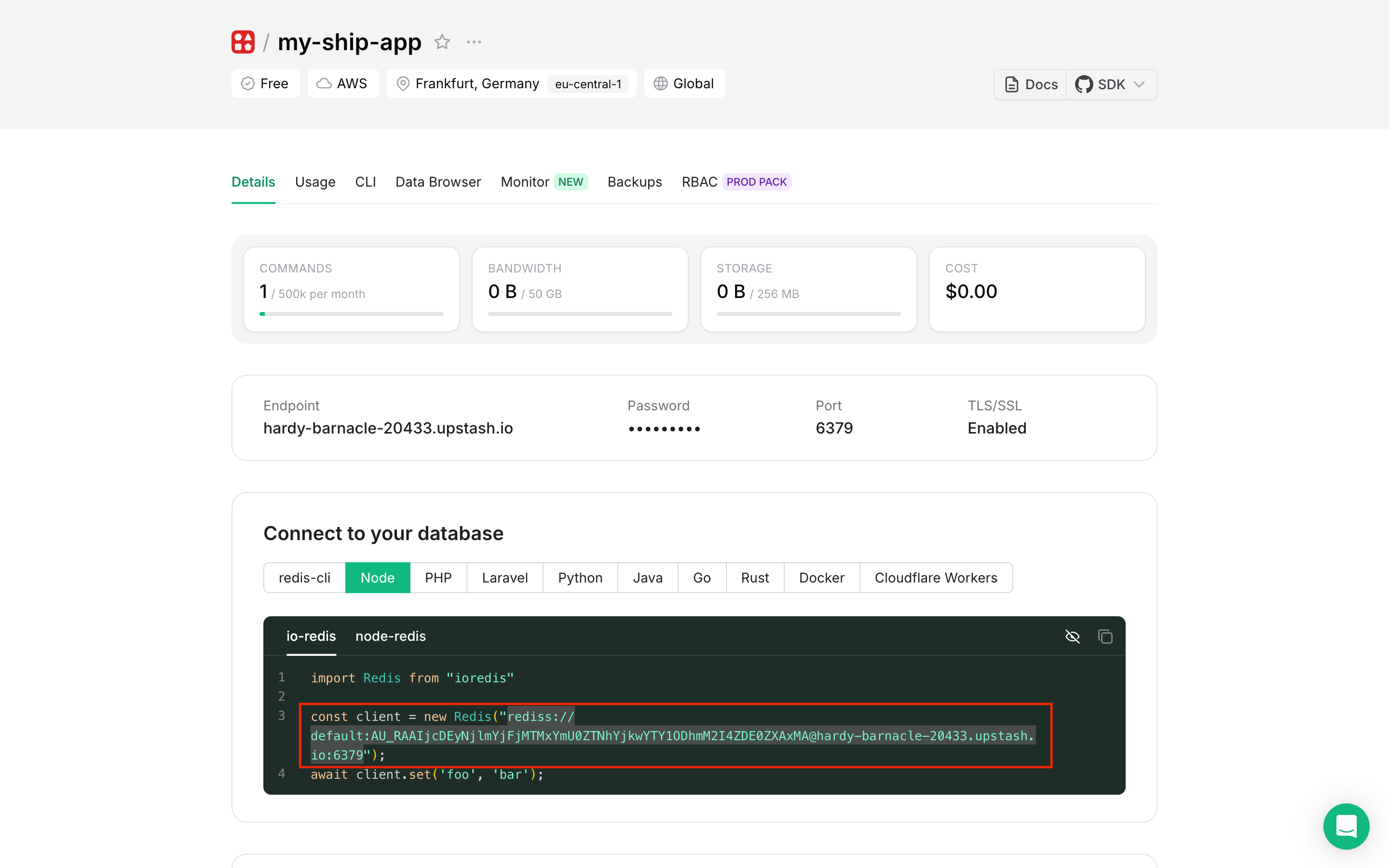
Go to your database dashboard and find the Connect to your database section.
Upstash Redis Connection Details
2

Copy Connection String

  1. Select the Node tab for the appropriate connection string format
  2. Click Reveal to show the hidden password
  3. Copy the complete Redis URI (format: rediss://username:password@host:port)
3

Add to Environment Variables through k8sec

Using k8sec, add the Redis connection string to your environment configuration:
k8sec set api-production-secret -n production REDIS_URI=$REDIS_URI
After updating environment variables, restart your API pod using:
kubectl delete pod <pod-name> -n <namespace>
This will trigger Kubernetes to create a new pod with the updated environment variables.

Verify Connection with Redis Insight

Redis Insight is a powerful GUI tool for managing and debugging Redis databases.
1

Install Redis Insight

Download and install Redis Insight on your local machine.
2

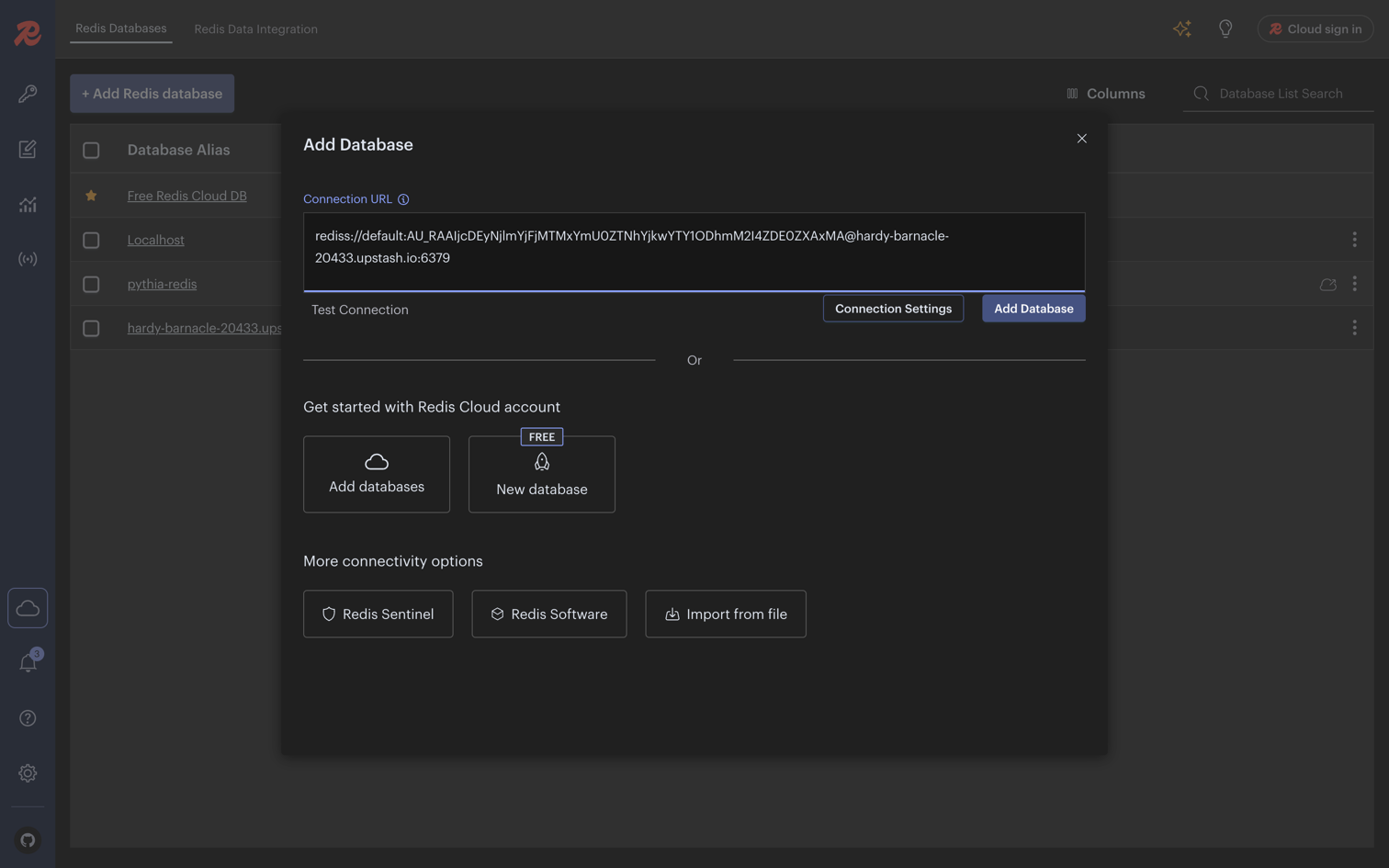
Add Database Connection

  1. Open Redis Insight
  2. Click Add Database
  3. Paste your Upstash Redis connection string in the Connection URL field
  4. Click Add Database
Redis Insight Connection Setup
3

Explore Your Database

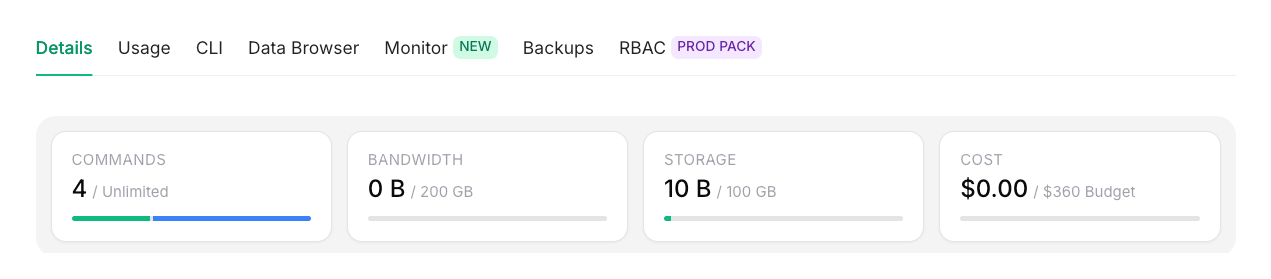
Once connected, you can use Upstash Redis Console to:
  • Browse keys and data structures
  • Execute Redis commands directly
  • Monitor real-time performance metrics
  • Debug application data storage
Upstash Redis Metrics Dashboard
Real-time Monitoring: Upstash Redis updates database metrics automatically every 10 seconds, giving you near real-time visibility into your Redis performance and usage.