
Setup project
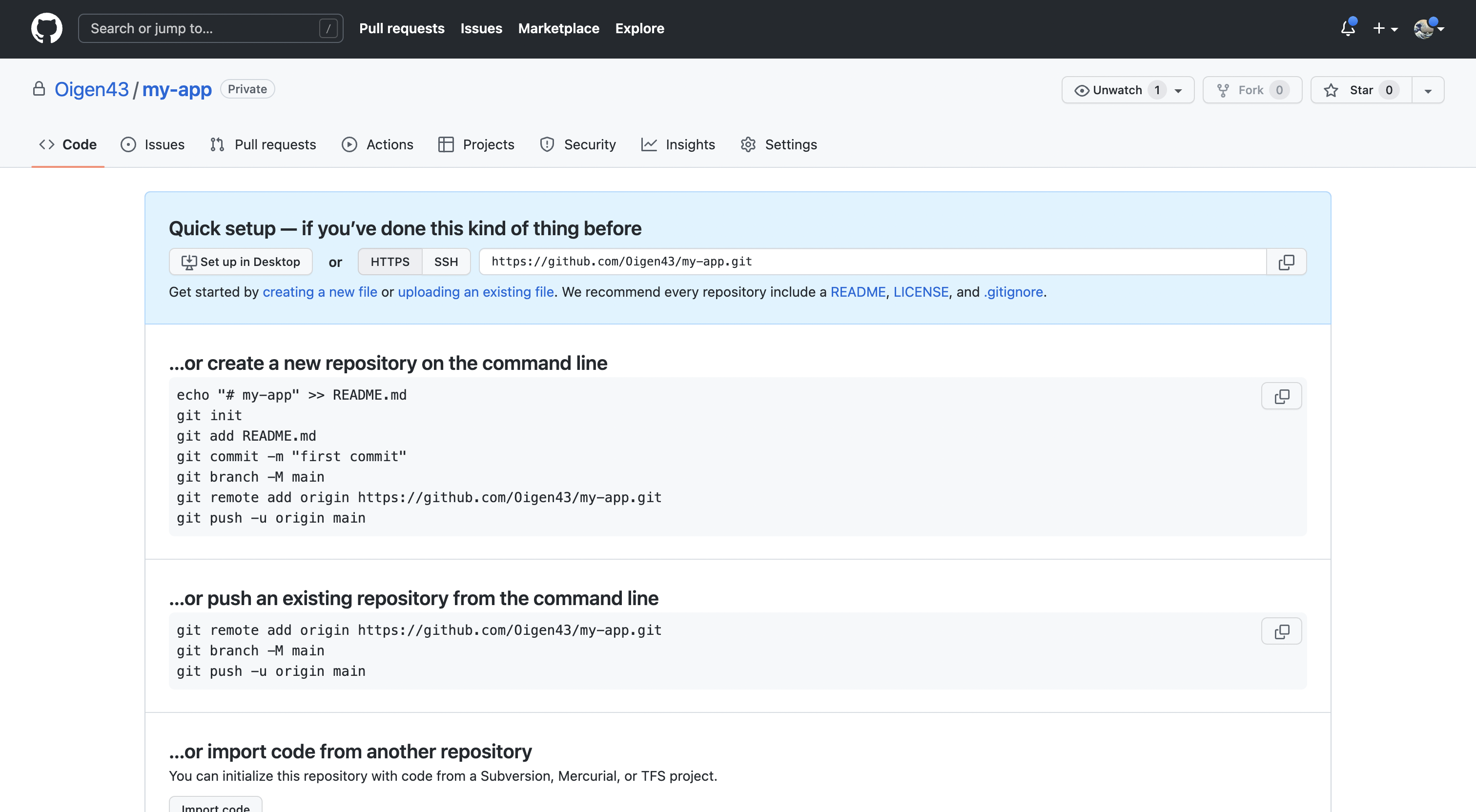
First, initialize your project. Typenpx create-ship-app init in the terminal then choose desired build type and Render as a cloud service provider.
PostgreSQL
Ship runs on PostgreSQL via Drizzle ORM. Render offers a managed PostgreSQL instance you can provision in a few clicks.Database creation
- In the Render Dashboard, click
Newand selectPostgreSQL. - Enter a database name and select a region. We recommend the same or closest region to your services.
- Select an instance plan. The free plan is enough for staging/demo environments. For production, pick a paid plan that includes automated backups.
- Click
Create Database.
Connection
After the database is provisioned, open its page and copy theInternal Database URL (for services hosted on Render) or the External Database URL. This is your DATABASE_URL connection string in the form postgresql://user:password@host:port/dbname.
Save this value. You’ll set it as the DATABASE_URL environment variable on the API service later.
Redis Cloud
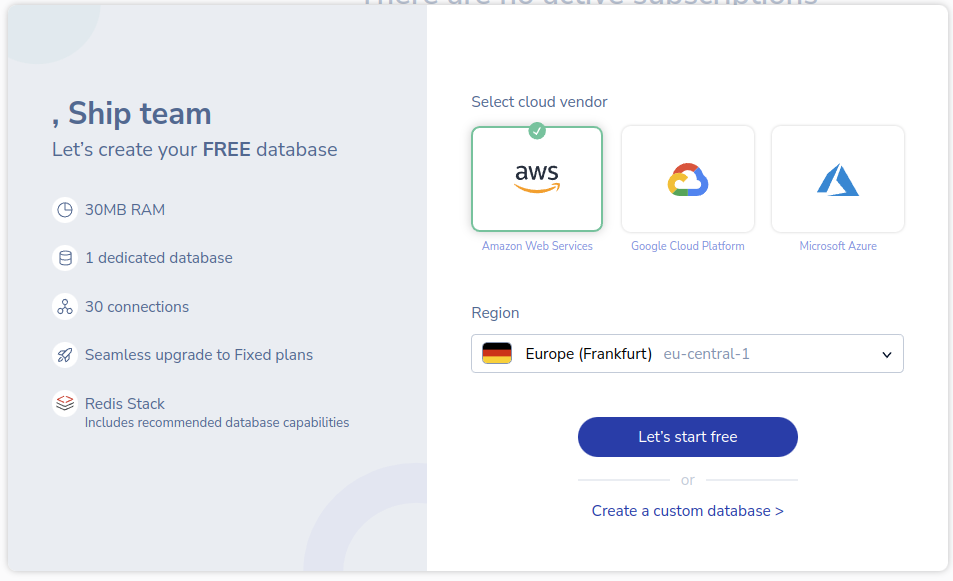
Navigate to Redis Cloud and create an account. Select cloud provider and region, then pressLet's start free to finish database creation.
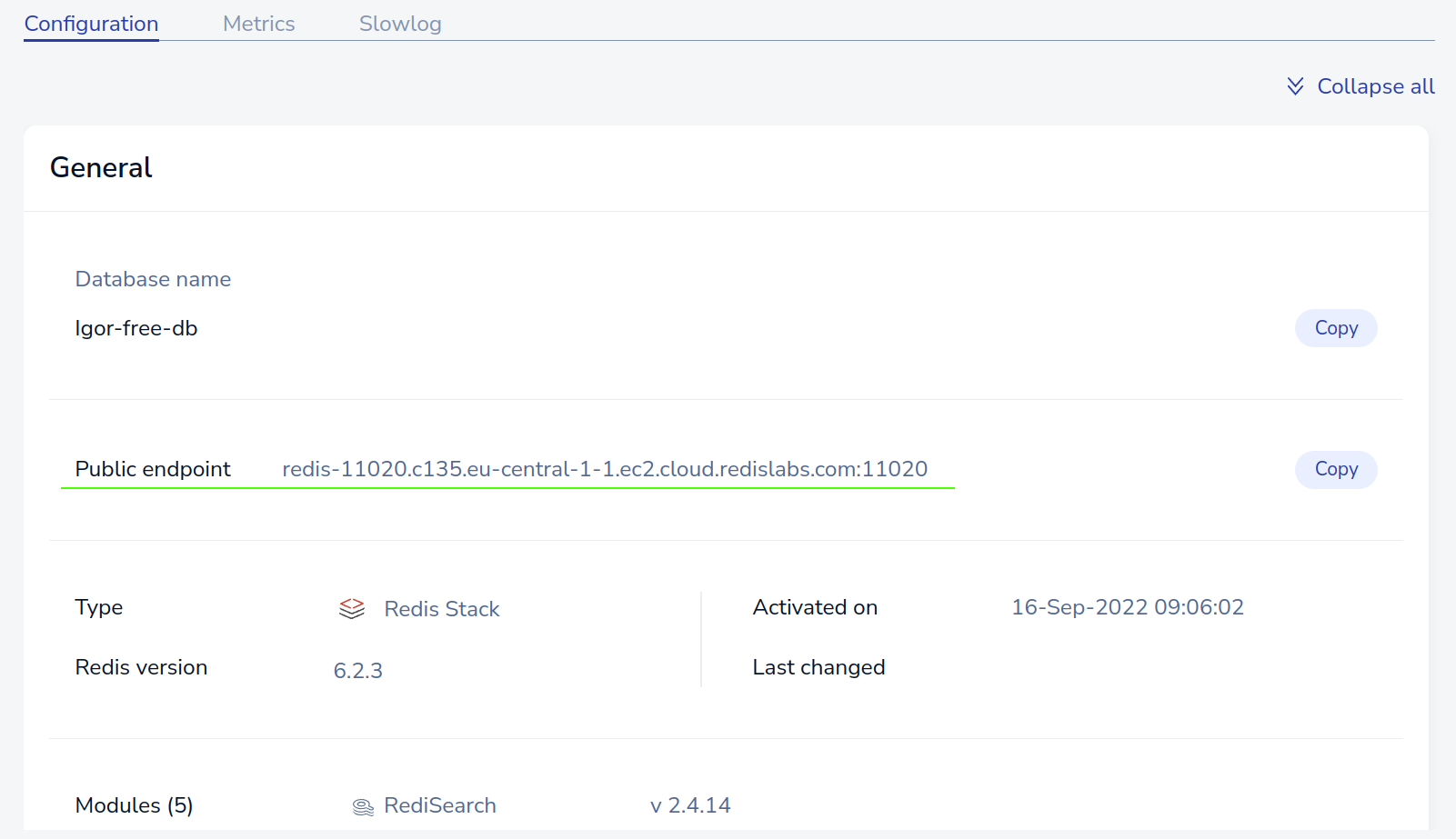
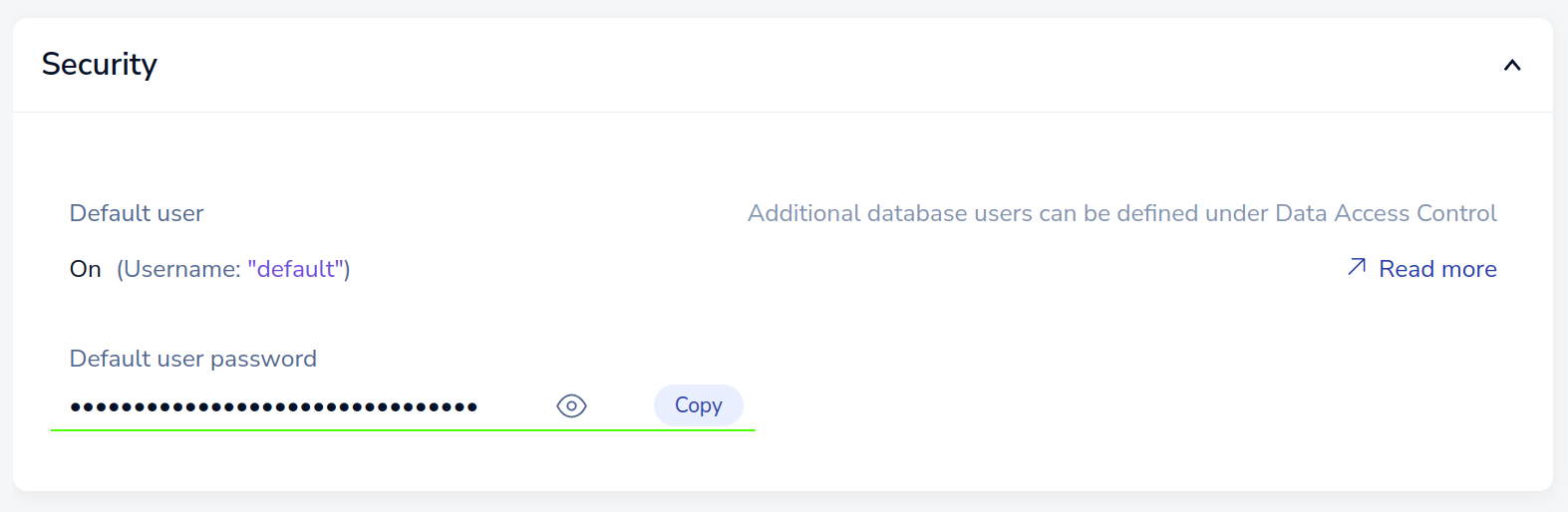
redis://:<password@<public-endpoint>. Save this value. It will be needed later when creating the app in Digital Ocean.
Render
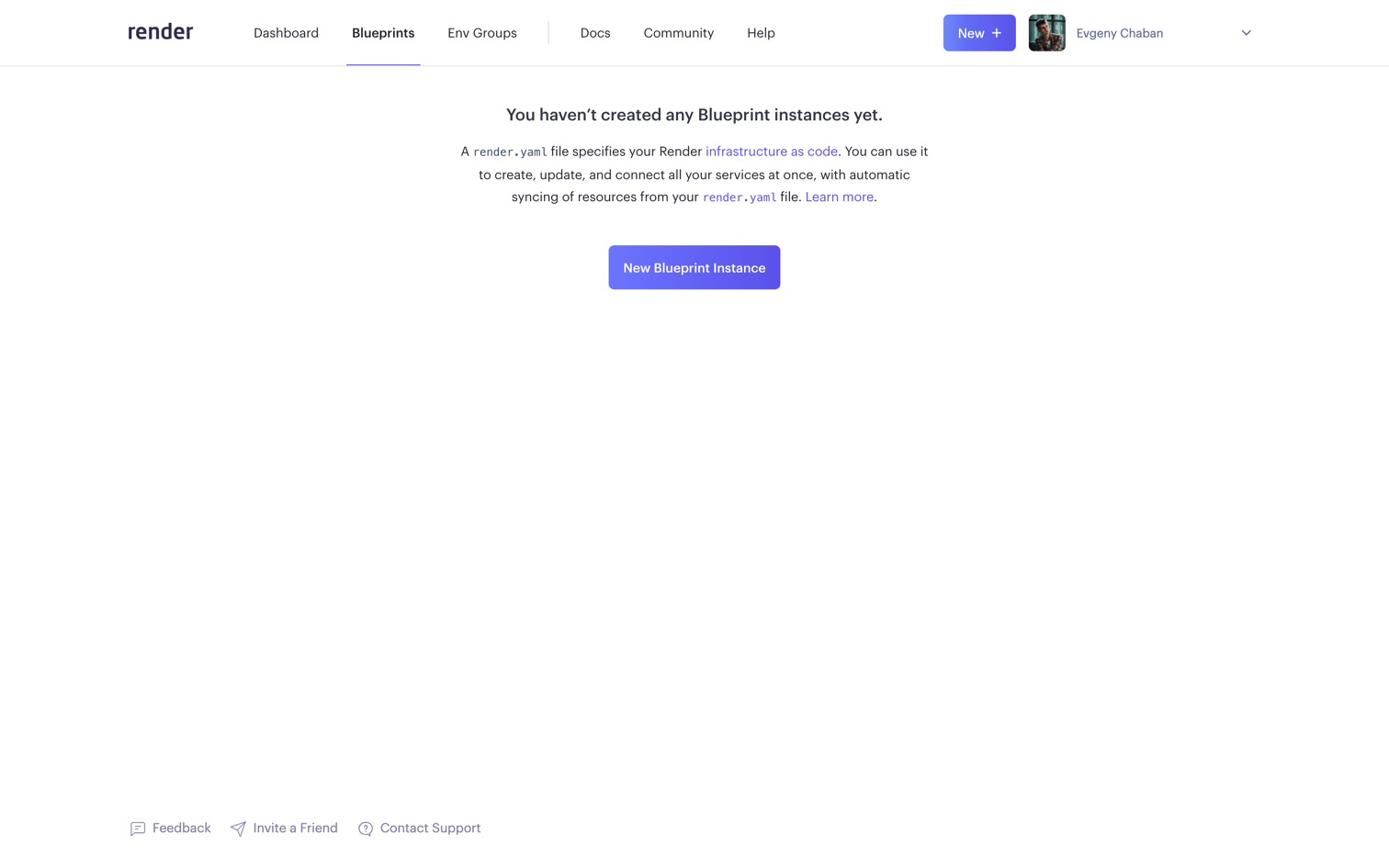
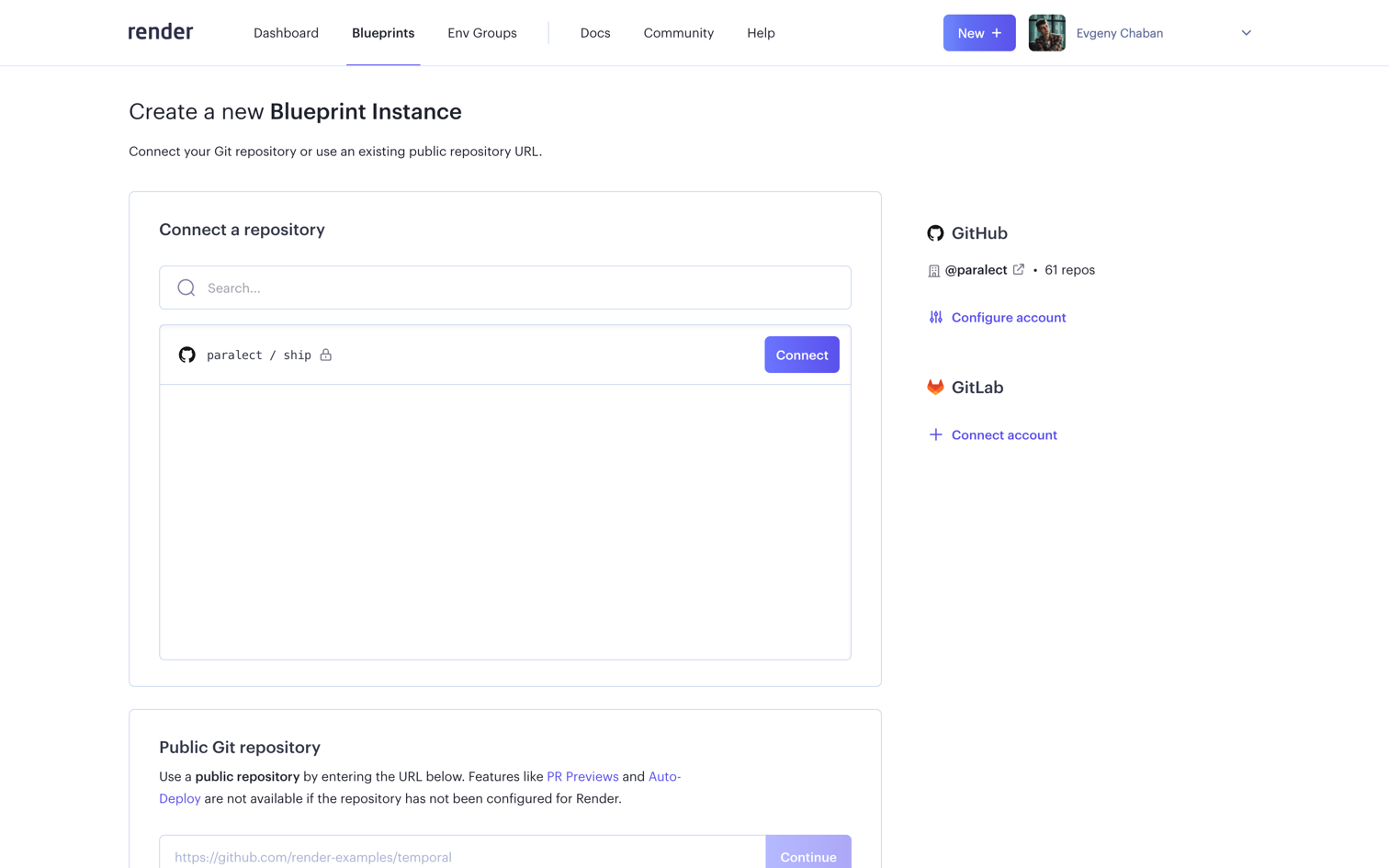
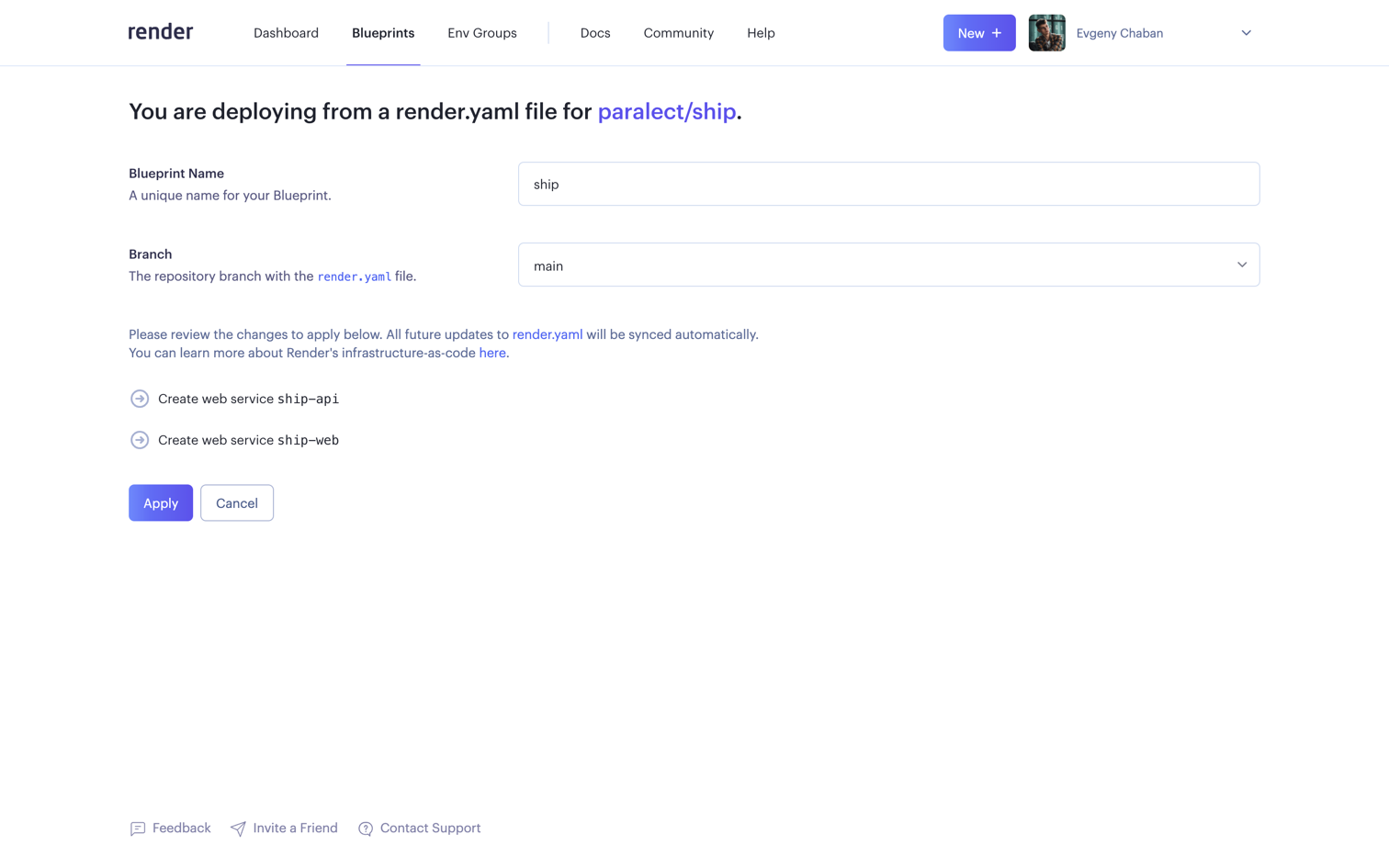
Navigate to the Render Dashboard Panel and select the Blueprints tab. TheFull-Stack build type requires 2 applications. First for the Web (TanStack Start) app and second for the API, plus the Migrator and Scheduler services that run alongside it.
The Migrator applies Drizzle migrations (pnpm --filter api migrate) before each deploy, and the Scheduler runs background jobs (pnpm --filter api schedule). Both share the API image and need the same DATABASE_URL and REDIS_URI values.
Environment variables
TheAPP_ENV environment variable is typically set based on the environment in which the application is running.
Its value corresponds to the specific environment, such as “development”, “staging” or “production”.
This variable helps the application identify its current environment and load the corresponding configuration.
For the web application, by setting the environment variable APP_ENV,
the application can determine the environment in which it is running and load the appropriate configuration file:
These files hold the client config for each environment. The web app is built with Vite, so client-side variables are prefixed with
VITE_ and read through import.meta.env (for example VITE_API_URL, VITE_WS_URL, VITE_WEB_URL). They are baked in at build time, so make sure the values in your .env.{environment} files are up to date and committed before you deploy.
In contrast, the API utilizes a single .env file that houses its environment-specific configuration.
This file typically contains variables like API keys, secrets, or other sensitive information.
To ensure security, it’s crucial to add the .env file to the .gitignore file,
preventing it from being tracked and committed to the repository.
So just specify the environment variables that will contain the values of your secrets.
For example, if you have a secret named API_KEY,
create an environment variable named API_KEY and set the value of the corresponding secret for it.
Now navigate to Dashboard, select your instance of Web Service and select the Environment tab in the sidebar.
Here you need to pass only one variable - APP_ENV.
Make sure that your web application has up-to-date environment data in the repository.
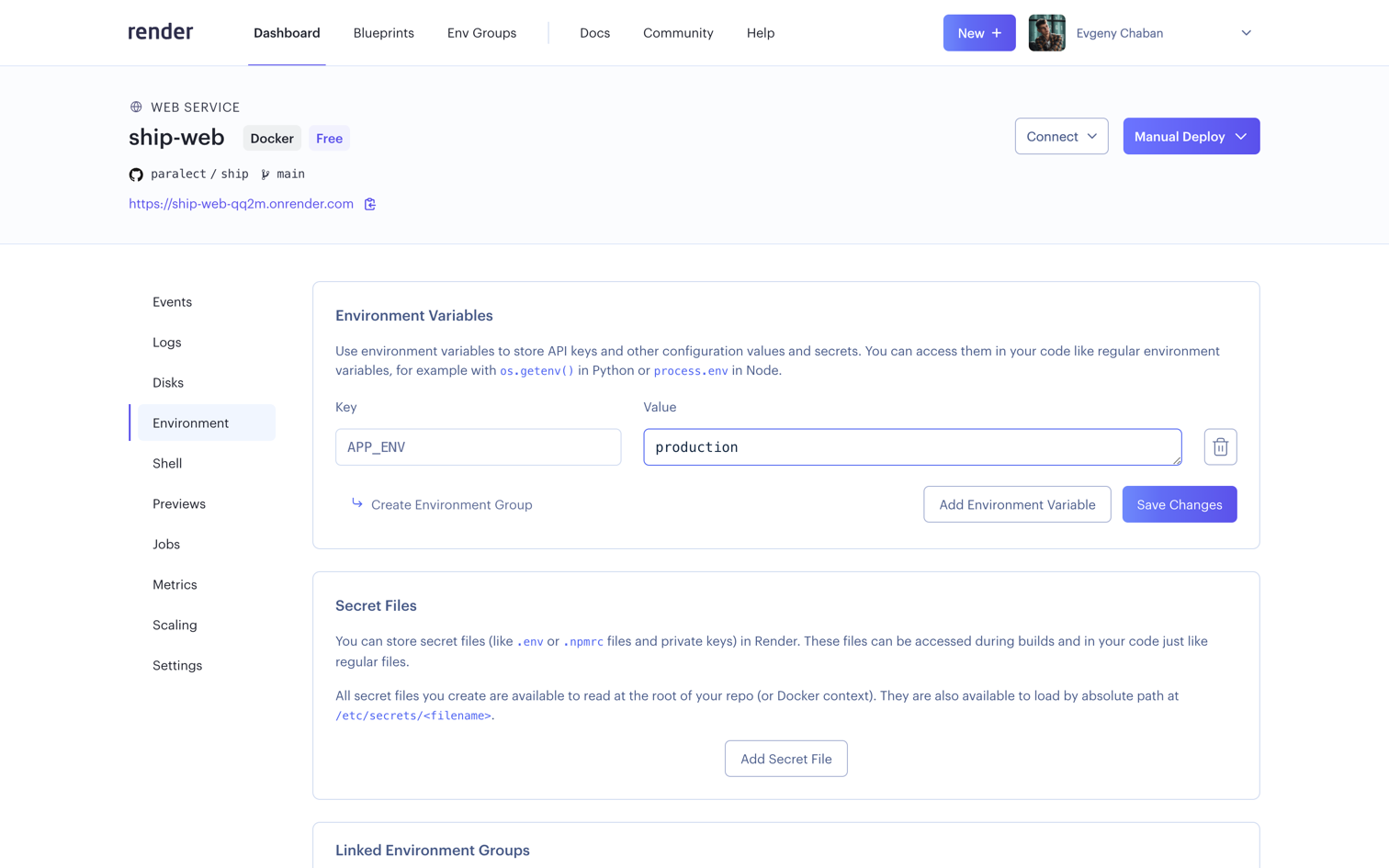
DATABASE_URL to the PostgreSQL connection string you copied earlier and REDIS_URI to your Redis connection string. The same values are required by the Migrator and Scheduler services, so add them there too.
Cloudflare
Render provides an initial URL of the form
*.onrender.com to all deployed services.
onrender.com is a public suffix domain as it’s a shared domain across
all Render services - and is done so in order to protect users from being able to read each other’s cookies.Ship uses cookies to store tokens on the front-end side.
Therefore, you need a different domain to successfully deploy the application.If you don’t have a personal domain, you can use free solutions for educational purposes, such as
free-domain repository.Settings tab,
scroll down to the Custom Domains section and click the Add Custom Domain button.
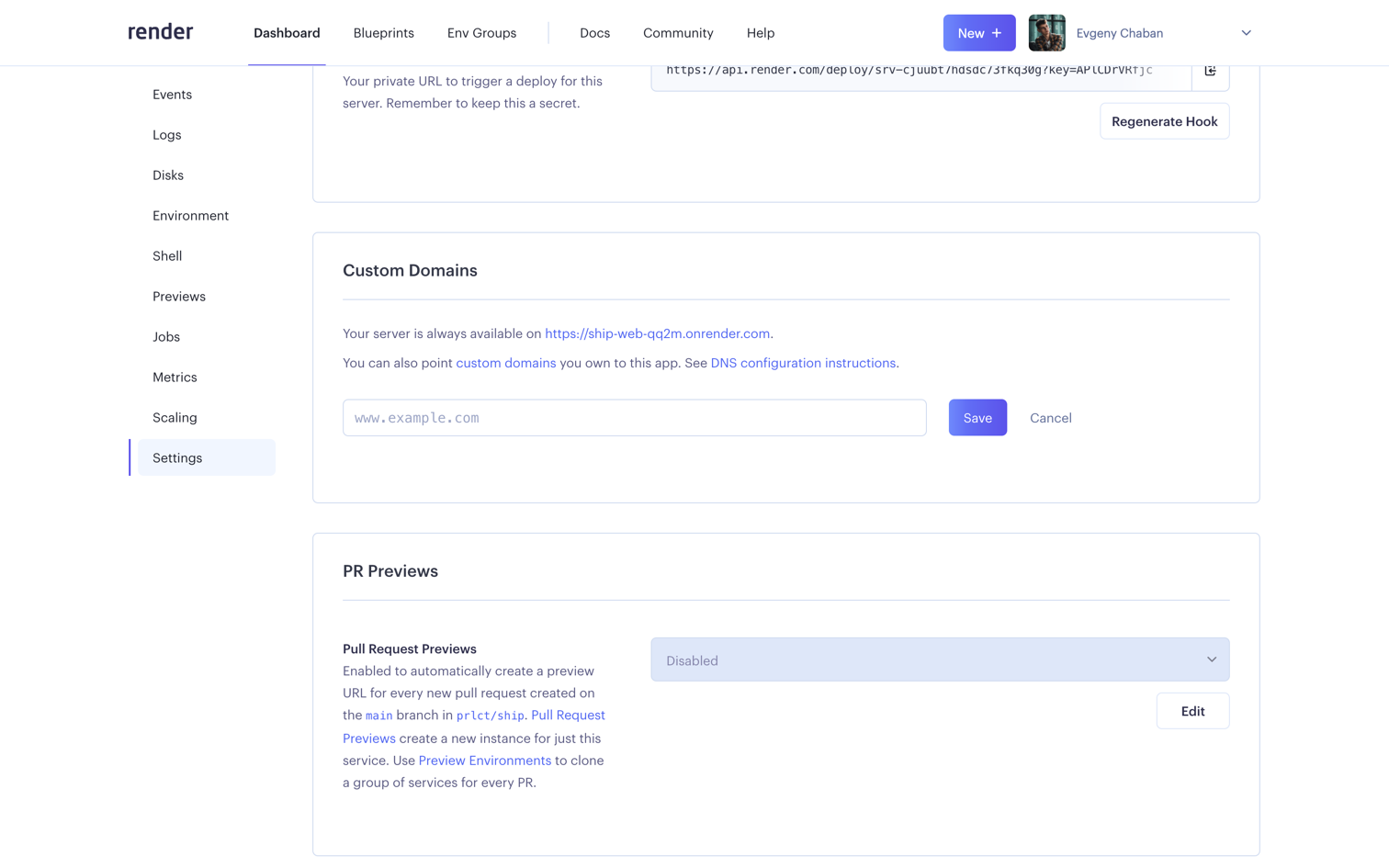
Save button.
After adding a new custom domain, you need to add a CNAME record in your DNS provider.
Copy this alias for your app and move on.
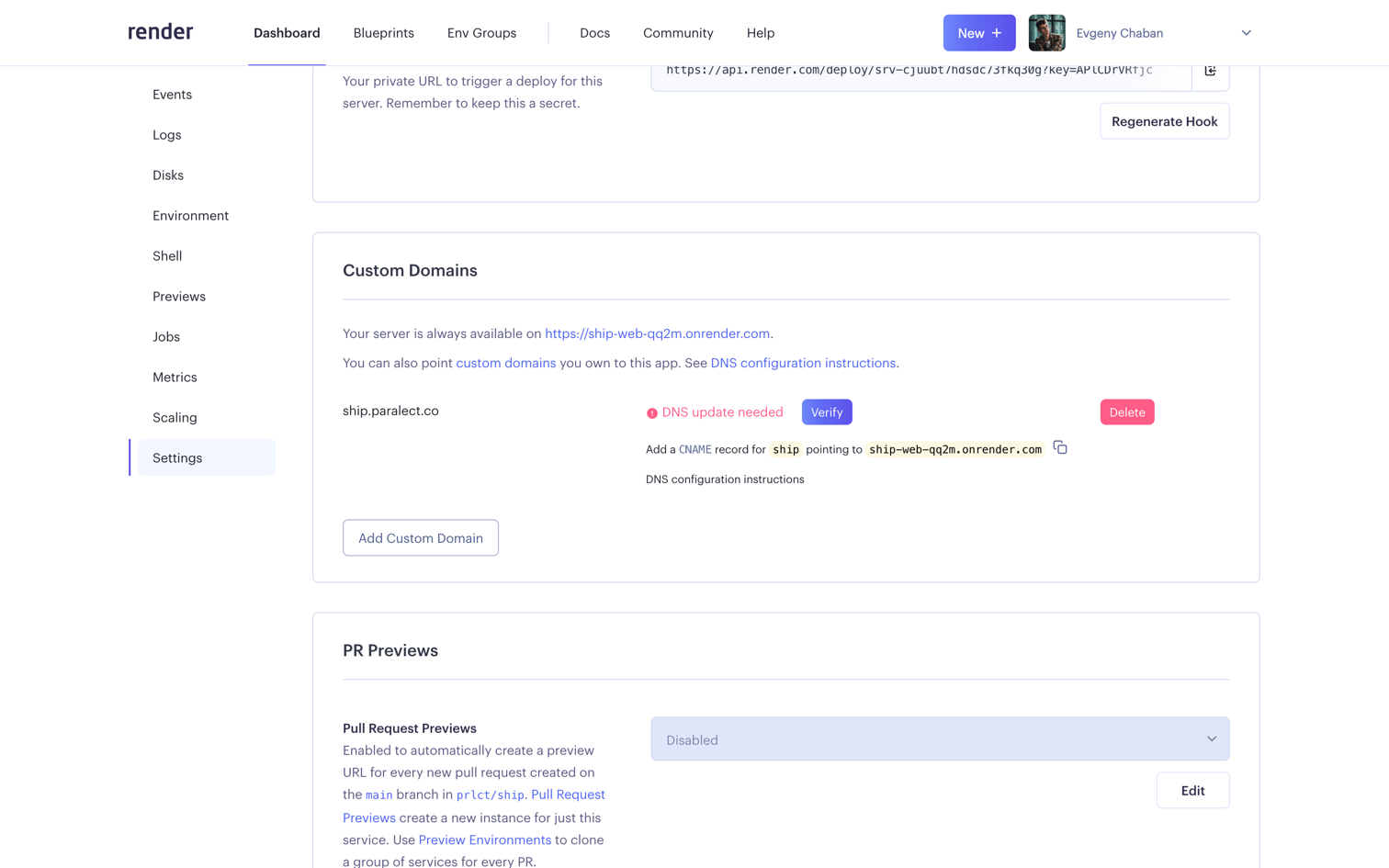
- Go to
DNStab and create a new record. - Click
Add record. Select typeCNAME, enter domain name (must be the same you entered in Render settings) and paste alias intotargetfield. Make sureProxy statustoggle enabled. - Save changes
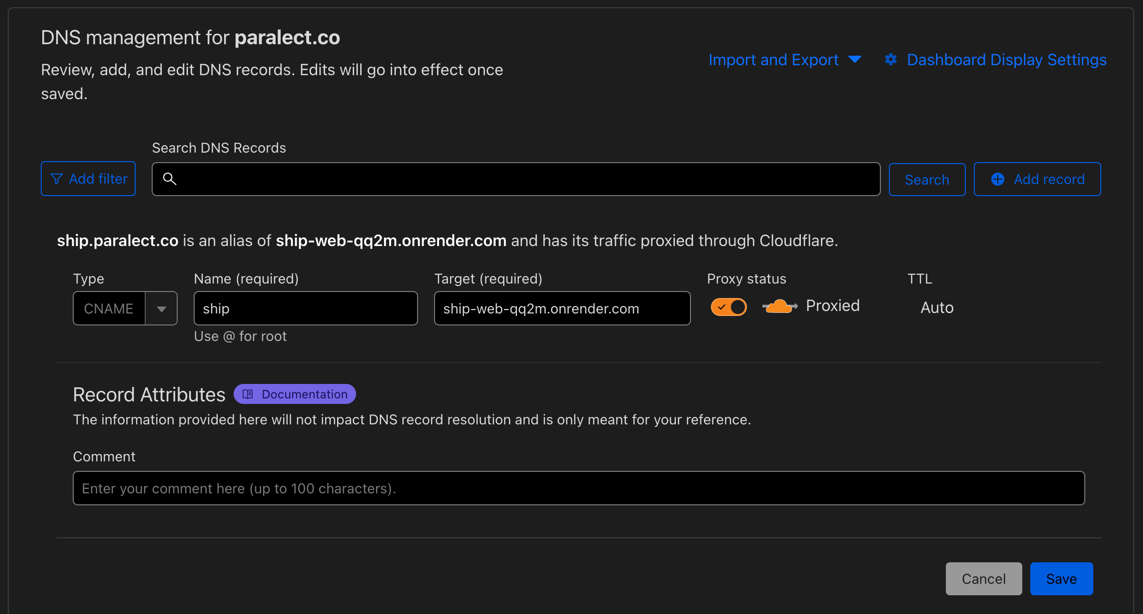
Verify button.
It usually takes about 5 minutes for Render to confirm your domain and issue a certificate and start using your new domain.
Once the domain is confirmed, application can be accessed by new address.
Now make sure you have up-to-date environments in your API and Web applications.