Migrator (Drizzle migrations) and Scheduler run from the API image inside the same application. Unlike Kubernetes, where separate containers are used for them.
Setup project
First, initialize your project. Typenpx create-ship-app init in the terminal then choose desired build type and Digital Ocean Apps as a cloud service provider.
PostgreSQL
Ship runs on PostgreSQL via Drizzle ORM. DigitalOcean offers a managed PostgreSQL database you can provision next to your app.Database creation
- In the DigitalOcean Control Panel, open the Databases tab and click
Create Database Cluster. - Select PostgreSQL as the database engine.
- Choose a region. We recommend the same region as your App Platform application to keep latency low.
- Select a plan. A basic single-node plan is enough for staging/demo environments. For production, pick a plan with standby nodes and automated backups.
- Name the cluster and click
Create Database Cluster.
Connection
After the cluster is provisioned, open its Overview page and find the Connection Details section. Switch the connection string format toConnection string and copy it. This is your DATABASE_URL value in the form postgresql://user:password@host:port/dbname?sslmode=require.
Under Settings → Trusted Sources, add your App Platform app so the API can reach the database.
Save this value. It will be needed later when creating the app in Digital Ocean.
Redis Cloud
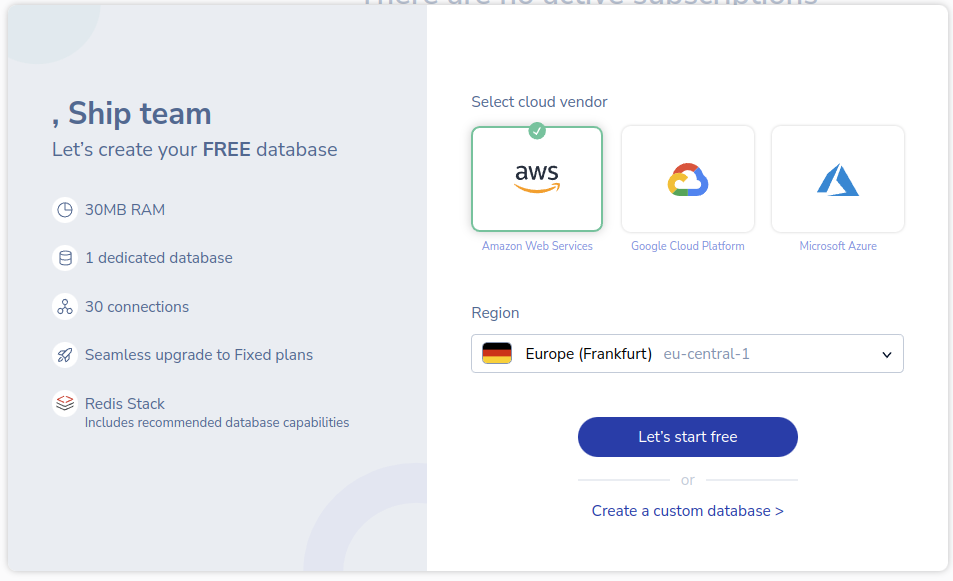
Navigate to Redis Cloud and create an account. Select cloud provider and region, then pressLet's start free to finish database creation.
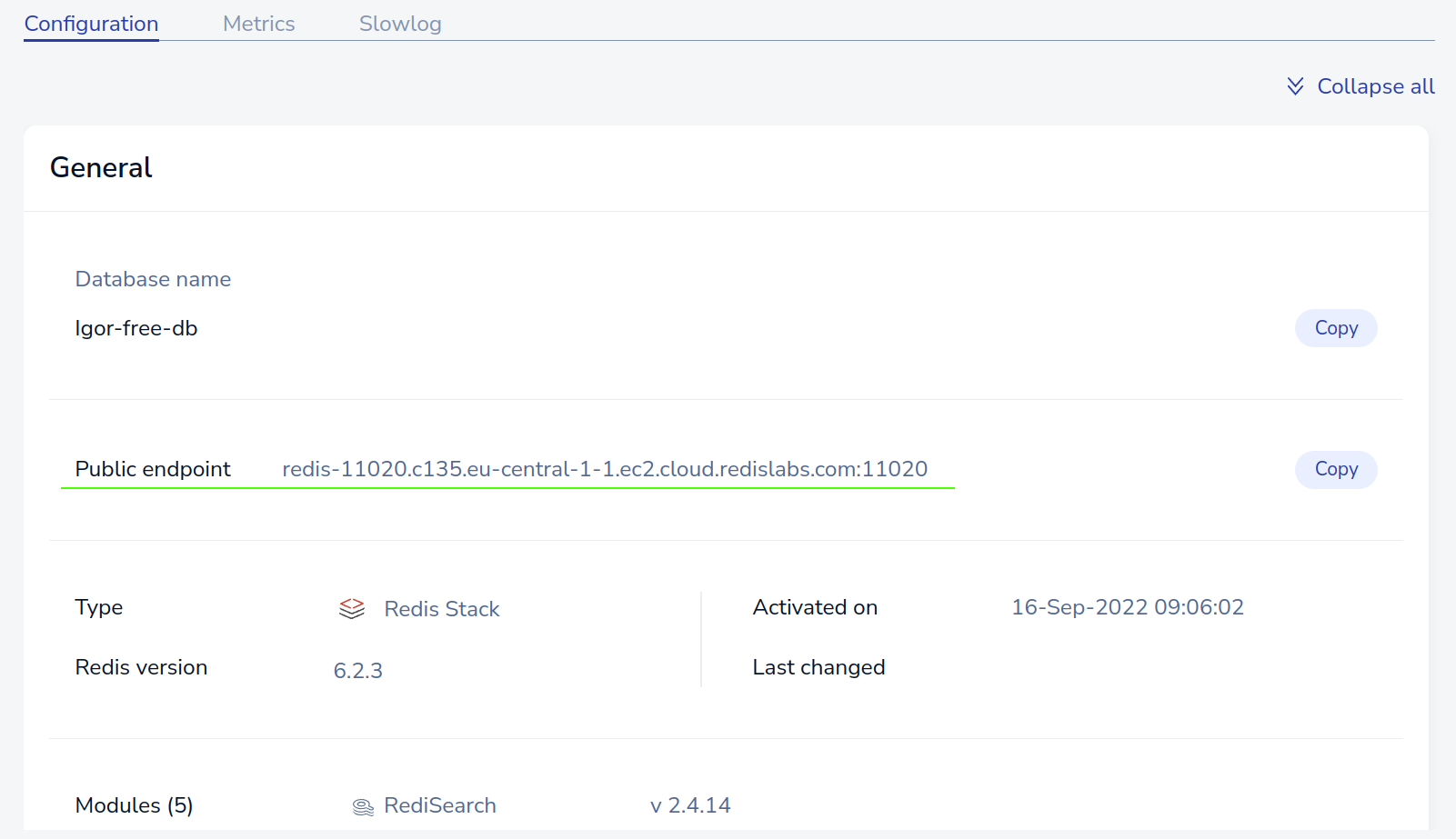
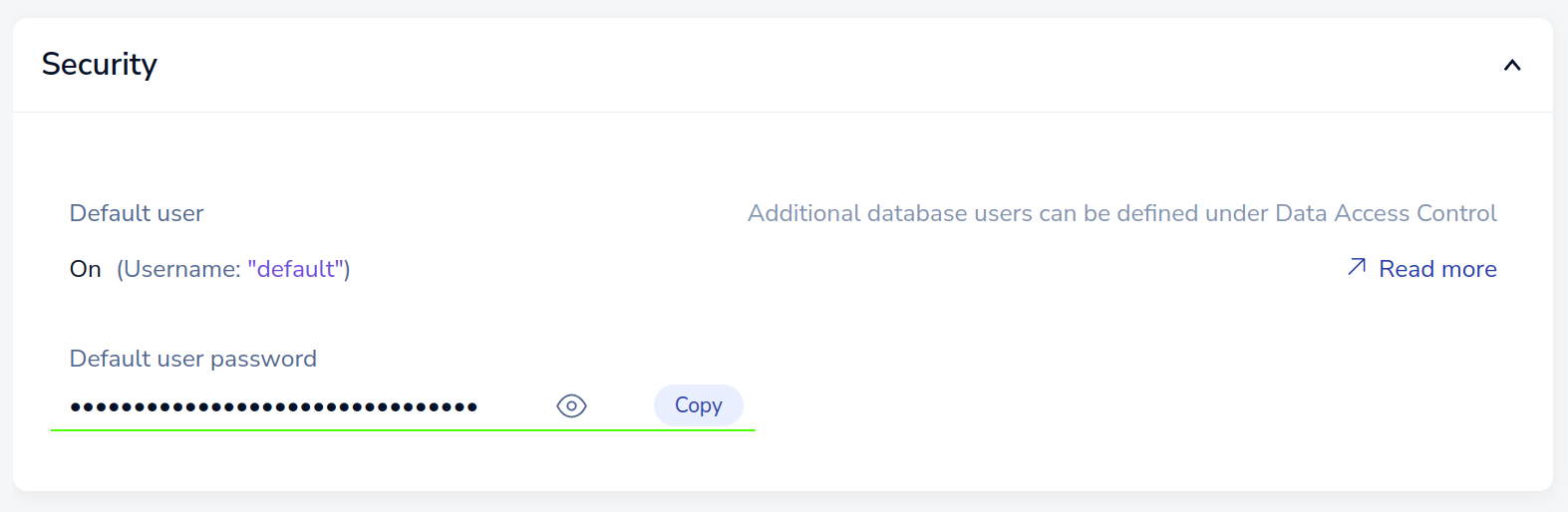
redis://:<password@<public-endpoint>. Save this value. It will be needed later when creating the app in Digital Ocean.
Digital Ocean
Navigate to the Digital Ocean Control Panel and select the Apps tab. TheFull-Stack build type requires 2 applications. First for the Web (TanStack Start) app and second for the API, plus the Migrator and Scheduler services that run from the same API image.
Initial step
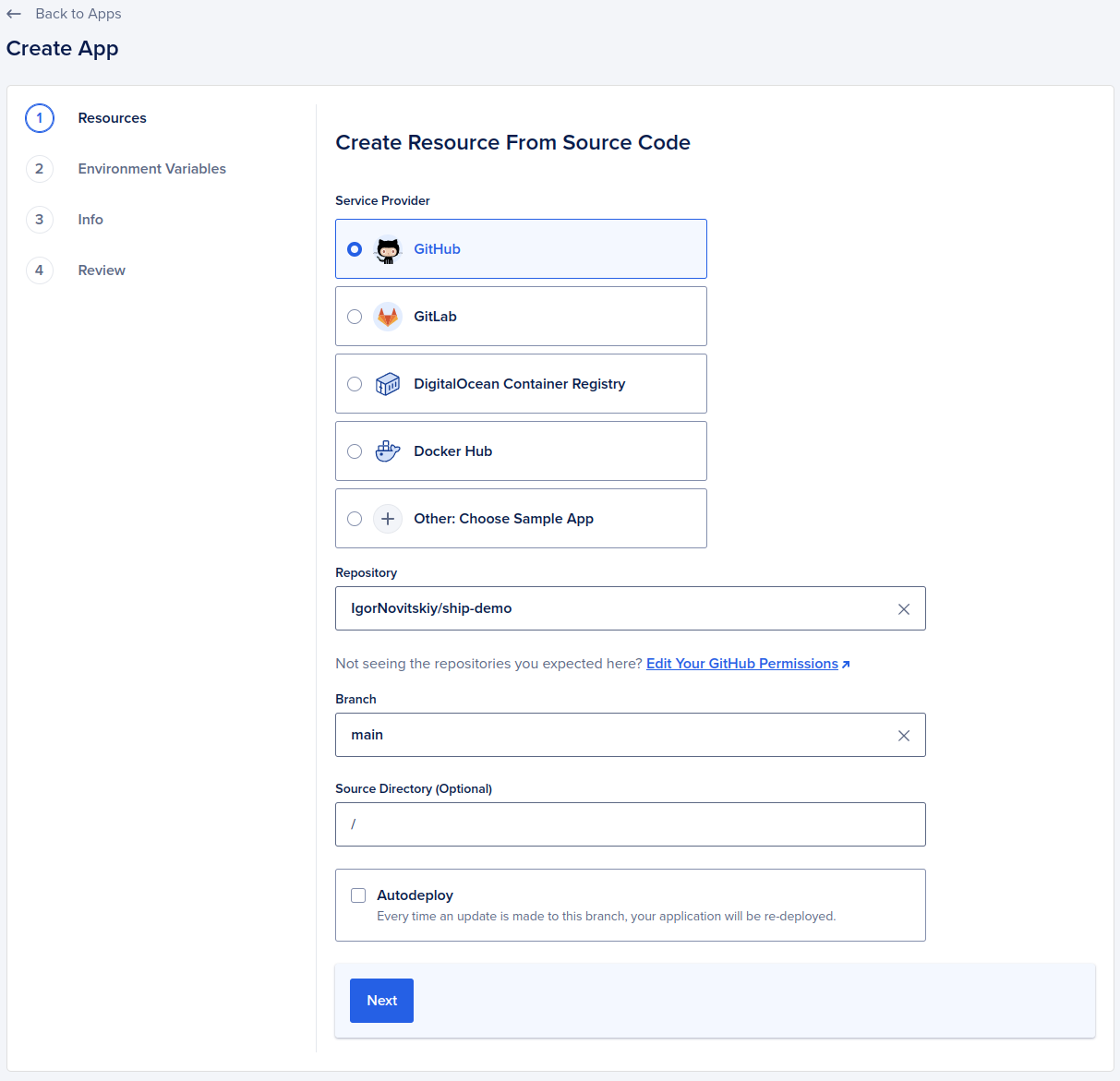
- Select GitHub as a service provider. You might need to grant Digital Ocean access to your GitHub account or organization.
- Select the repository with the application.
- Select a branch for deployment.
- Select the source directory if the code is in a subfolder.It should
apps/webfor web application andapps/apifor api. - Turn off the Autodeploy option. The Ship uses GitHub Actions for CI due to the poor support of monorepos in the Digital Ocean Apps
Resources setup
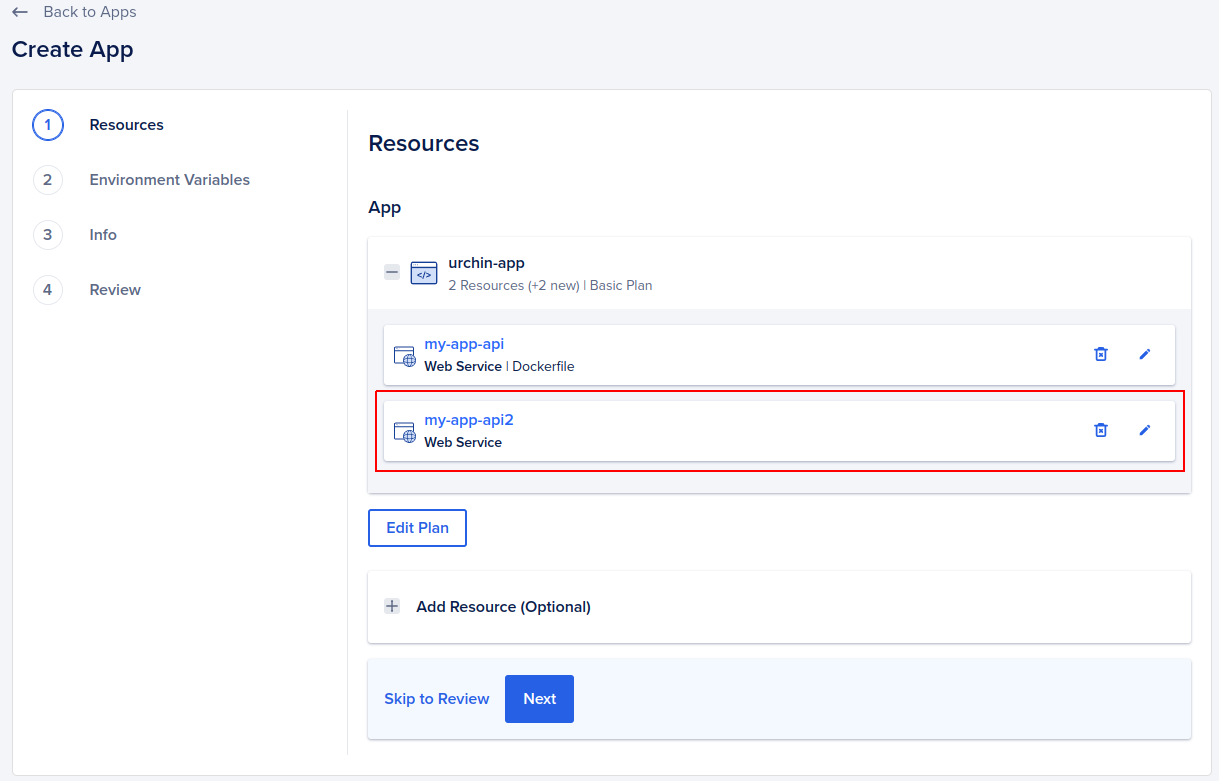
- Delete duplicated resources without dockerfile if you have one.
- Select desired plan. For staging/demo environments, sufficiently selecting a basic plan for 5$. For production, you might consider selecting a more expensive plan.
Environment variables
TheAPP_ENV environment variable is typically set based on the environment in which the application is running.
Its value corresponds to the specific environment, such as “development”, “staging” or “production”.
This variable helps the application identify its current environment and load the corresponding configuration.
For the web application, by setting the environment variable APP_ENV,
the application can determine the environment in which it is running and load the appropriate configuration file:
These files hold the client config for each environment. The web app is built with Vite, so client-side variables are prefixed with
VITE_ and read through import.meta.env (for example VITE_API_URL, VITE_WS_URL, VITE_WEB_URL). They are baked in at build time, so commit up-to-date values before you deploy.
In contrast, the API utilizes a single .env file that houses its environment-specific configuration.
This file typically contains variables like API keys, secrets, or other sensitive information.
To ensure security, it’s crucial to add the .env file to the .gitignore file,
preventing it from being tracked and committed to the repository.
So just specify the environment variables that will contain the values of your secrets.
For example, if you have a secret named API_KEY,
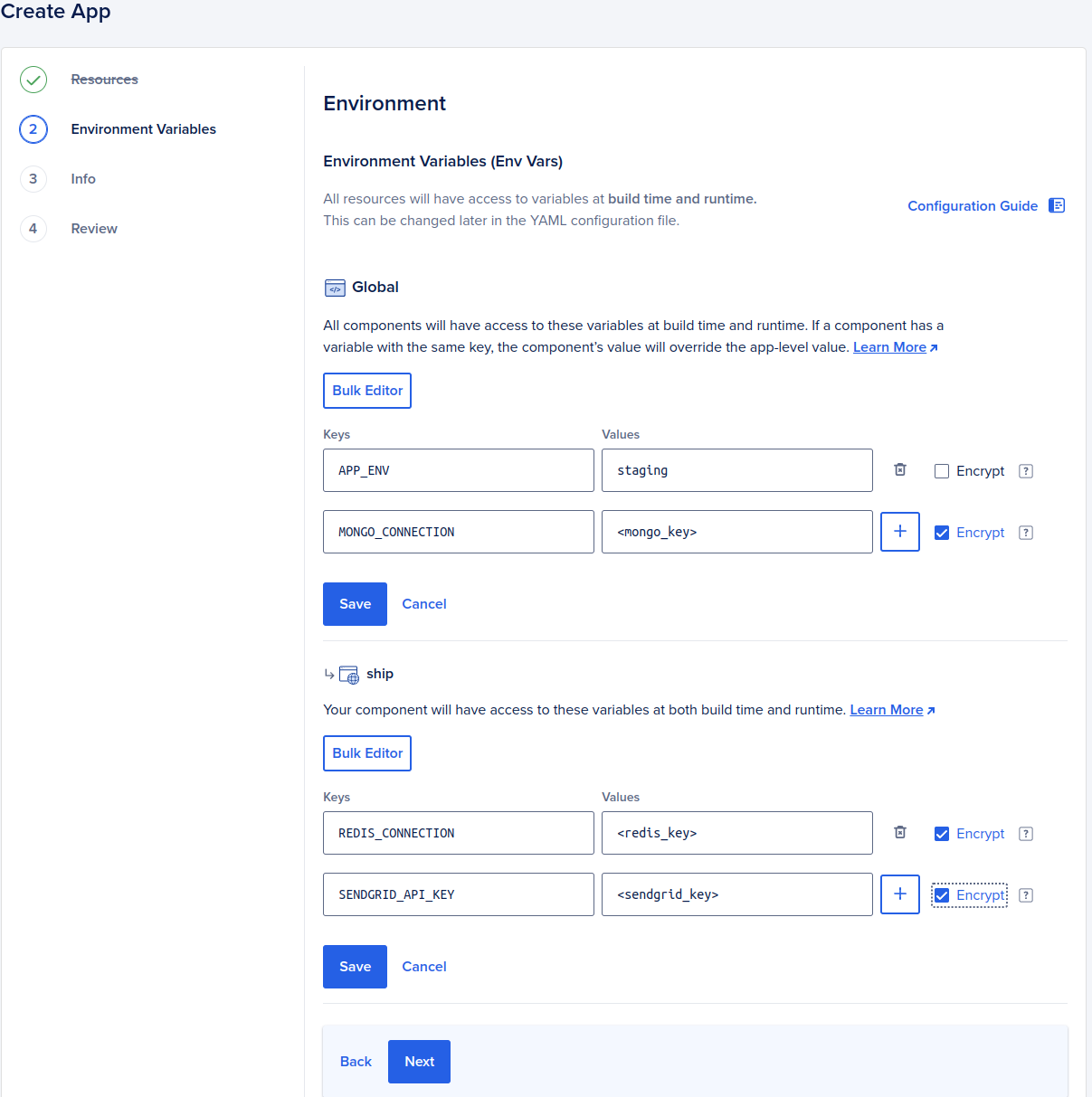
create an environment variable named API_KEY and set the value of the corresponding secret for it. The API needs at least DATABASE_URL (your PostgreSQL connection string) and REDIS_URI (your Redis connection string).
Variables added in the Global section will be available to all resources within the application, while ones added in the ship section will be available only for that resource. Adding DATABASE_URL and REDIS_URI in the global section lets the migrator and scheduler resources reuse them later.
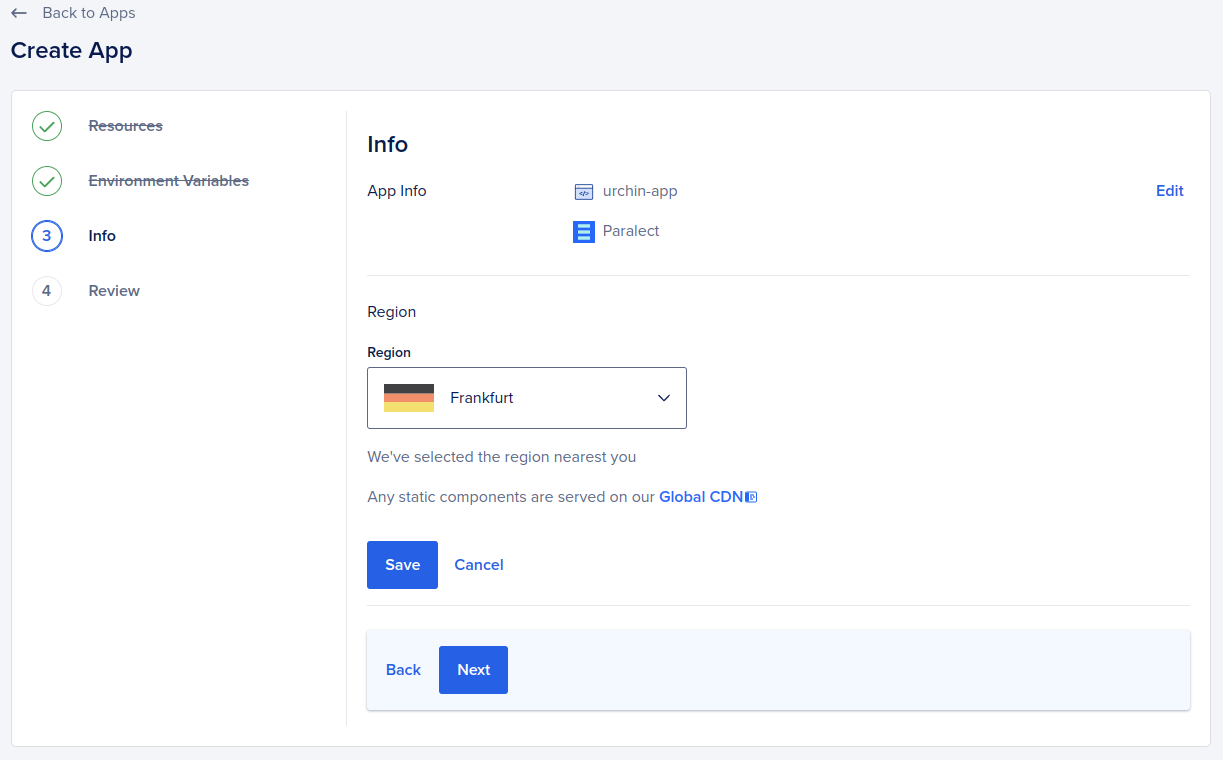
Application name and hosted region
- [Optional] Select desired application name and/or region for your application
Review
Verify everything is correct and create a new resource. After the application creation, you’ll land on the application dashboard page. On dashboard, you can see application status, check runtime logs, track deployment status, and manage application settings.App Spec
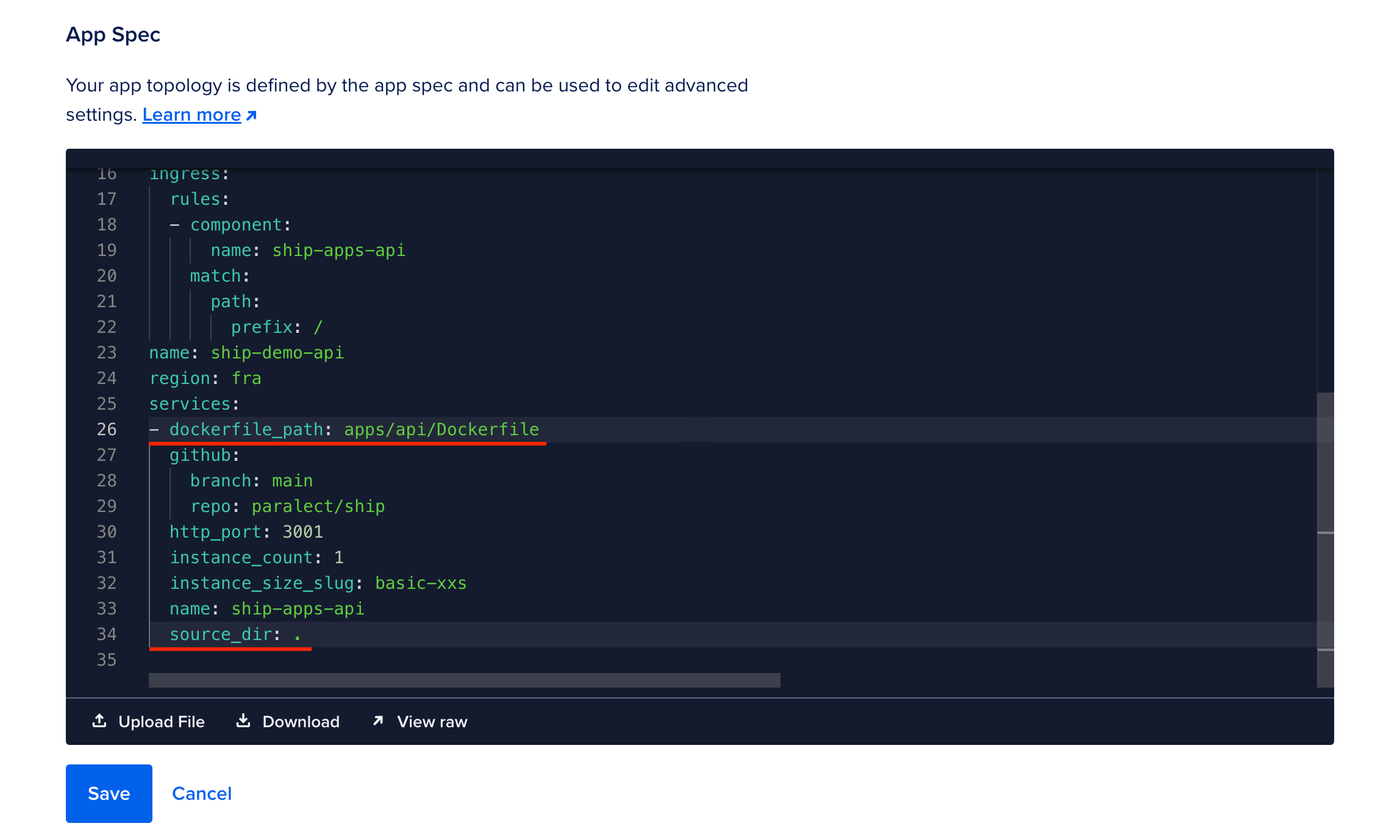
Digital Ocean sets the path to Dockerfiles to the root by default. You will need to change it manually. Navigate to Settings, expand the App spec tab and changedockerfile_path in the editor.
To deploy your application in a monorepo, it’s essential to modify the source_dir parameter to the root directory.
This adjustment is necessary to ensure the correct configuration and operation of the applications within the monorepo.
Cloudflare
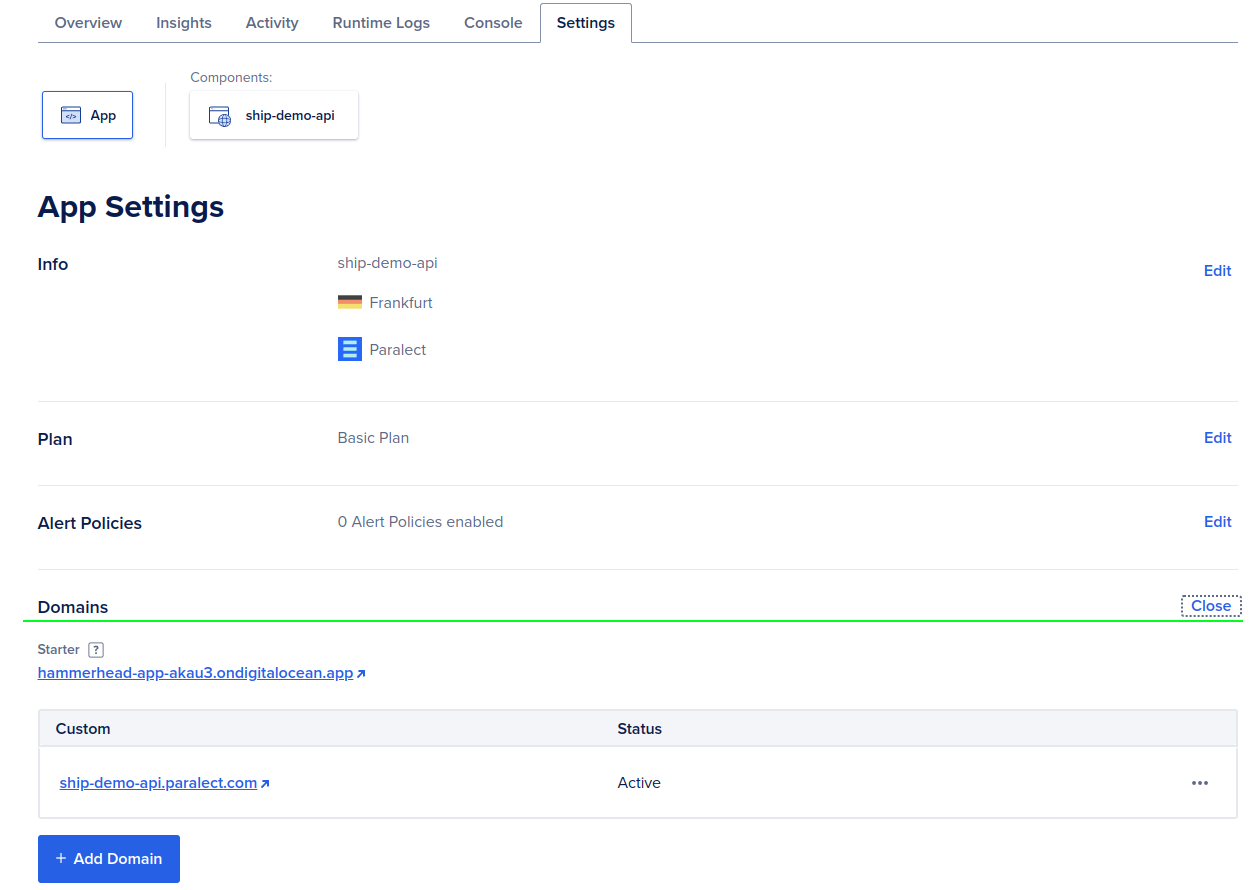
Before this step you need to register a domain name, usually we already have it if not, look: Register a new domain Navigate to your Digital ocean application and openSettings tab. Select Domains row to open domain settings and click Add domain button
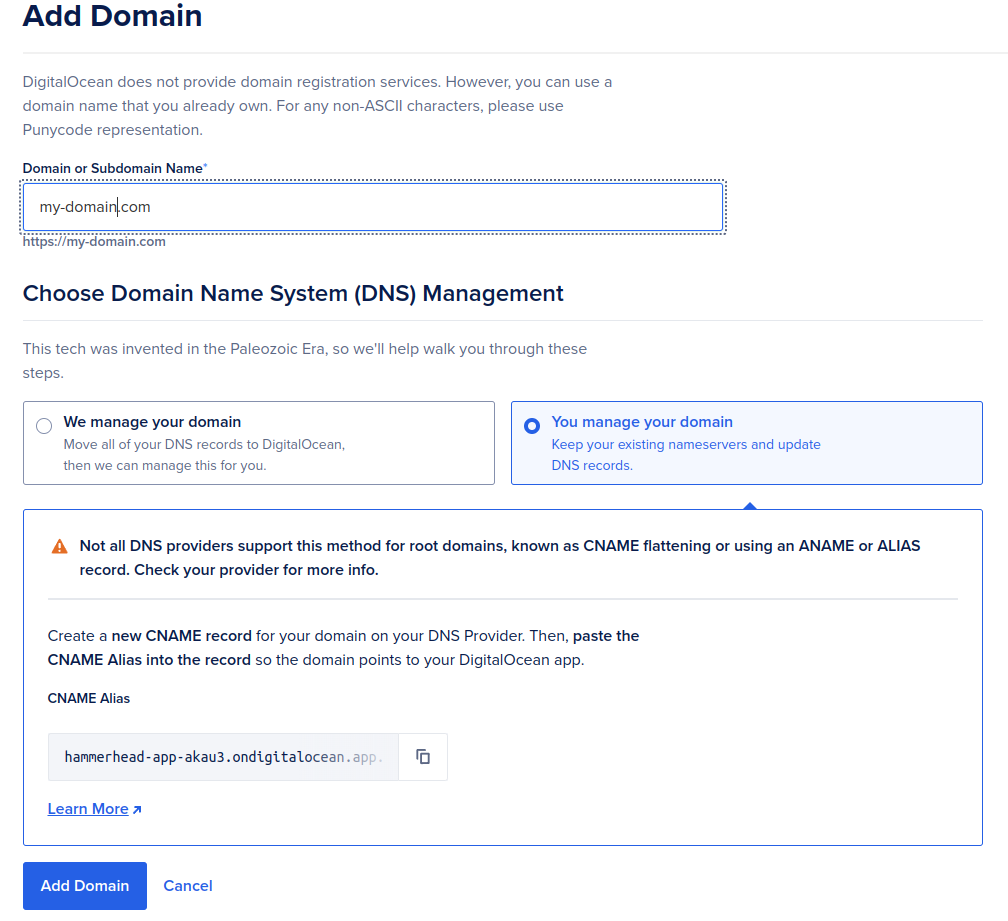
You manage your domain
In the bottom section you’ll be asked to copy CNAME alias of your digital ocean application name to record in your dns provider.
Copy that alias and leave the form (do no close it or submit).
- Go to
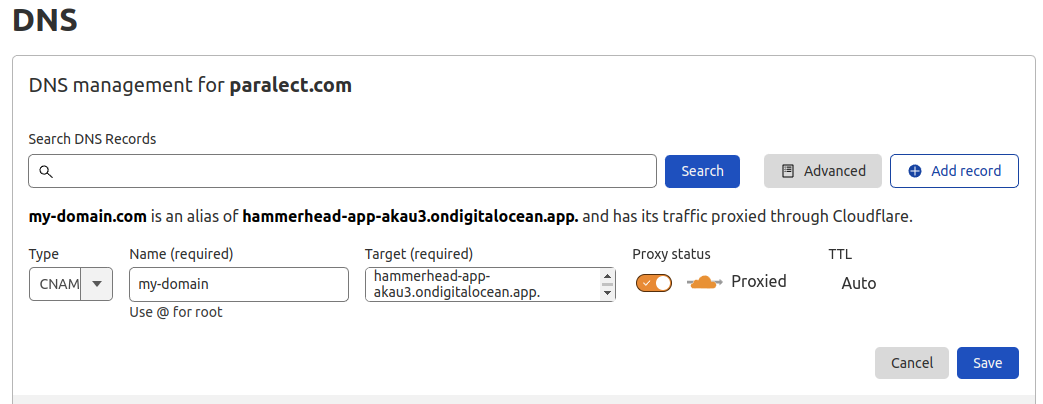
DNStab and create a new record. - Click
Add record. Select typeCNAME, enter domain name (must be the same you entered in digital ocean settings) and paste alias intotargetfield. Make sureProxy statustoggle enabled. - Save changes
GitHub Actions
You can find two github actions in the.github/workflows folder, responsible for triggering deployment when you push changes in your repository. If you chose frontend or backend on the initialization step, you’ll have one github workflow for the selected application type.
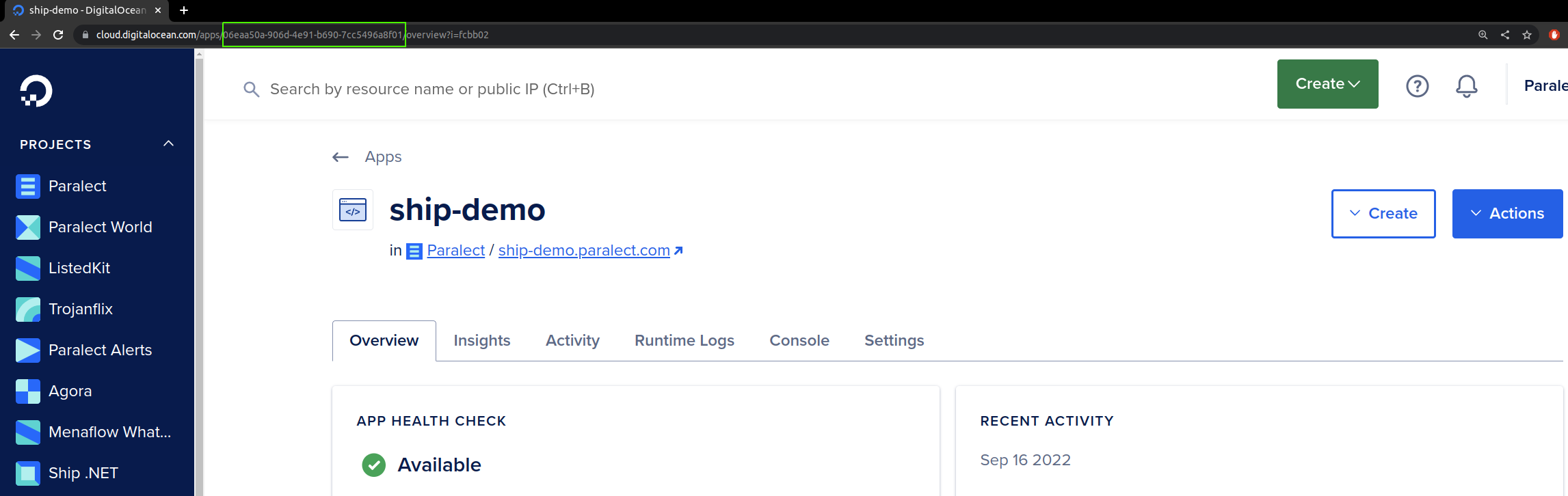
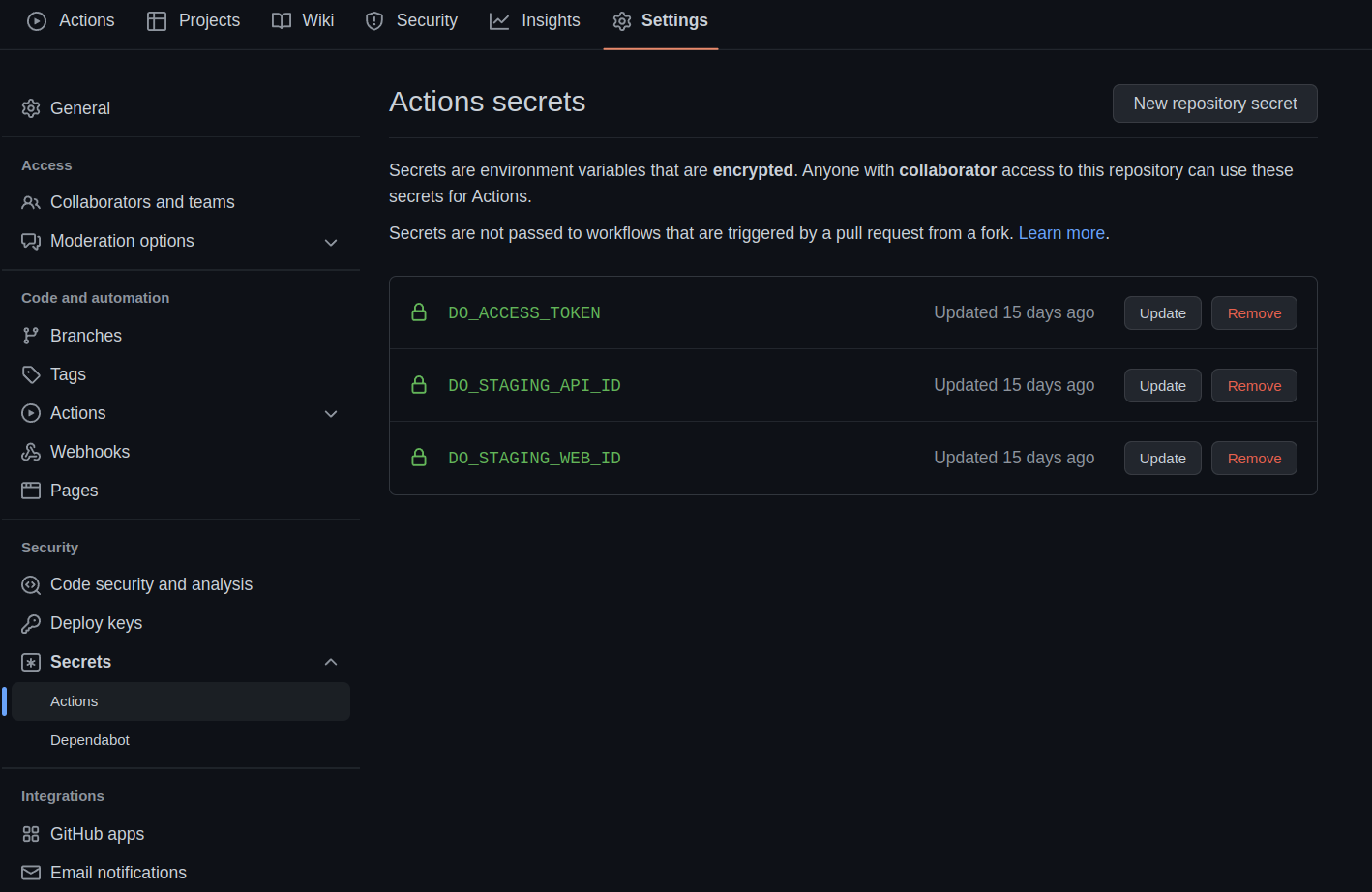
These actions require a Digital Ocean access token and application ID. Respectively these are DO_ACCESS_TOKEN and DO_API_STAGING_APP_ID/DO_WEB_STAGING_APP_ID/DO_API_PRODUCTION_APP_ID/DO_WEB_PRODUCTION_APP_ID.
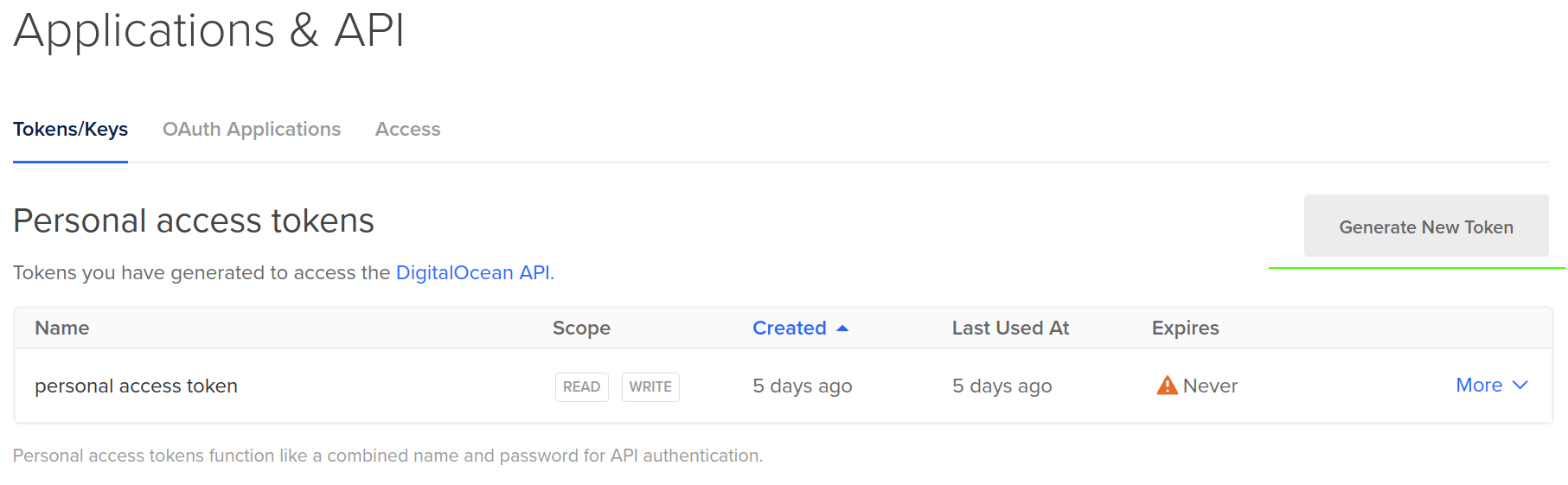
Navigate to digital ocean and open the API tab on the left sidebar.
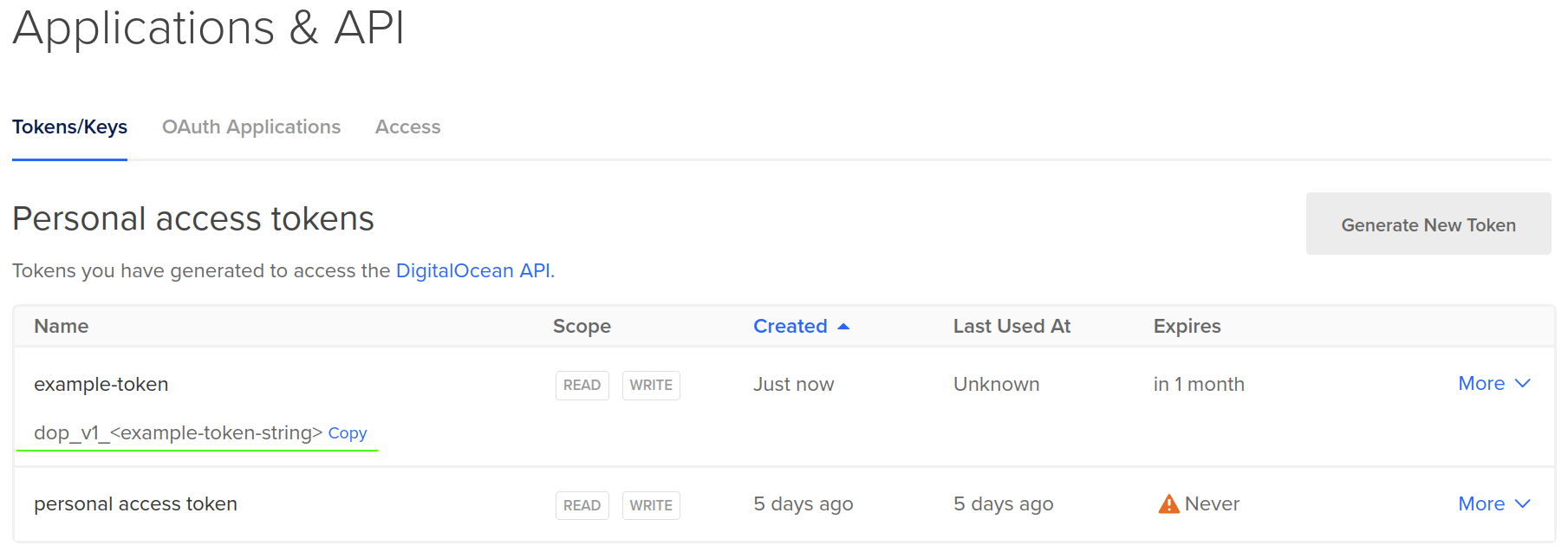
Click Generate new token, select a name and set the expiration period.
Also, pick both read and write permissions for the scope.
Set up migrator and scheduler (Optional)
Digital Ocean Apps allows configuring additional resources within one application, which can serve as background workers and jobs, and a scheduler to run before/after the deployment process. The migrator is a pre-deployJob that applies Drizzle migrations (pnpm --filter api migrate, built from apps/api/Dockerfile.migrator), and the scheduler is a Worker that runs background jobs (pnpm --filter api schedule, built from apps/api/Dockerfile.scheduler). Both reuse the API image and the global DATABASE_URL and REDIS_URI variables.
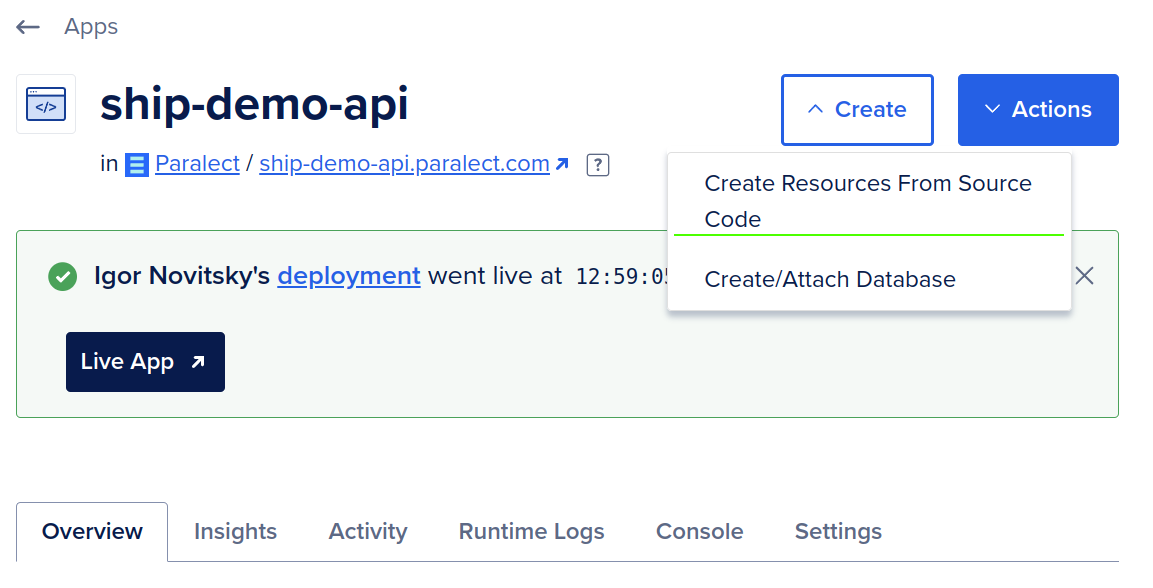
Navigate to your Digital Ocean application. Make sure to select the application with API server, open a Create dropdown menu in the top-right corner, and select the Create Resources From Source Code option.
- Select a project repository, add a path to the source directory, disable auto-deploy, and press
Next.
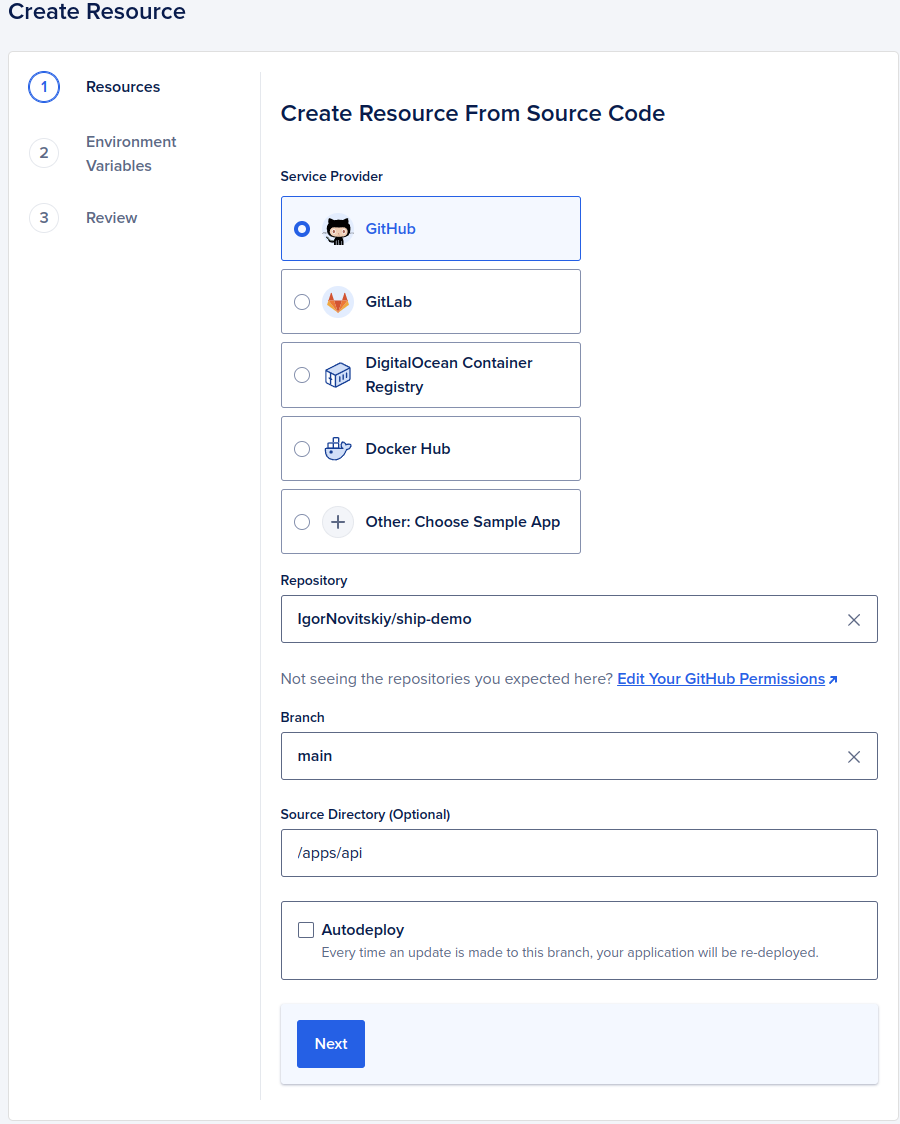
- Delete a resource without Dockerfile and edit second by clicking on the pencil icon.
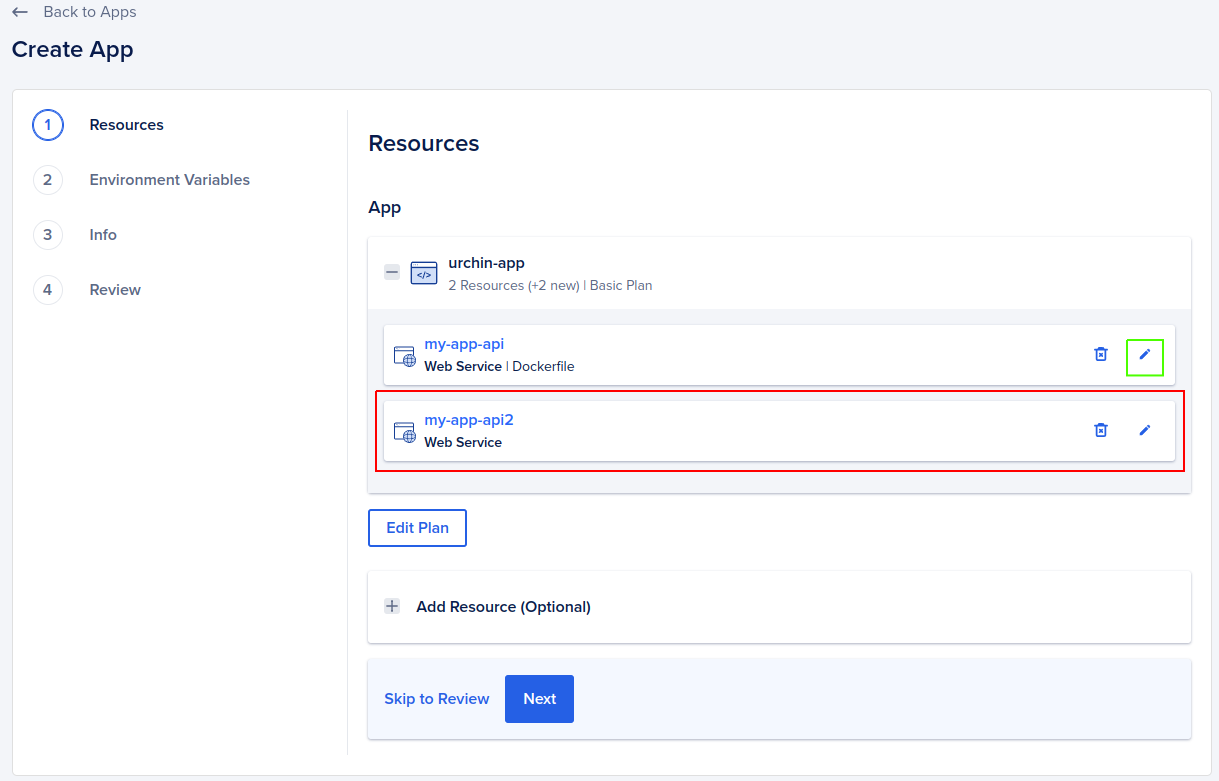
- In the edit resource form, select
Resource Type-Job,Before every deploy, and change the name of the resource (not required, but might be useful later). Press save and go back to the resources screen.
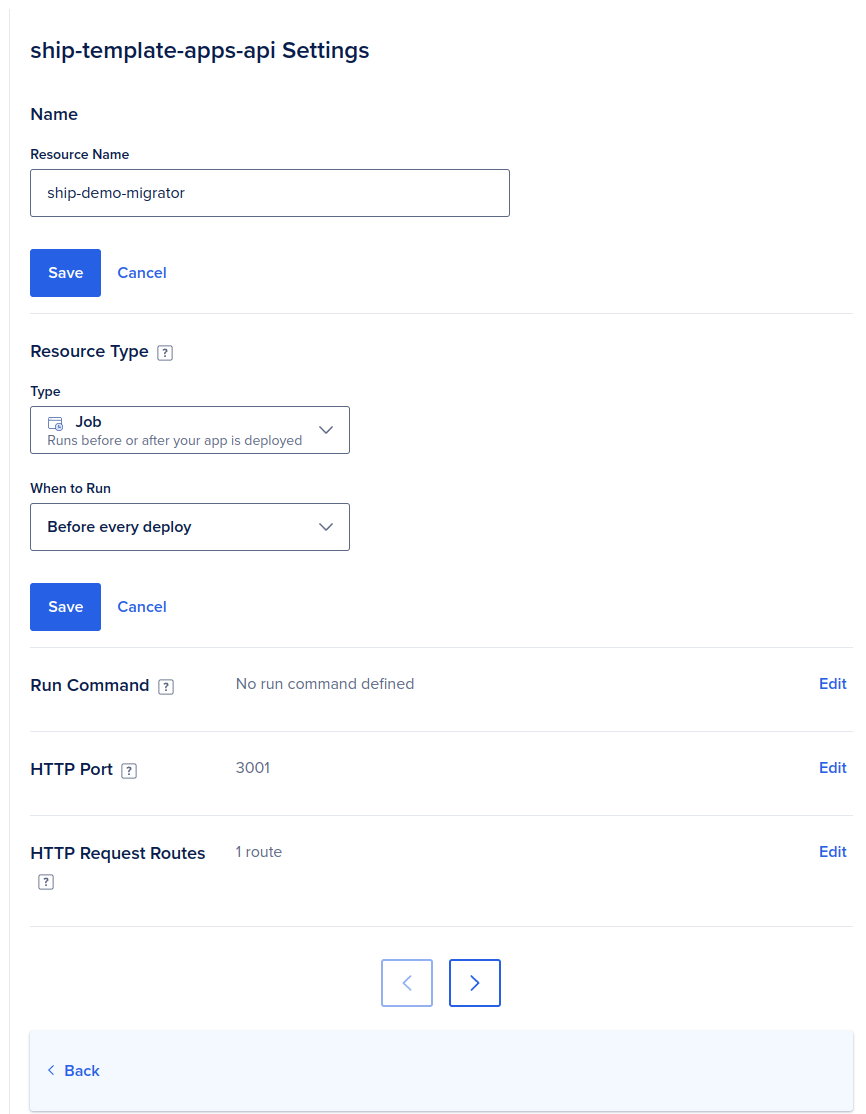
-
Select the
Add Additional Resource from Sourceoption below the list of added resources, repeat steps 1-2, and navigate to the edit form for a new resource. -
Select
Resource Type-Worker, save changes and go back.
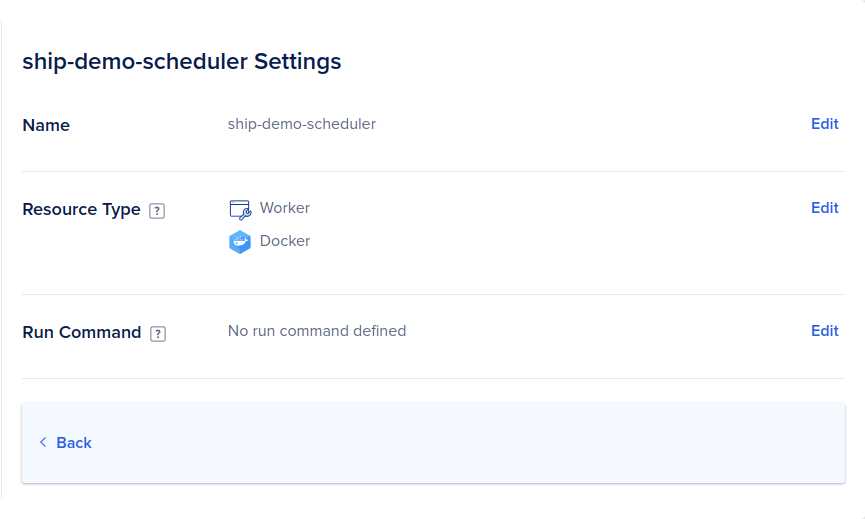
- Proceed with the next steps, add environment variables if needed, verify a new monthly cost of the application and create resources.
overview tab.
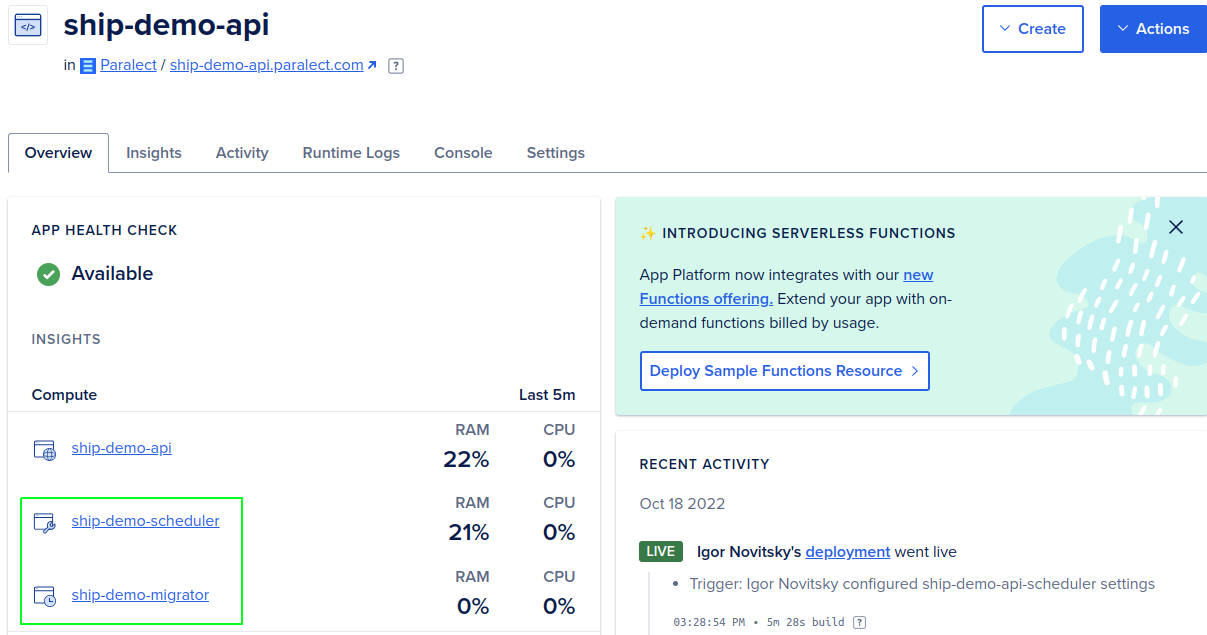
- Navigate to Application Spec
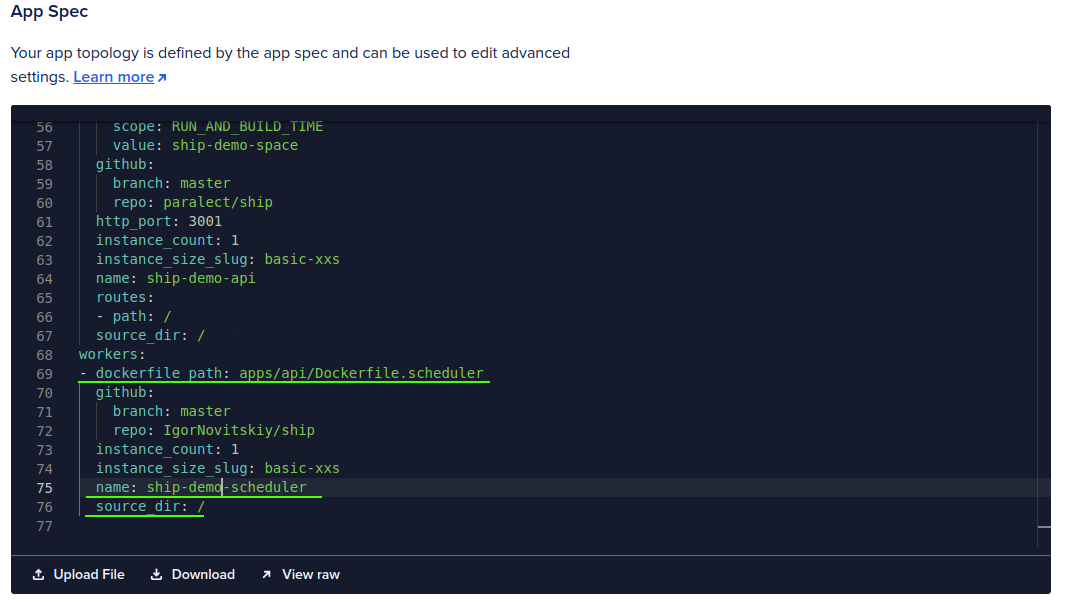
(settings tab). Change thedockerfile_pathvariable to files with migrator and scheduler. Migrator is placed in thejobssection. You can also find it by name of the resource. The scheduler is placed in theworkerssection.
To deploy your application in a monorepo, it’s essential to modify the
source_dir parameter to the root directory.
This adjustment is necessary to ensure the correct configuration and operation of the applications within the monorepo.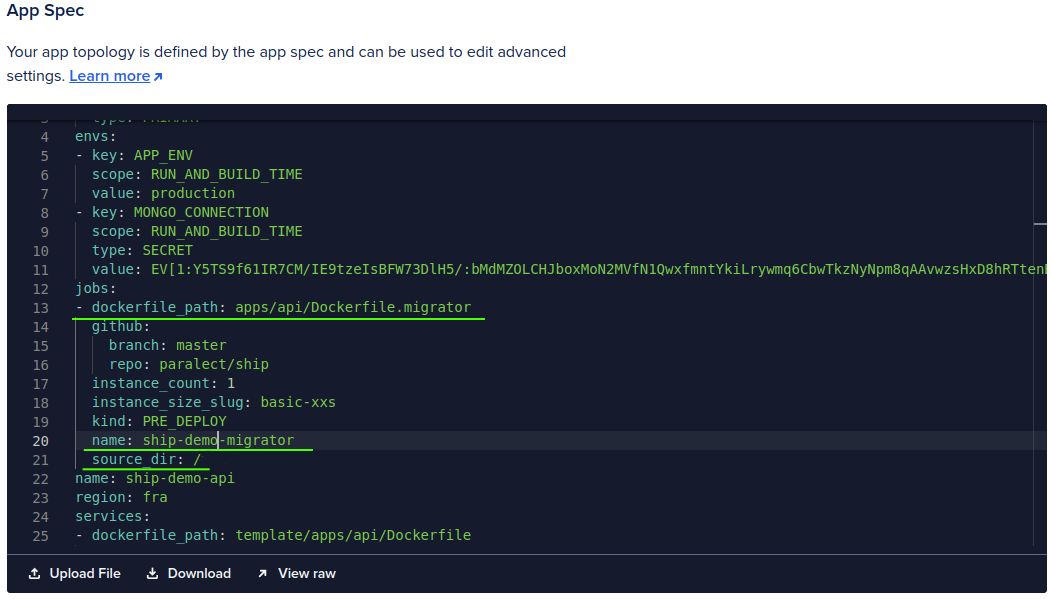
Logging (optional)
Build-in
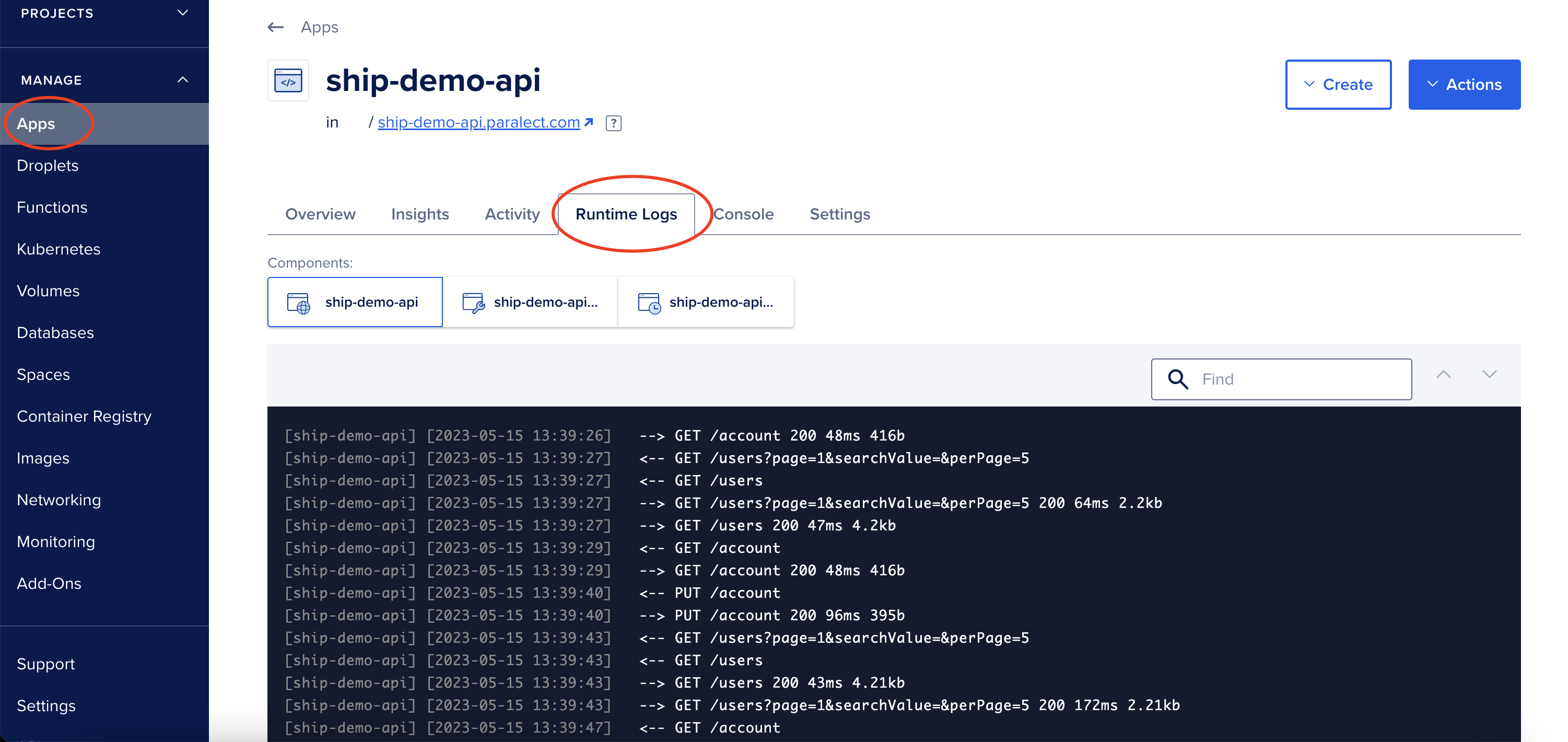
Digital Ocean has built-in logs in raw format. It will gather all data that your apps will produce. In order to view them, follow these steps:- Log in to your Digital Ocean account.
- Click on the Apps tab in the left-hand navigation menu.
- Click on the name of the app you want to view the logs for.
- Click on the Runtime Logs tab in the app dashboard.
- You will see a list of logs for different components of your app. Click on the component you want to view the logs for.
- You can filter the logs by time, severity, and component. Use the drop-down menus provided to select your filter criteria.
- You can also search for specific keywords in the logs by using the search bar at the top of the page.
Integrations
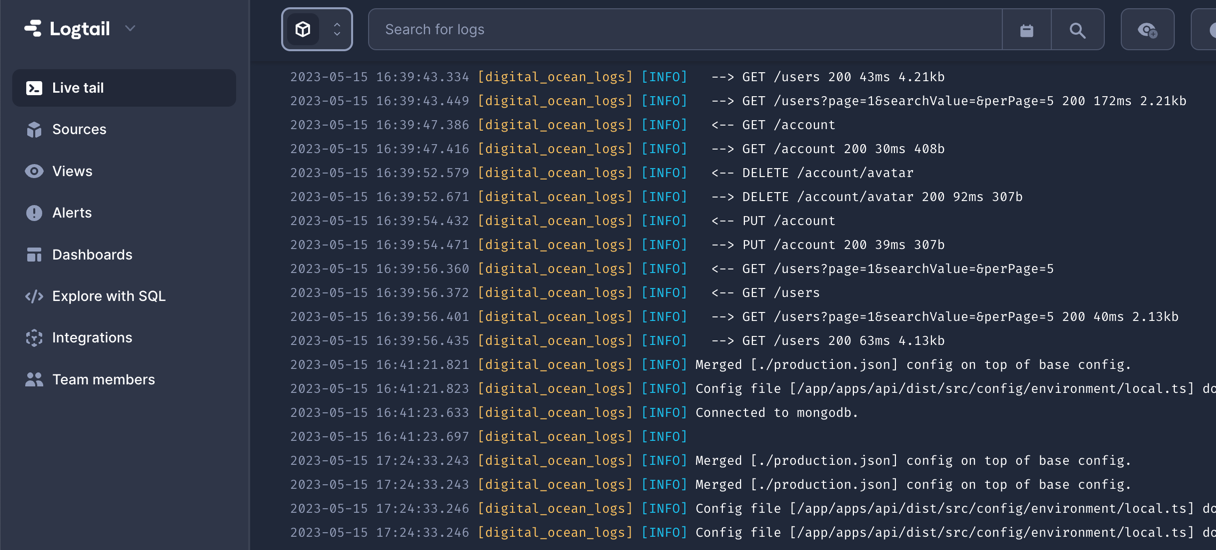
Currently, Digital Ocean Apps supports only 3 integrations: PaperTrail, Logtail and Datadog. You can find detailed instructions on how to set up these logs at this link.Example Integration Logtail
To configure Logtail follow these steps:- Create account on Logtail
- Open Sources on the left sidebar.
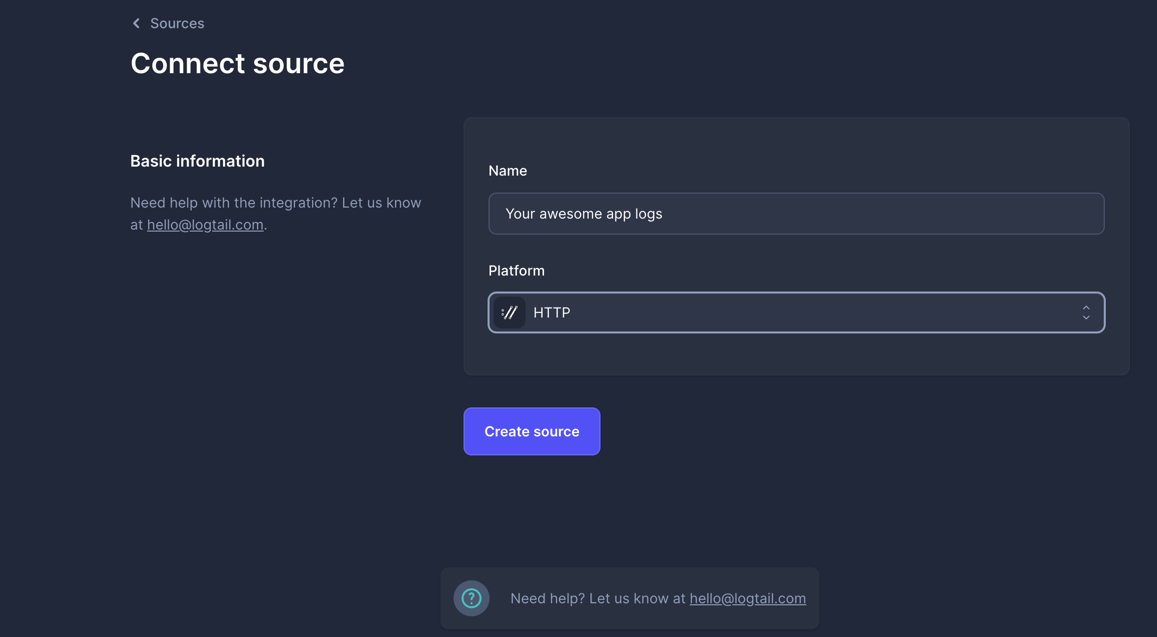
- Create new source by clicking “Connect source” button
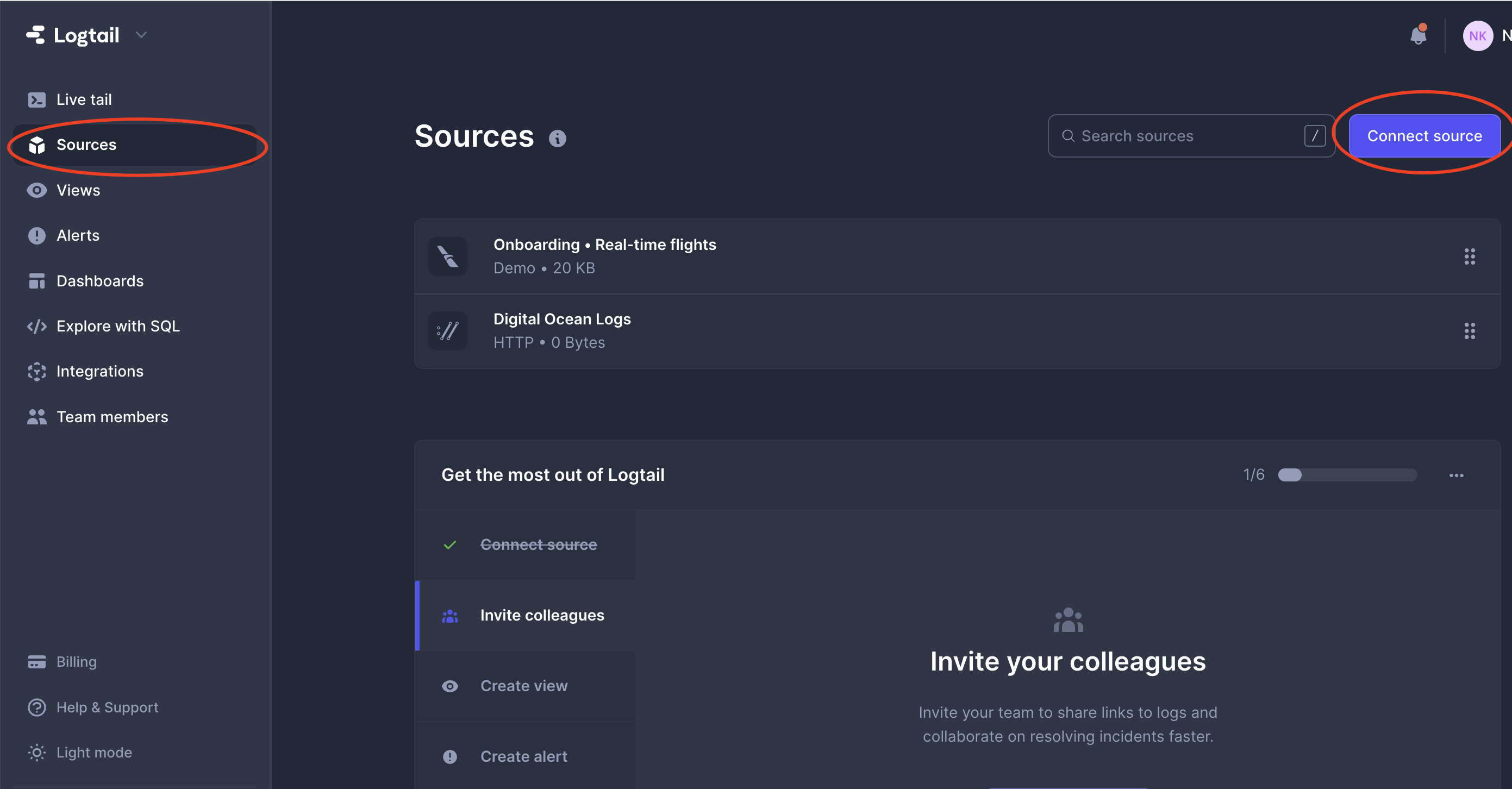
- Select HTTP source and specify name for this connection
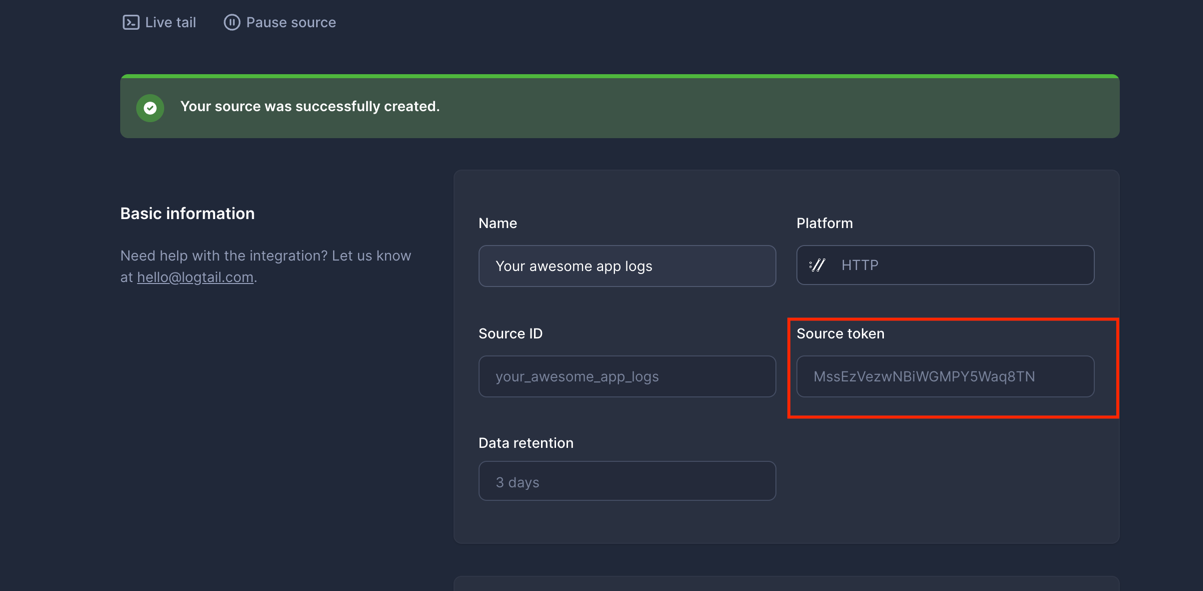
- Copy source token
- Open Digital Ocean Apps
- Select Settings tab for your application
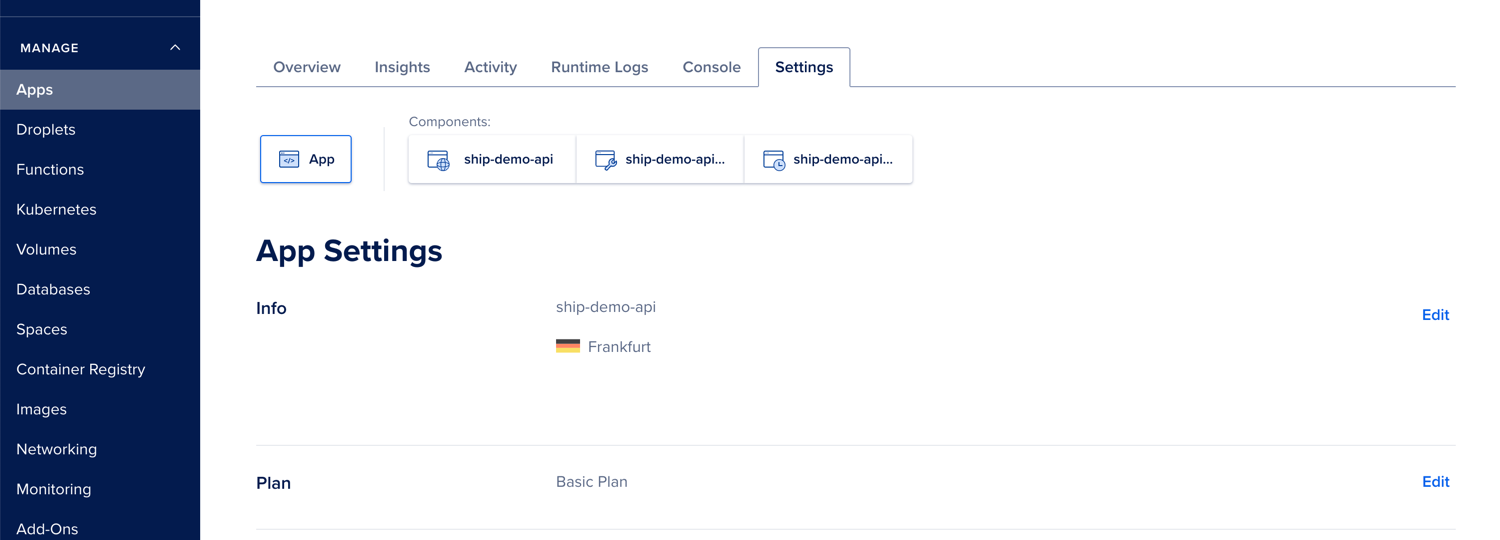
- Select Log Forwarding and then press “Add Destination”

- Fill information with token that we retrieved from Logtail
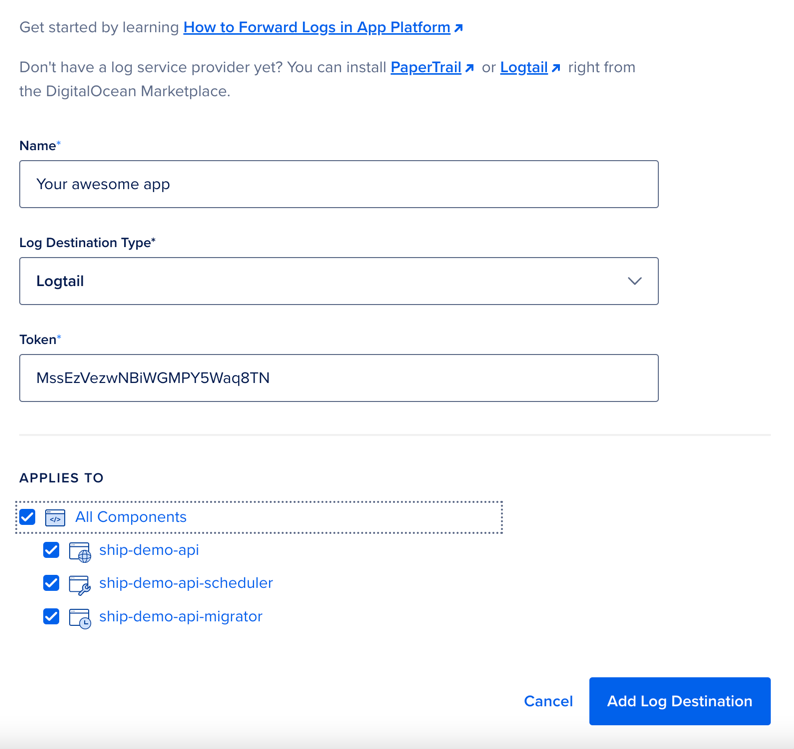
- That’s it! In couple minutes your app will send the latest logs to Logtail